Configuration with UA Expert:
If the logged in user has the necessary rights, SKS is configurable in the UAExpert PubSub View. Controllers which support the SKS Server feature will appear under the Security folder (PubSub Config View Tree)
-
Add a new Security Group under the SKS Server Controller 1.
-
Security Group Settings:
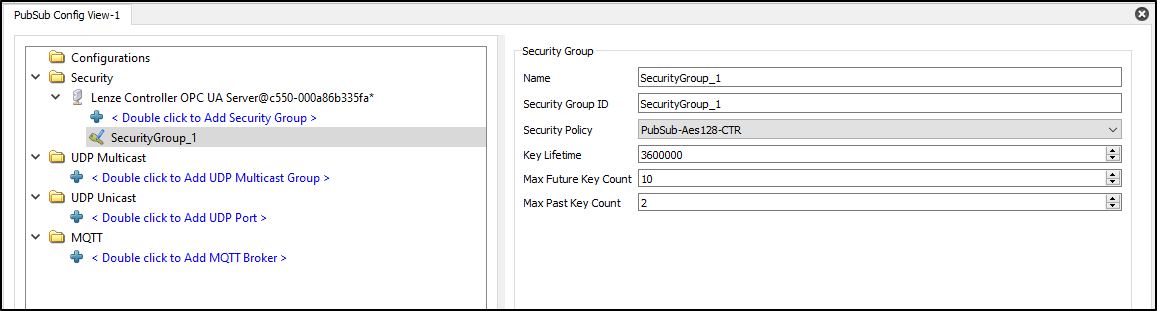
The Property MaxFutureKeyCount defines the maximum number of future keys.
The Property MaxPastKeyCount defines the maximum number of historical keys stored by the SKS. The historical keys are necessary to allow Subscribers to request keys for older NetworkMessages.
-
Configure the normal PubSub connection according to 2.5 Configuration Example with UA Expert.
-
Setting Security mode in Publishers (Subscribers take settings from corresponding Publisher):
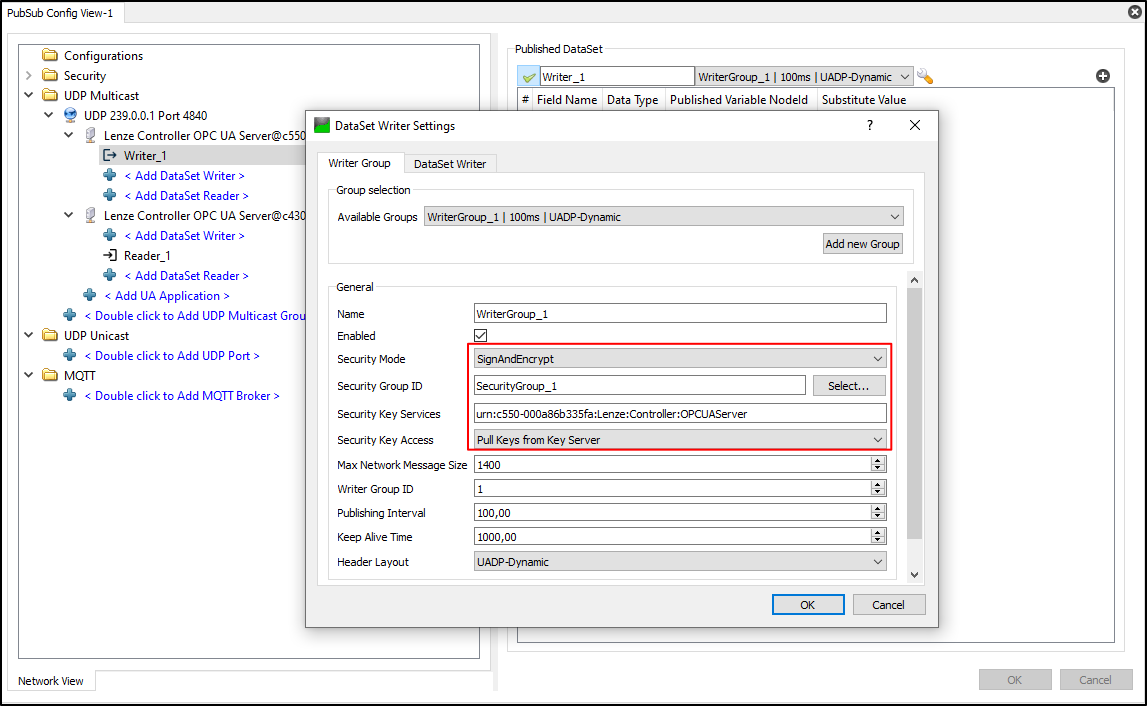
In settings of DataSetWriters:
-
Set Security Mode != None
-
Choose security group from drop down menu (can choose from previously added security groups (step 1.)
-
Choose Security Key Access = Pull Keys from Key Server
-
-
Add Data Set Reader for Controller 2 and reference Data Set Writer1 of Controller 1 as done under chapter 2.5 for the normal PubSub configuration.
-
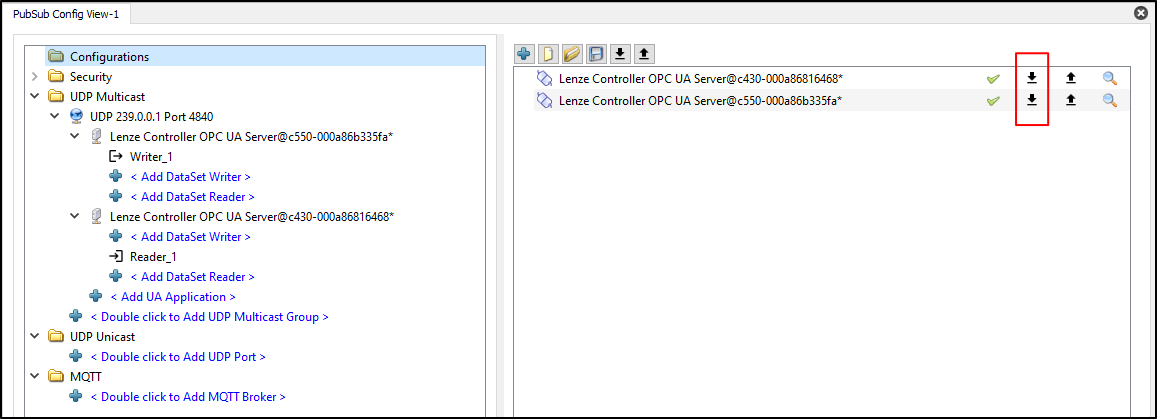
Apply and transfer configurations to Controller 1 and Controller 2
-
Restart Server or Reboot Controller 1
-
The activated pull client on Controller 2 should try to connect Controller 1 (SKS Server)
-
Due to the needed secure communication, this connection procedure will fail for the first time, because of the untrusted client certificate
-
-
Trust SKS Client Certificate on Controller 1

-
Trust SKS Client Certificate and Restart Server to restart connection procedure
Note: to avoid side effects ensure that not multiple certificates from the same issuer are in trusted and or quarantined certificates folder (e.g. an old trusted certificate and a new quarantined certificate)
-
-
Trust SKS Server Certificate on Controller 2
-
The Pull Client will now abort the connection procedure if the server certificate is not trusted!
-
Trust the SKS Server Certificate
-
Now the SKS Pull client should be able to connect temporarily and try to pull the SKS Keys.
Avoid multiple certificates here as well.
-
-
Optional: Check operation
-
Check PubSub Diagnostics in 0x247E:0050 and 0x247E:0051 on Controller 2 regarding SKS Pull Client State
-
Alternatively check the success by monitoring a destination PLC variable where the subscribed data is written to
Note: if SKS Keys are updated on Controller 2 (SKS Client) and the Controller 1 (SKS Server) will be restarted afterwards (or Project/Bootproject will be updated) then the already pulled keys on Controller 2 are invalid because new keys will be generated on Controller 1. Therefore, restart also Controller 2 to restart the pulling procedure.
-