Select variable
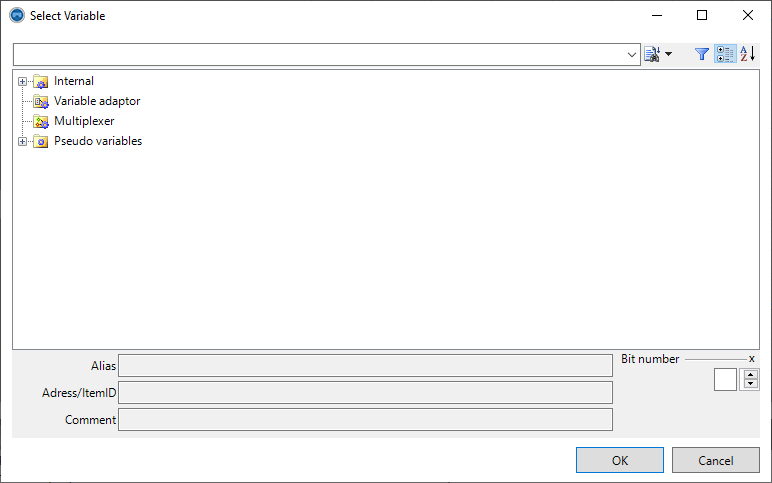
The Select variable dialogue lists the definitions that are available in the project as a data source for a control element or a definition:
-
Process variables
-
Internal and external variables that exist as definitions in the project file.
-
Some of the available system variables are listed under the Internal node.
-
Variables that are defined as a field or as a structure data type contain the elements as sub-nodes in the dialogue view. However, these sub-nodes are not available if the option Suppress element resolution in favour of power tag counting has been activated in the variable.
-
-
Variable sets of variable adapters
The data sources listed here result from the configuration of the variable adapter definition type. The identifiers that were specified as aliases in the corresponding variable records are listed here.
-
Pseudo variables
-
Pseudo variables do not have a memory image. However, they are characterised by a data type. Pseudo variables are always used if the function of a control element is to be used without a corresponding process variable being available for connection. Control elements can only be operated if a variable is linked via the "VariableName" property.
-
For example, the on-screen keyboard-optimised "CheckBox" control element can be used to make a setting that only affects the visualisation interface and has no corresponding image in the variable server. The value of the linked pseudo variable can only be read in the control element. The value can be analysed or saved in the control element using appropriate programming.
-
-
System variables
-
System variables assign a predefined function to a fixed variable identifier. Corresponding definitions must be created in the project file for some system variables. Others do not require this definition.
-
You can find more information on this in the System variables chapter.
-
The content of the variable selection dialogue is usually filtered by the calling component. For example, variables of type VT_BSTR are not listed if the calling control element only supports numerical data types. The dialogue also includes the option of user-defined filtering of data types and access rights. Therefore, if a variable is not visible in the dialogue, you must first check whether a connection to the data type is possible at all. You must then check whether a user-defined filter excludes the variable from the view.
The selection of a variable is always based on the complete variable identifier (if applicable <channel name>.<variable alias>). If a variable is selected under the External node whose complete identifier appears again in the Variable adapter node, this is equivalent to the corresponding selection under the named node. The runtime system prioritises the connection to variable sets from variable adapters.
Further functions of the dialogue
A toolbar with the following controls is located at the top of the variable selection dialogue:
|
|
Input field for searching for a variable identifier. When entering a variable identifier, the search function selects the first possible hit in the variable view. |
|
|
When the button is clicked, the selection in the variable view jumps to the next search hit. Keyboard shortcut: F3 |
|
|
Clicking on the button opens a dialogue in which criteria for filtering the variables can be selected. Keyboard shortcut: F9 The filter icon is only displayed if the Show filter settings option is activated in the Options dialogue(deactivated by default). |
|
|
If the button is pressed, the variables are displayed in the hierarchical view (division of the process variables into namespaces). |
|
|
If the button is pressed, the variables are displayed as an alphabetical list (flat sorted table of all variables). |



