Display custom lock page
If the application is locked via the LockSessionAction, the LoginView is displayed by default. This guide shows you how to display a specific lock page instead of the LoginView.
Since displaying the lock page requires an active session, a default user must exist in the project. By default, this is the user guest from the user group Guests.
The user is specified in the Default user entry in the Project Settings Editor.
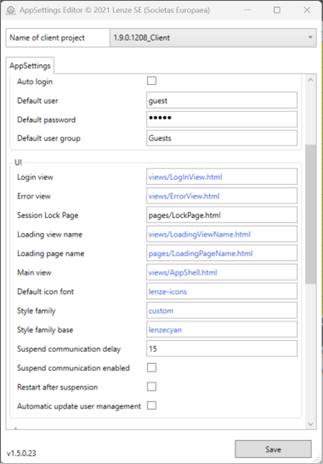
Default user, Default password, and Default user group entries in the Project Settings editor
If you want to define a different default user, create the user in user management and indicate the username, password, and user group of this user in the corresponding entries in the Project Settings Editor.
To display a specific lock page, proceed as follows:
-
In the client folder, create a new page via Add New Item.... Name the page LockPage, for example. Design the page according to your requirements.
-
Indicate the page in the Project Settings Editor under Session Lock Page.
Once these steps have been completed, the operator will be directed to the configured lock page after clicking the button.
Related topics: