Disabling and enabling a control using a VariableTrigger
This example shows how to enable and disable a control depending on the variable value using a trigger (VariableTrigger) and an action (SetPropertyAction).
Let’s assume the following scenario. You want to lock (disable) and unlock (enable) a button depending on the machine state. If the machine is in production mode (e.g. filling bottles with a certain beverage), the button should be disabled. If the machine is in setup mode (e.g. to switch to a different bottle size), the button should be enabled.
Implementation in the app
-
To implement this example scenario, do the following:
-
Start EASY UI Designer and create a new project.
-
Create a new internal variable that will control the machine state in your project.
In a realistic scenario, you would rather use a process variable from the controller.-
In the Project Explorer, expand the nodes [Project name]_Server > Variables > Channels and double-click on the Internal node to open the table editor for variables.
-
To create a new numeric variable, right-click on the table editor and select New from the context menu.
-
-
In the Project Explorer, expand the folders [ProjectName]_Client > Design > pages and open Page1.html in the designer.
-
Add a DropDownBox to the page in the designer and select the previously created variable in the VariableName property of the DropDownBox.
-
Delete a DropDownBoxItem in the Document Outline and set the properties of the other two DropDownBoxItems as follows:
Element Property Value 1st DropDownBoxItem Value
Text
0
Production
2nd DropDownBoxItem Value
Text
1
Setup
-
Add a button to the page and set the button text as follows:
Property Value Text Set up machine
-
Add a VariableTrigger to the button and configure the trigger as follows:
Property Value VariableName Variable1 VariableProperty Value
-
Add a SetPropertyAction to the trigger and configure the action using the settings in the Condition category as follows:
 if Trigger value == 1
then
set property Disabled
of target self
to else to 
-
Press F5 to test the application.
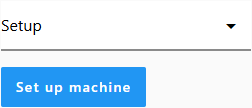
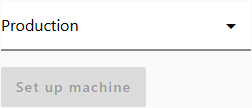
If you select Production from the drop-down menu on Page1, the Set up machine button is disabled and cannot be used. If you select Setup, the button is enabled again.
Related topics: