Add triggers and actions to a control
EASY UI Designer provides triggers and actions that you can add to a control in order to trigger an action if a certain event occurs such as a change in the variable or a property, a click or another event. This guide shows you how to add a trigger and an action to a control.
The following guide describes how to add triggers and actions using the Triggers and Actions window.
-
To add a trigger and an action to a control:
-
Select the control in the designer to which you want to add a trigger and an action.
-
Click on the Triggers and Actions tab next to the Properties tab.
In the default IDE window layout , the windows Triggers and Actions and Properties are displayed as tabs on the right-hand side of the IDE. If the Triggers and Actions window was closed, you can show it again by selecting View > Triggers and Actions in the ribbon. -
Select the desired trigger from the drop-down list at the top of the Triggers and Actions window and click on the green plus icon to add the trigger to the control.
The trigger appears below the drop-down list. Further down in the window, you can see the properties of the trigger. In the Document Outline window, a lighting icon appears next to the control.
-
To add an action to the trigger, double-click on click on Add action... or the green plus icon
 in the same line.
The Add Action dialog appears.
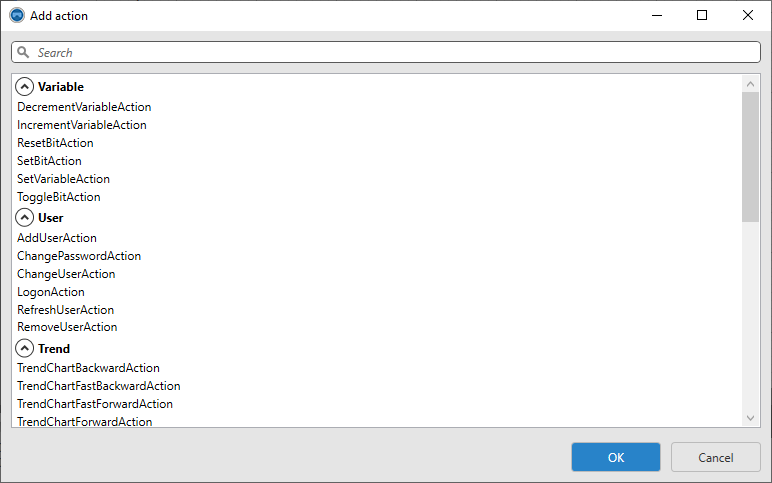
Add Action dialog
-
Select the desired action and click OK to confirm.
The action appears below the trigger. Further down in the window, you can see the properties of the action.
-
Set the properties of the action.
Now you have added a trigger and an action to the control.
Related topics: