Symbol:

Category: Date/Time Controls
The element is a clock that displays the current time of day. The clock can also display a random time.


|
Are all element properties available? |
|---|---|
|
All properties are visible only after you select the Advanced option or the All categories filter in Properties. |
|
Element name |
Example: |
|
Element Type |
Analog Clock |
The position defines the location and size of the element in the visualization window. This is based on the Cartesian coordinate system. The origin is located in the upper left corner of the window. The positive horizontal X-axis runs to the right. The positive vertical Y-axis runs downwards.
|
X |
The X-coordinate (in pixels) of the upper left corner of the element Example: |
|
Y |
The Y-coordinate (in pixels) of the upper left corner of the element Example: |
|
Width |
Specified in pixels Example: |
|
Height |
Specified in pixels Example: |

|
Use system time |
|
||||||
|
Variable |
Requirement: The Use system time property is not activated. Variable ( Example: |

|
|
Tip |
|---|---|
|
You can programmatically switch the local time zone of the system time to universal time (UTC). When the variable For the display of date and time values, you can extend the respective format string with the time zone code |
|
Design |
|
Requirement: The Property is Explicit. Only then is the Clock Settings category visible.
Table 16. Background
|
Image color |
Color variants of the default background image
|
|
Own background |
Background display with the specific Image. Replaces the default background image. |
|
Image |
Image from an image pool or library Example: |
|
Transparent color |
The transparent color in the image representation. Example: White. Means that the white parts of the image are transparent |
|
Use background color |
Requirement: No image reference is given in the Image property. |
|
Background color |
Style color or color Requirement: Use background color is enabled. |
Table 17. Arrows
|
Arrow type |
Example: Thin pointer |
|
Color of hour hand Color of minute hand Color of second hand |
Style color or color for the hands |
Table 18. Lines
|
Line type |
Clock face graduation
|
|
Color |
Color of the clock face graduation |
|
Line width |
Line weight of the clock face graduation |
|
Scale in 3D |
|
Table 19. Numerics
|
Style of numerics |
Digits on the clock face
|
|
Font |
Font for displaying the digits |
|
Font color |
Font for displaying the digits |
Table 21. Positioning
|
Usage of |
|
|
Positioning |
Requirement: Visible when the Usage or property is set to Individual settings. |
|
Numerics movement |
Value (in pixels) for shifting the digits Example: |
|
Line movement |
Value (in pixels) for shifting the hour lines Example: |
|
Hands scaling |
Factor for scaling the length of the hour hand You can customize the exact position of the hour hand relative to the background image. Example: |
|
Scaling type |
Defines the scaling for height and width of the element
|
|
The properties contain fixed values for the coordinates of the point of rotation. The rotation point is displayed in the editor as the
|
||||
|
X |
X-coordinate of the point of rotation |
|||
|
Y |
Y-coordinate of the point of rotation |

The properties can be assigned to IEC variables for controlling the position of the element dynamically. The reference point is the upper left corner of the element. At runtime, the entire element is moved.
|
Movement |
|||||
|
X |
Increasing this value at runtime moves the element to the right. |
||||
|
Y |
Increasing this value at runtime moves the element downwards. |
||||
|
Rotation |
Variable (numeric data type) for the angle of rotation (in degrees) Example: The midpoint of the element rotates at the Center point. This rotation point is shown as the At runtime, the alignment of the element remains the same with respect to the coordinate system of the visualization. Increasing the value rotates the element to the right. |
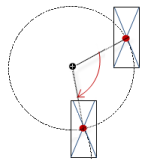
|
|||
|
Interior rotation |
Variable (numeric data type) for the angle of rotation (in degrees) Example: At runtime, the element rotates about the point of rotation specified in Center according to the value of the variable. In addition, the alignment of the element rotates according to the coordinate system of the visualization. Increasing the value in the code rotates clockwise. The rotation point is shown as the
|
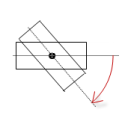
|
|||
|
|
Tip |
|---|---|
|
You can combine the variables to a Unit conversion. |
|
|
Tip |
|---|---|
|
The X, Y, Rotation, and Interior rotation properties are supported by the "Client Animation" functionality. |
The variables control the element behavior dynamically.
|
Invisible |
Variable (
|
|
|
Tip |
|---|---|
|
The Invisible property is supported by the "Client Animation" functionality. |
|
|
Tip |
|---|---|
|
These properties are available only when you have selected the Support client animations and overlay of native elements option in the Visualization Manager. |
|
Animation duration |
Variable for the duration (in milliseconds) in which the element runs an animation
Animatable properties
The animated movement is executed when at least one value of an animatable property has changed. The movement then executed is not jerky, but is smooth within the specified animation duration. The visualization element travels to the specified position while rotating dynamically. The transitions are smooth. |
|
Move to foreground |
Variable (
Example: |