Symbol:

Category: Common Controls
The element provides a visual grouping of visualization elements. The group box can have multiple levels of nesting.

|
Tip |
|---|---|
|
You can also use drag elements to add them to a Group Box. To do this, drag the element to the window area of the Group Box. The appearance of the cursor changes (a small plus sign is displayed). When you click the Shift key at the same time, the element is not added. You can remove elements from the Group Box by dragging them out of the window area. |
|
|
Are all element properties available? |
|---|---|
|
All properties are visible only after you select the Advanced option or the All categories filter in Properties. |
|
Element name |
Example: |
|
Element Type |
Group Box |
|
Clipping |
|

The position defines the location and size of the element in the visualization window. This is based on the Cartesian coordinate system. The origin is located in the upper left corner of the window. The positive horizontal X-axis runs to the right. The positive vertical Y-axis runs downwards.
|
X |
The X-coordinate (in pixels) of the upper left corner of the element Example: |
|
Y |
The Y-coordinate (in pixels) of the upper left corner of the element Example: |
|
Width |
Specified in pixels Example: |
|
Height |
Specified in pixels Example: |

|
The properties contain fixed values for the coordinates of the point of rotation. The rotation point is displayed in the editor as the
|
||||
|
X |
X-coordinate of the point of rotation |
|||
|
Y |
Y-coordinate of the point of rotation |

|
Text |
String (without single straight quotation marks) Example: The element is labeled with this text. If a placeholder |
|
Tooltip |
String (without single straight quotation marks) Example: The text is output as a tooltip. If a placeholder |
The properties get fixed values for the text properties and act on the texts configured in or .
|
Font |
Example: Default
|
|
Font color |
Example: Black
|
|
Transparency |
Integer (value range from The transparent value determines the transparency of the respective color.
|


The properties contain IEC variables for controlling the position of the element dynamically. The reference point is the upper left corner of the element. At runtime, the entire element is moved.
|
Movement |
|||||
|
X |
Increasing this value at runtime moves the element to the right. |
||||
|
Y |
Increasing this value at runtime moves the element downwards. |
||||
|
Rotation |
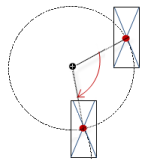
Variable (numeric data type) for the angle of rotation (in degrees) Example: The midpoint of the element rotates at the Center point. This rotation point is shown as the At runtime, the alignment of the element remains the same with respect to the coordinate system of the visualization. Increasing the value rotates the element to the right. |
|
|||
|
Scaling |
Variable (integer data type) to trigger a centric stretching Example: The reference point is the Center property. The value |
||||
|
Interior rotation |
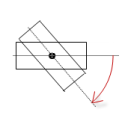
Variable (numeric data type) for the angle of rotation (in degrees) Example: At runtime, the element rotates about the point of rotation specified in Center according to the value of the variable. In addition, the alignment of the element rotates according to the coordinate system of the visualization. Increasing the value in the code rotates clockwise. The rotation point is shown as the
|
|
|||
|
|
Tip |
|---|---|
|
You can combine the variables to a Unit conversion. |
|
|
Tip |
|---|---|
|
The X, Y, Rotation, and Interior rotation properties are supported by the "Client Animation" functionality. |
The variables control the element behavior dynamically.
|
Invisible |
Variable (
Example: |
|
Deactivate inputs |
Variable (
|
|
|
Tip |
|---|---|
|
The Invisible property is supported by the "Client Animation" functionality. |
|
|
Tip |
|---|---|
|
These properties are available only when you have selected the Support client animations and overlay of native elements option in the Visualization Manager. |
|
Animation duration |
Variable for the duration (in milliseconds) in which the element runs an animation
Animatable properties
The animated movement is executed when at least one value of an animatable property has changed. The movement then executed is not jerky, but is smooth within the specified animation duration. The visualization element travels to the specified position while rotating dynamically. The transitions are smooth. |
|
Move to foreground |
Variable (
Example: |

|
Note |
|---|---|
|
Available only when a user management is set up for visualization. |
|
Access Rights button |
Opens the Access Rights dialog. There you can edit the access privileges for the element. Status messages:
|