Symbol:

Category: Date/Time Controls
The element provides configurable buttons for setting the time range of a trend display to a defined time. In the process the end time of the previous display is left unchanged and the start time is adapted.

|
Are all element properties available? |
|---|---|
|
All properties are visible only after you select the Advanced option or the All categories filter in Properties. |
|
Element name |
Example: |
|
Element Type |
Time range picker |
|
Orientation |
Specifies whether the time picker element is aligned horizontally or vertically in the editor. Hint: Change the width to height ratio of the element in the editor. |
|
Show frame |
|
|
Resolution |
Resolution saved for the time stamp: Millisecond or Microsecond |
|
Attached element instance |
Assignment to the element that processes the time picker The element can be assigned for example to a Trend visualization element. Then the time range of the trend element can be changed. The available visual elements are selected with the help of the Example: |


The position defines the location and size of the element in the visualization window. This is based on the Cartesian coordinate system. The origin is located in the upper left corner of the window. The positive horizontal X-axis runs to the right. The positive vertical Y-axis runs downwards.
|
X |
The X-coordinate (in pixels) of the upper left corner of the element Example: |
|
Y |
The Y-coordinate (in pixels) of the upper left corner of the element Example: |
|
Width |
Specified in pixels Example: |
|
Height |
Specified in pixels Example: |

|
Text |
String (without single straight quotation marks) Example: The element is labeled with this text. If a placeholder |
The properties get fixed values for the text properties and act on the texts configured in or .
|
Font |
Example: Default
|
|
Font color |
Example: Black
|
|
Transparency |
Integer (value range from The transparent value determines the transparency of the respective color.
|

In Times, the buttons that the element provides at runtime are defined and configured as an array.
|
Provide "All" selection |
The diagram represents a time interval that covers all time stamps. |
|
Times |
An additional index exists below the property. Time is located under this index. The configuration of the button is to be entered there. |
|
Times
with index ∈ {0, 1, 2,…} |
Array of all buttons in the time selection bar. The Index corresponds to the number of buttons.
|
|
[Index]
|
Example: If a time interval is indicated in the field, then the button is labeled with it. If a user clicks on the button at runtime, the command is executed to switch the diagram to this time interval. The default is empty. |


|
Time |
Variable ( Variable to programmatically control the selection of the time range. Example: For 1 s: For 30 s: |
|
All selected |
Variable ( Variable to programmatically control that all time ranges are enabled
Example: |
Example 33. Example
PROGRAM PLC_ORG
VAR
	liSelectedTimeIndex : LINT := 1000000;
	bIsAllTimes : BOOL := TRUE;
END_VAR
|
The properties contain fixed values for the coordinates of the point of rotation. The rotation point is displayed in the editor as the
|
||||
|
X |
X-coordinate of the point of rotation |
|||
|
Y |
Y-coordinate of the point of rotation |

The properties can be assigned to IEC variables for controlling the position of the element dynamically. The reference point is the upper left corner of the element. At runtime, the entire element is moved.
|
Movement |
|||||
|
X |
Increasing this value at runtime moves the element to the right. |
||||
|
Y |
Increasing this value at runtime moves the element downwards. |
||||
|
Rotation |
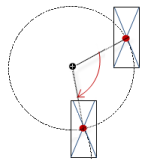
Variable (numeric data type) for the angle of rotation (in degrees) Example: The midpoint of the element rotates at the Center point. This rotation point is shown as the At runtime, the alignment of the element remains the same with respect to the coordinate system of the visualization. Increasing the value rotates the element to the right. |
|
|||
|
Interior rotation |
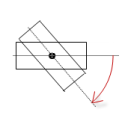
Variable (numeric data type) for the angle of rotation (in degrees) Example: At runtime, the element rotates about the point of rotation specified in Center according to the value of the variable. In addition, the alignment of the element rotates according to the coordinate system of the visualization. Increasing the value in the code rotates clockwise. The rotation point is shown as the
|
|
|||
|
|
Tip |
|---|---|
|
You can combine the variables to a Unit conversion. |
|
|
Tip |
|---|---|
|
The X, Y, Rotation, and Interior rotation properties are supported by the "Client Animation" functionality. |
The variables control the element behavior dynamically.
|
Invisible |
Variable (
|
|
|
Tip |
|---|---|
|
The Invisible property is supported by the "Client Animation" functionality. |
|
|
Tip |
|---|---|
|
These properties are available only when you have selected the Support client animations and overlay of native elements option in the Visualization Manager. |
|
Animation duration |
Variable for the duration (in milliseconds) in which the element runs an animation
Animatable properties
The animated movement is executed when at least one value of an animatable property has changed. The movement then executed is not jerky, but is smooth within the specified animation duration. The visualization element travels to the specified position while rotating dynamically. The transitions are smooth. |
|
Move to foreground |
Variable (
Example: |

|
Note |
|---|---|
|
Available only when a user management is set up for visualization. |
|
Access Rights button |
Opens the Access Rights dialog. There you can edit the access privileges for the element. Status messages:
|