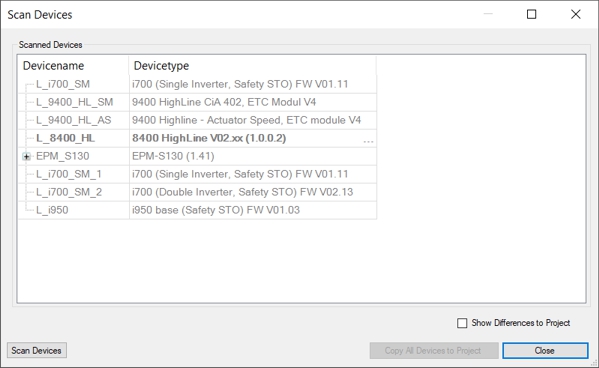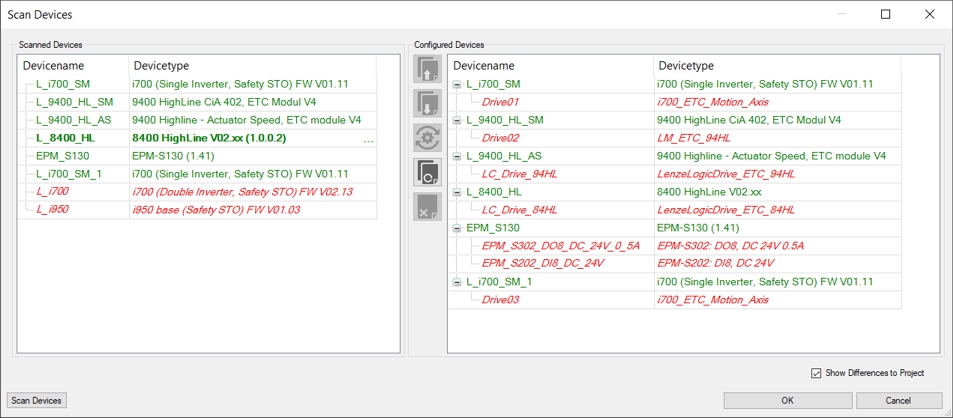
Determine the physical EtherCAT configuration (network scan)

In order to check the physical EtherCAT configuration, you can use the »PLC Designer« to carry out a network scan on the controller online.
Preconditions:
–
The communication parameters are configured.
 
–
The PLC Designer is logged into the controller.
 
–
A proper operation requires that the network topology generated in the project corresponds to the physical order of the EtherCAT devices in the network. Otherwise, an error message displays which slave (vendor ID/product code) is to be expected at which position.
 
–
The master automatically assigns the station addresses to the slaves. Therefore, a manual address assignment is not required.
 
–
If a device is not available on the EtherCAT, an error message indicates this.
 
–
When using the S130 EtherCAT bus coupler, the connected IO-1000 discs are only detected in the Pre-Operational state. Therefore, the scan (Scan for Devices) must be performed twice.


How to determine the physical EtherCAT configuration:
1.
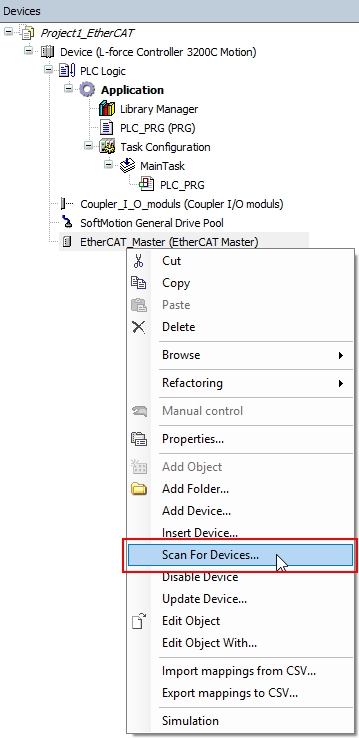
Select the Scan for Devices command in the context menu of the EtherCAT master.
A dialog opens.
 
2.
Click the Copy All Devices in Project button to copy them to the PLC project or select individual devices and copy them to the PLC project.
 
3.
Select the Show Differences to Project checkbox.
The devices found and the devices configured are compared.
 
4.
Adapting the configuration:
 
a.
Click the Copy all button to copy all devices into the project.
 
b.
Copy individual devices into the project.
 
The devices are added to the project.