Controller.CertificateStore.viaPLCDesigner
The Controller has its own certificate Store. This can be managed and controlled via the PLC Designer.
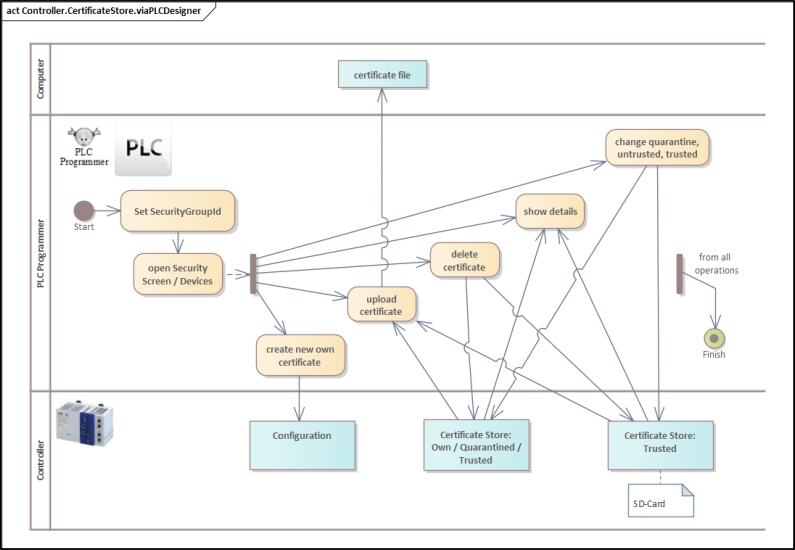
Activity Diagram
To do this, open the Security Screen and select the "Devices" tab.
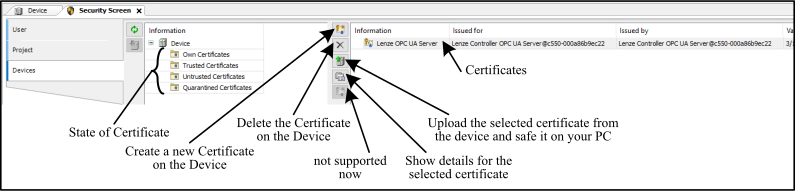
Security Screen Devices
In the middle window, the respective status of the certificates can be selected under "Information". The following four statuses are available:
-
Own Certificates:
Own certificates of the Controller
-
Trusted Certificates:
Certificates from trusted communication partners
-
Untrusted Certificates:
Certificates from untrusted communication partners
-
Quarantined Certificates:
Certificates from communication partners in quarantine
To change a certificate from the status, it can simply be moved from the right window via drag-and-drop to the desired status.
The following possibilities of using the certificates are possible:
Create a new Certificate on the Device
For this purpose, an existing own certificate or a placeholder, i.e. a certificate with the note (not available) must be selected and the button must be pressed. Subsequently, the desired key length and the desired validity can be specified and the certificate can be created.
To change a certificate's status, simply drag and drop it from the right window to the desired status.
The following certificate usage options are available:
Create a new certificate on the device
To do so, select an existing certificate or placeholder (i.e., a certificate with the note "not available") and press the button. Then, you can specify the desired key length and validity period and create the certificate.
-
If a certificate A exists and another certificate B is created, the certificate with the longer valid time is used, even if it is certificate A. If the "Own Certificate" area is called up, both A and B certificates are displayed. If you want to replace certificate A with certificate B, you should first delete certificate A and then create certificate B.
If a certificate A exists and another certificate B is created, the certificate with the longer valid time is used, even if it is certificate A. If the "Own Certificate" area is called up, both A and B certificates are displayed. If you want to replace certificate A with certificate B, you should first delete certificate A and then create certificate B.
If certificate A exists and certificate B is created, the certificate with the longer valid period is used, even if it is certificate A. If the "Own Certificate" area is called up, both certificates A and B are displayed. If you want to replace certificate A with certificate B, first delete certificate A and then create certificate B.
Delete the certificate on the device
To do this, select a certificate and press the button. It is important that the certificate is deleted and not moved to "Untrusted Certificates".
Upload the selected certificate from the device and safe it on your PC
For this purpose, select a certificate and press the button. It is important that the respective certificates are loaded onto the PC with the public key. The private key remains on the controller.
Show details for the selected certificate
For this purpose, select a certificate and press the button. A window opens where the details of the certificate can be viewed.
Initial certificates
When the Controller boots, some certificates will be generated automatically. This happens for the first time when these devices are produced in manufacturing. Since no time has been set in the controllers for this production step and there is no communication via an NTP connection, the certificates are created with a initial time stamp far in the past. After the devices are sent to the customer, they are switched on again.
When logging into the controller with PLC Designer a pop-up dialog informs that the user some certificates are expired. On the security screen, the expired (validity date in the past) or inactive (empty information field) certificates can be checked. Expired or inactive certificates can be deleted. New certificates will either be generated automatically during the next boot or can be created manually via the security screen.
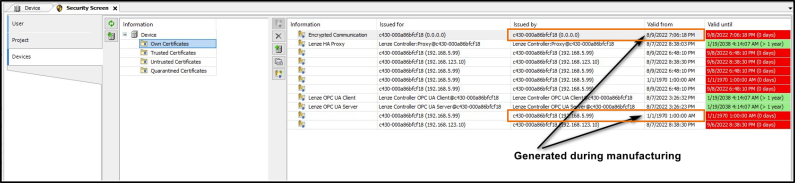
Example for Initial Certificates