Security mechanisms : Change Application from firmware v1.x to v2.x
General
With firmware version 2.x, security is enabled by default. This means that various functions are activated from the start, while others are deactivated.
The activated and deactivated functions provide the Controller with additional protection against attacks and manipulation. Open access points are closed, and functions without user management are disabled.
This chapter describes how you can use an application for a Controller with FW 1.x with a controller that uses firmware 2.x "Secure-by-Default".
From Firmware 2.0.0, the Controller has a secure boot process in which the data to be loaded is compared with a controller-specific key during startup.
Activated Functions (those that are always active and cannot be disabled by the user)
-
Secure Boot
Activated Functions (which can be deactivate by the user)
-
Firewall
-
NTP Client
-
User Management
Deactivated Functions (which can be activate by the user)
-
WebVisu / FAST UI Runtime
-
NTP Server
-
SFTP Server
-
Web Server
Controller Firewall
The Firewall can be deactivated in complete or specific ports and services can be activated, which are deactivated by default.
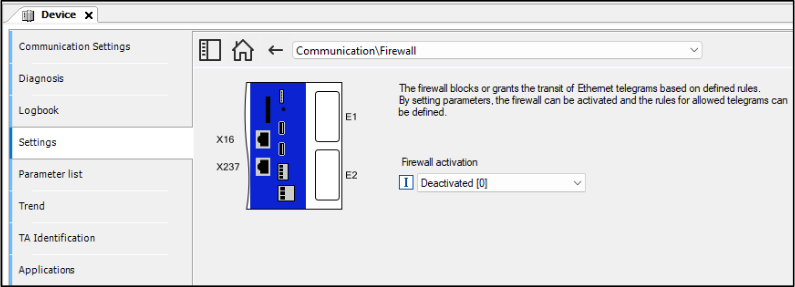
Deactivate Controller Firewall
The picture shows the parameter under "Settings" where the Firewalll can be deactivated.
-
Please note that services like WebVisu that are deactivated by default in firmware 2.x are not automatically reactivated when the Firewall is deactivated.
NTP Server
The NTP Server is deactivated be default. The NTP client can be activated by the parameter "0x245B".
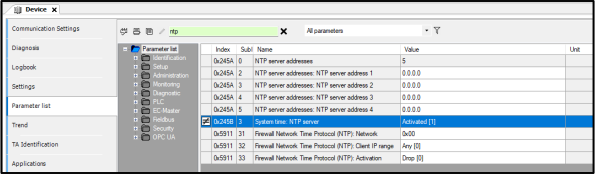
Handling of NTP Server and NTP Client
Controller User Management
Deactivate or adjust the activated User Management.
Default Login
The Controller has a User Management by default. User Management can be changed, extended or deactivated after the first login.
The initial login data can be fount in chapter Controller.AccountManagementGuidelines.
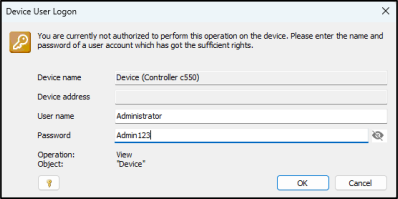
Device User Logon
Delete User Management
If User Management is not required, it can be deleted. To do this, you must first log in using the procedure described above.
Delete User Management via Reset Origin Device (User Management) then restart device.
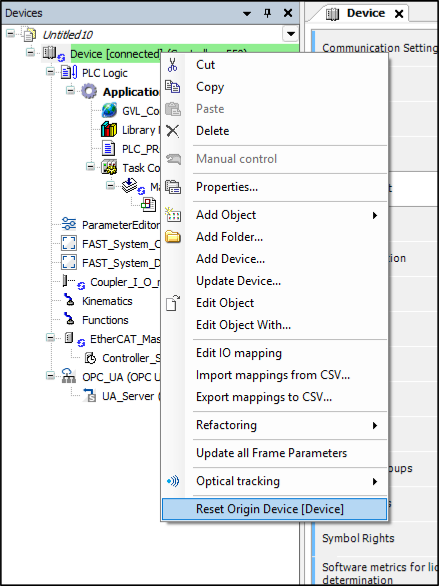
Delete the current device user
Select "User Management" in the opening window and confirm with "OK".
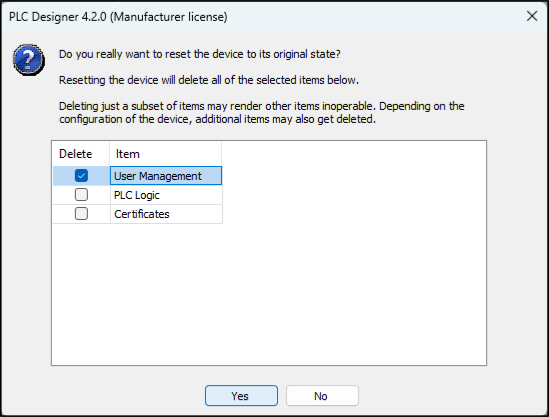
Choose UserManagement
Restart the Controller.
Modify
To expand User Management, you must first log in using the procedure described above.
Select the "Add..." button in the right-hand menu to add a new user.
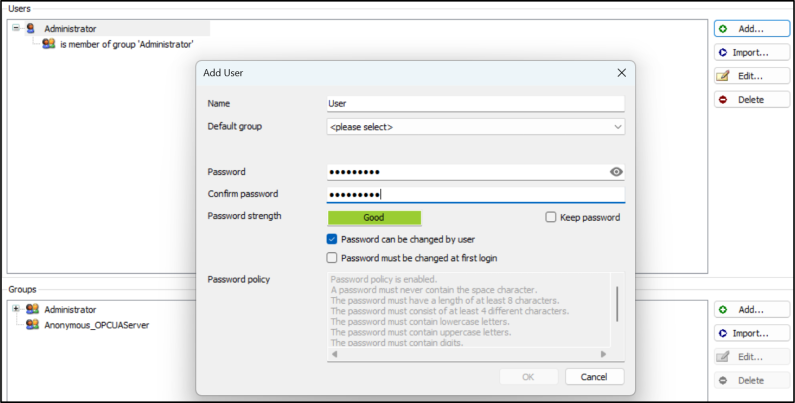
Add new User
Enter the user name, role and password in the window that opens and confirm your entry with "OK".
WebVisu / Easy UI Runtime
When the Controller is delivered, the use of Visualisation is deactivated in the new firmware. This can be reactivated by switching the following three parameters.
• 0x5915:1 Least functionality: UI runtime activation
• 0x5915:2 Least functionality: UI gateway activation
• 0x5915:5 Least functionality: Web access activation
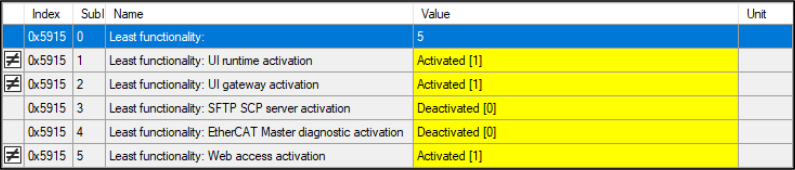
Parameter for Least Functionality
NTP Server
The NTP server is deactivated when the Controller is delivered. The NTP Server can be activated later using a parameter. Activation via a parameter is shown in the following image.
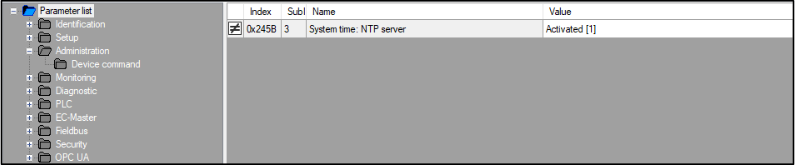
Parameter for NTP Server
SFTP
As part of the introduction of Security, the behaviour for SFTP access has changed. In future, this must be activated via a parameter after connecting to the controller via User Management.
The complete handling is described under the following link (refer to chapter Controller.SFTPServer for the general description of the SFTP Server and refer to chapter Controller.LeastFunctionality for the handling of the least functionality).
Webserver for Diagnostic- and/or Process-Visualization
Another function that is deactivated is the web server. This can be activated via a parameter. This is shown in the following image.

Parameter for Web access activation
Controller Device Description
Changing the Device Description file.
To be able to use an existing application on a Controller with firmware 2.x, the Device Description file must be replaced by the new one.
EASY Package Manager
To install the new device description file start the the EASY Package Manager first. Select "install... / Import from file..." from the menu in the bottom bar and choose the new device description file from your storage.
After the installation has been done, start the PLC Designer.
PLC Designer
Activate deactivated service
Controller Application
Ensure that signing and encryption of the Application are not activated.
Test of Performance
Test the performance of the Controller and the Application.
Customer specific files
The customer is responsible for the data that is saved and used on the SD Card of the Controller.
Least Functionality
Check the Controller.LeastFunctionality to see whether optional functions are required and activate them if necessary.