i9x0.OPCUAServer.Authentication
In order to be able to use the authentication of the OPC UA Server, the i9x0 User Management is required. The activation of this is described in chapter i9x0.UserManagement.
The following diagram shows the process.
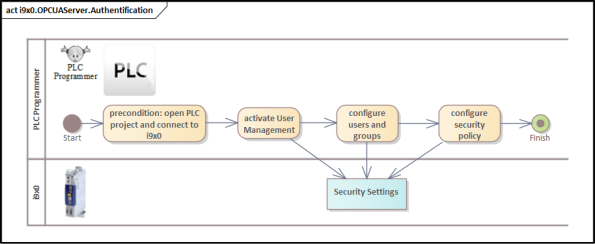
Activity Diagram
In order to establish a connection to the OPC-UA Server, an OPC-UA Client must use the endpoint url and take the corresponding security settings into account. The architecture of OPC-UA provides for a secure channel and a session. Confidentiality and integrity are secured for the Secure Channel and authentication and authorization for the session.
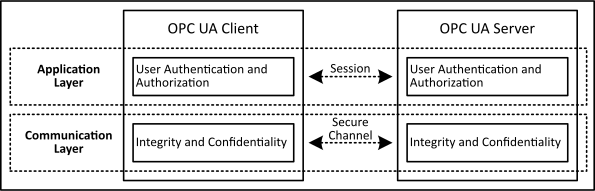
Security Channel and Session
These security settings are described below. Here, the Security Policy and the Message Security Mode are used for the Secure Channel configuration and the authentication for the session.
Security Policy
When the connection between OPC UA Client and OPC UA Server is started, the security policies are transmitted by the server. Within this Cipher Suite, the OPC UA Client can select a suitable connection. Several settings are usually offered here, such as Basic256Sha256.
Message Security Mode
The Message Security Mode specifies the type of transmission. Here the selection None, Sign and Sign & Encrypt is offered.
-
None
Does not include security mechanisms and should only be used for test facilities and therefore not for productive operation.
-
Sign
Includes security mechanisms to ensure integrity.
-
Sign & Encrypt
Includes security mechanism to ensure integrity and confidentiality.
Authentication
In authentication, the user is associated with the session. The following three settings are possible.
-
Anonymous
No dedicated user is used for the session, but the connection is created anonymously.
-
Username and Password
A user must identify himself with username and password and will be associated with the session.
-
Certificate and Private Key
Authentication of a user with the help of certificates. Not currently supported.
Authenticate an OPC-UA Client without an activated user management
In the following, the connection to the OPC-UA Server is described without user management being activated on the i9x0. An OPC-UA Client can connect without having to authentificate the user.
-
In the »PLC Designer«,the following setting option exists for the device: Device > Communication Settings > Device > Change Runtime Security Policy ... > [Checkbox] Allow anonymous login. Without an activated user management, the following setting in the PLC Designer has no effect, i.e. when deselecting Allow anonymous login, an anonymous connection is possible.
-
If an OPC-UA Client with a username and password authentication connects to the OPC-UA Server without active user management, a connection is generally not possible. Without activated user management please connect the OPC-UA via anonymous authentication.
Authenticate an OPC-UA Client with activated user management
With an activated user management, an OPC-UA Client can connect in two authentication modes:
-
Anonymous
No dedicated user is used for the session, but the connection is created anonymously.
-
Username and Password
A user must identify himself with Username and Password and will be associated with the session.
-
Certificate and Private Key
Not currently supported.
Anonymous
Regardless of the user in the user management, OPC-UA Clients can connect anonymously with this authentication mode, if allowed by the OPC-UA Server.
Username and Password
If the OPC-UA Client selects the authentication mode Username and Password, these must match a user in the user management to establish a connection. To restrict the user access to specific symbols the usage of symbol sets and the symbol rights configuration are required. Otherwise, all users can access all symbols. If the user does not exist or the password does not match, a connection is refused.
Prohibit anonymous login
To prohibit the Anonymous Login, please use the setting option in the »PLC Designer« for the device: Device > Communication Settings > Device > Change Runtime Security Policy ... > [Checkbox] Allow anonymous login. With an activated user management, this checkbox can be used to deactivate the Anonymous Login.
If an OPC-UA Client now wants to connect via Anonymous, this is prohibited. If an OPC-UA Client wants to connect to the authentication mode Username and Password, and these match a user in the user management, the connection is allowed.
Delete user Anonymous_OPCUAServer
The following procedure is provided for informational purposes only and is not recommended. In order to prohibit an anonymous connection of an OPC-UA Client, the previously described method should be used.
If user management is activated, an Anonymous_OPCUAServer user is automatically created. This can be permanently removed manually.
If an OPC-UA Client now wants to connect via Anonymous, this is prohibited. If an OPC-UA Client wants to connect to the authentication mode Username and Password, and these match a user in the user management, the connection is allowed.
-
If you want to restore the user Anonymous_OPCUAServer after deleting it, there are two options. The first is to delete the complete user management on the SD card from the controller. Afterwards, user management must be activated via the »PLC Designer«. This step restores the previously manually deleted user Anonymous_OPCUAServer. Previously created users and groups must be rebuilt manually. The second option is to disable and re-enable the Allow anonymous log in setting. As a result, the user is Anonymous_OPCUAServer created again.