i9x0.SysLog
The SysLog (System Logging Protocol) function enables the controller to log its important activities in local log files and optionally send them to a central SysLog server via a SysLog protocol. This enables the end user to monitor their infrastructure. This functionality is available from firmware version 2.0.0 on.
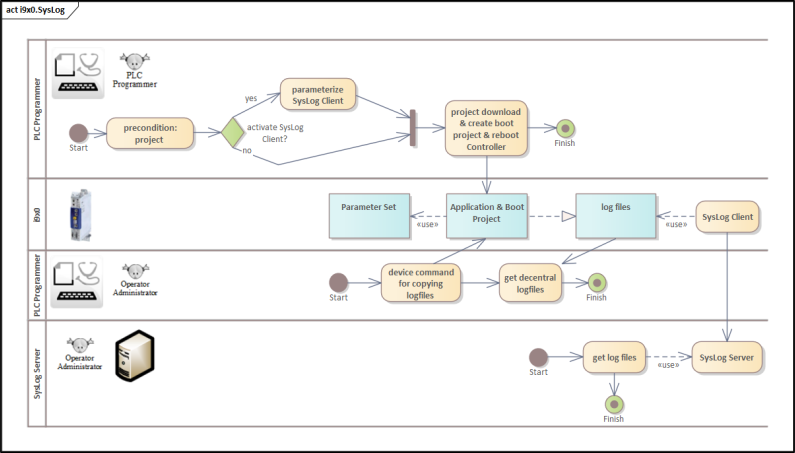
Activity Diagram
-
Activate and parameterize the SysLog Client
-
Prepare the i950 Servo Inverter to access the local logfiles
-
Get local logfiles
-
Get logfiles from SysLog Server
-
It is also important to note that the local SysLog is not persisted; that is, after a shutdown, the local SysLog log is no longer available. If persistence is required, the SysLog messages must be sent via the client to a SysLog Server and persisted there.
In the event of a power failure, the local log file messages and messages sent via the SysLog client are not guaranteed. Messages are not saved in the i950. One solution could be to use a UPS.
Activate and parameterize the SysLog Client
The function can be parameterized using the following parameters. Please note that these parameters must be saved persistently in the parameter set and the i950 Servo Inverter must be restarted for the parameters to become valid.
Activate SysLog Client
The i950 Servo Inverter has two logging options:
-
Internal logging into local log files
-
Sending of logging messages via the SysLog protocol to a SysLog Server
The local logging is always active, but the sending of logging messages can be activated with the following parameter.
Parameter for SysLog Client activation
|
Address |
Name |
Info |
|
|---|---|---|---|
|
0x5914:001
|
SysLog Client: SysLogClient activation |
SysLog Client activation |
|
|
enum 0 |
Deactivated (default) |
SysLog Client is deactivated |
|
|
enum 1 |
Activated |
SysLog Client is activated |
|
SysLog Server IP address.
This is the IP v4 address of the SysLog Server.
Parameter for SysLog Server IP address
|
Address |
Name |
Info |
|---|---|---|
|
0x5914:002 |
SysLog Client: IP address of SysLog Server UDINT 4 bytes 0.0.0.0 (default) –255.255.255.255 |
IP address of SysLog Server |
SysLog Server Port
This is the parameter for the port of the SysLog Server. This setting is independent of whether a protocol udp or tcp is selected.
Parameter for SysLog Server Port
|
Address |
Name |
Info |
|---|---|---|
|
0x5914:003 |
SysLog Client: Port of SysLog Server UDINT 2 bytes 0 (default) - 65535 |
Port of SysLog Server |
SysLog Protocol Type
This is the parameter for the protocol of the SysLog Messages and for the setting of the optional encryption.
Parameter for SysLog Protocol Type and SysLog Encryption
|
Address |
Name |
Info |
|
|---|---|---|---|
|
|
SysLog Client: SysLog ProtocolType |
SysLog Client Protocol Type |
|
|
enum 0 |
UDP (default) |
SysLog Messages via UDP |
|
|
enum 1 |
TCP |
SysLog Messages via TCP |
|
| enum2 | TCP /TLS encrypted | SysLog Messages via TCP with TLS encrypted | |
SysLog Message Severity Filter
These are the parameters for filtering the SysLog Messages via Severity.
Parameter for filtering the SysLog severities
|
Address |
Name |
Info |
|
|---|---|---|---|
|
0x5914:006
|
SysLog Client: Message Severities |
Filter for SysLog Message Severities |
|
|
bit 0 |
emerg (default = activated) |
Severity Emergencies “System unusable” |
|
|
bit 1 |
alert (default = activated) |
Severity Alerts “Immediate action needed” |
|
|
bit 2 |
crit (default = activated) |
Severity Severity Critical “Critical conditions” |
|
|
bit 3 |
err (default = activated) |
Severity Severity Error “Error conditions” |
|
|
bit 4 |
warning (default = deactivated) |
Severity Warning “Warning conditions” |
|
|
bit 5 |
notice (default = deactivated) |
Severity Notification “Normal but significant condition” |
|
|
bit 6 |
info (default = deactivated) |
Severity Information “Informational messages only” |
|
|
bit 7 |
debug (default = deactivated) |
Severity Debugguing “Debugging messages” |
|
-
The parameter 0x5914:006 for filtering the Severities is working for the SysLog-Client functionality and the local logfiles on the i950 Servo Inverter. The filter works on local log files even if the SysLog Client is deactivated.
These parameters can be modified for example via the parameter list or the user dialog via Settings \ Communication \ System Logging Protocol (SysLog).
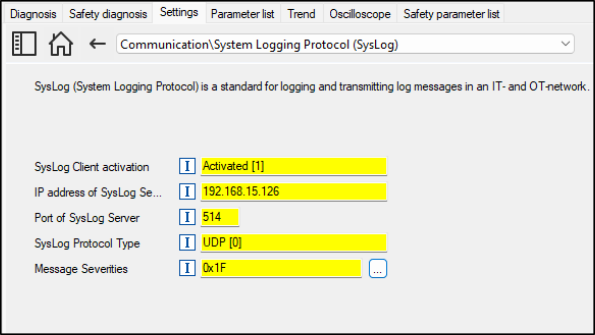
Settings Dialog
Certificate Handling for encrypted SysLog
If the user wants to secure remote logging on syslog servers, the user can activate encrypting the protocol with TLS.
When setting the encrypted SysLog protocol with parameter 0x5914:004 to enumeration 2, a certificate is needed for the encryption. The user can handle this certificate via the Security Screen of the PLC Designer via the menu View / Security Screen. When choosing the Device tab and the Device itself, the actual certificates are shown after `Refresh the list of available devices and their certificate stores`.
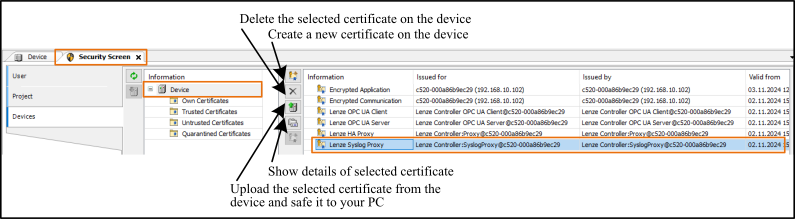
Certificate for SysLog
The user can use the auto-generated certificate for `Lenze Syslog Proxy`, or delete this and create a new one. The user can also upload this certificate to the user computer or show the details.
Details of this automatically generated certificate can be found in the chapter i9x0 - Security data, (i9x0.CertificateStore.SysLogProxy:Certificate)
-
A certificate is mandatory for a secure SysLog connection. If the user manually deletes the SysLog Proxy Certificate during operation, the SysLog Client of the controller will send information about missing certificates to the SysLog Server. Therefore the Client will user the `deleted` certificate until rebooting.
-
A certificate is mandatory for a secure SysLog connection. If the user manually generate a new SysLog Proxy Certificate during operation, the SysLog Client will terminate the TLS connection based on the old certificate and will start a new TLS connection based on the new certificate.
-
If the SysLog connection is used in an encrypted manner and the certificate expires during operation, communication continues based on the then invalid certificate. If the controller is restarted, a new valid certificate is automatically generated and the SysLog connection is opened based on the new valid certificate.
Behavior when SysLog Proxy Certificate is deleted after different reset levels
|
Reset Level |
Behavior |
|---|---|
|
Manually stop and start the application |
The SysLog Proxy Certificate is still deleted. |
|
Reset Warm |
The SysLog Proxy Certificate is still deleted. |
|
Reset Cold |
The SysLog Proxy Certificate is still deleted. |
|
Reset Origin and create the application again |
The SysLog Proxy Certificate is still deleted. |
|
Boot the Controller |
The SysLog Proxy Certificate is automatically generated new. |
File Monitoring
In addition to the SysLog, a file monitoring was initialized to log information about configuration changes.
-
This file monitoring is only available at runtime, i.e. changes to the file system when the system is turned off are not logged. The SD Card must therefore be protected against unauthorized removal and modification.
-
The focus of this file monitoring is on static files that change frequently during commissioning, but should not or rarely change during machine runtime (i9x0.SysLog:MonitoredFilesAndDirectories). The focus is not on files that are subject to permanent change, e.g. an application logbook.
The type of monitoring and the response in the log lines can be seen in the following two tables.
Monitoring of Files
|
File Monitoring |
Example Log Line (Log lines may vary depending on the tool used) |
|---|---|
|
Create file if it does not exists |
/<path>/<file>: CREATE /<path>/<file>: CLOSE_WRITE |
|
Delete existing file |
/<path>/<file>: DELETE |
|
Change and safe content of existing file |
/<path>/<file>: CLOSE_WRITE |
|
Change rights of existing file |
/<path>/<file>: ATTRIB |
Monitoring of Directories
|
Directory Monitoring |
Example Log Line (Log lines may vary depending on the tool used) |
|---|---|
|
Rename existing file in directory |
/<path>/<oldfile>: MOVED_FROM |
|
Change content of existing file in directory |
/<path>/<file>: CLOSE_WRITE |
|
Change rights of existing file in directory |
/<path>/<file>: ATTRIB |
|
Delete existing file in directory |
/<path>/<file>: DELETE |
-
This file and directory monitoring procedure cannot process files or directories with the special character “;” (semicolon). The Lenze Tools do not create files or directories with this character. This means that the user may not use customized files or directories with this special character.
If a file or directory with this special character exists and this file or directory is being monitored, the application will not start for security reasons.
Application Logging via FB AddSysLog
Please refer to chapter SysLog to get more information about this function block.