i9x0.UserManagement
i9x0.UserManagement has been available in firmware versions V2.x release.
To implement i9x0.UserManagement, the »PLC Designer« offers a user management administration for the i9x0 runtime. Once enabled on the i9x0, an anonymous online connection cannot be established with the device. This can be used, for example, to avoid accidentally overwriting a PLC program or transferring it to the wrong i9x0.
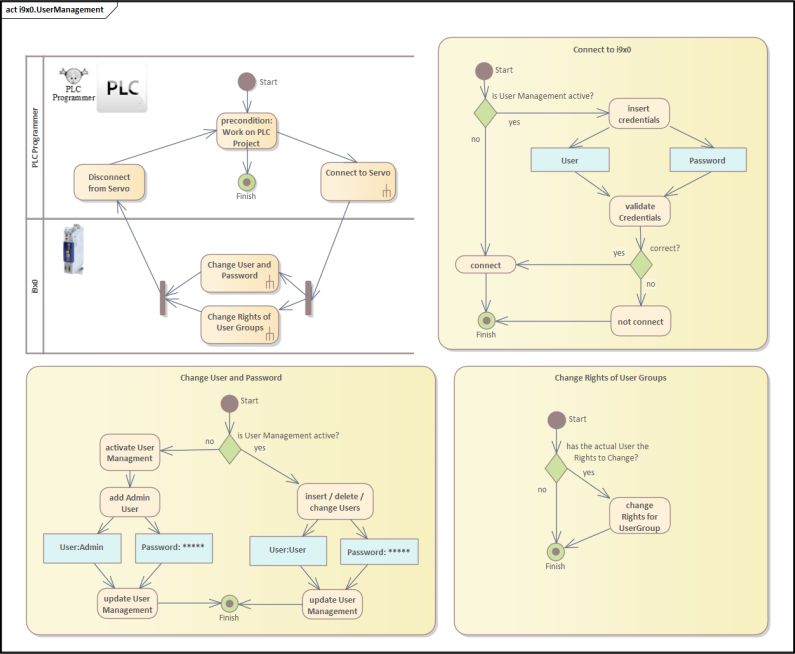
Activity Diagram
i9x0.UserManagement: Activating
To activate user management, the PLC Designer must be connected online to the i9x0. Select the setting
Menu / Online / Security / User Login ...
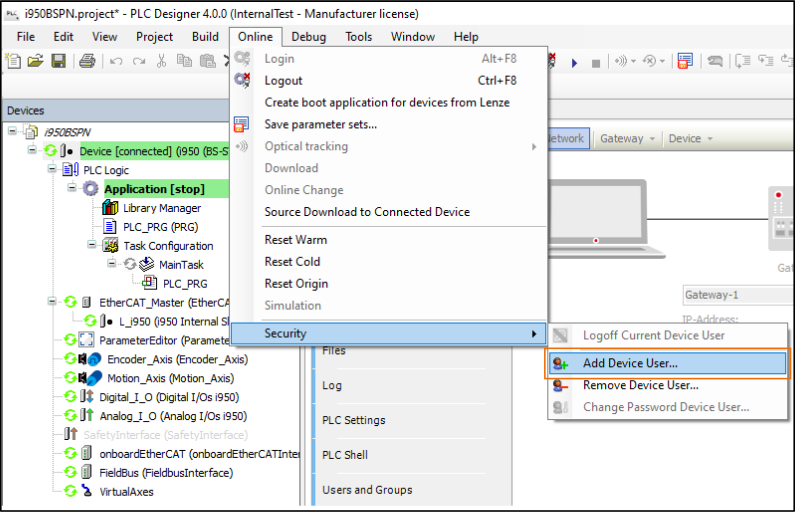
Add Device User
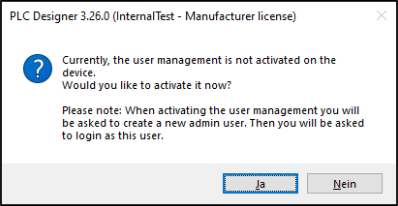
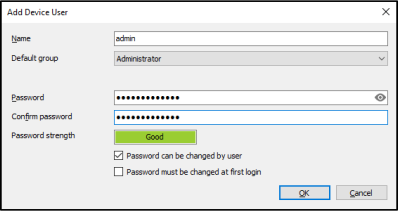
Add Device User Dialog
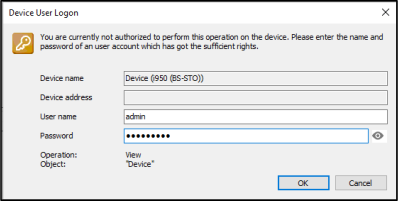
Device User Logon
i9x0.UserManagement: Change Users and Groups
To manage the users, first synchronize the user management, with:
Device Tree / Project / double-click on Device / Menu Users and Groups / Synchronization
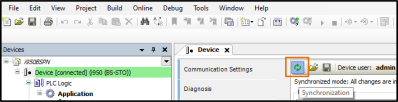
Synchronization
Adding a user is accessed via the Add... option. Select from the following roles: roles { Administrator | Developer | Service | Watch }. If additional roles are to be created, they can also be created with Add... or deleted with Delete.
i9x0.UserManagement: Groups
-
Administrator:
When you log in to the device for the first time, you will be instructed to activate the device user administration and then create a user in the Administrator group. As this user, you can set up additional users and groups and assign access rights. -
Anonymous:
Group has read-only authorization for the parameter set.
The following parameter can be used to read out the currently associated security group that belongs to this session and is active.
|
Address |
Name |
Info |
|
|---|---|---|---|
|
0x5905:004 |
Security user settings: Access Group Name |
The currently active security group (e.g. Administrator or Anonymous) is displayed here. |
|
|
Address |
Name |
Info |
|
|---|---|---|---|
|
0x5905:011 |
Security user settings: Activate selection of security level |
|
|
|
Address |
Name |
Info |
|
|---|---|---|---|
|
0x5905:012 |
Security user settings: Selection of security level |
|
|
|
Address |
Name |
Info |
|
|---|---|---|---|
|
0x5905:003 |
Security user settings: Status active user rights |
|
|
i9x0.UserManagement: Change Access Rights
To manage the Access Rights, first synchronize the user management, with:
Device Tree / Project / double-click on Device / Menu Users and Groups / Synchronization
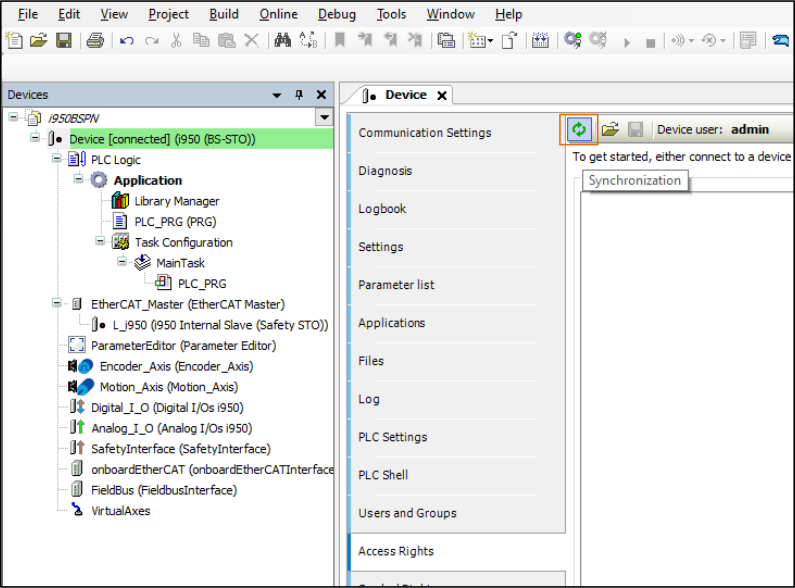
Synchronize Access Rights
To manage the access rights to the objects, the following setting option is available.
Device Tree / Project / double-click on Device / Menu Access Rights
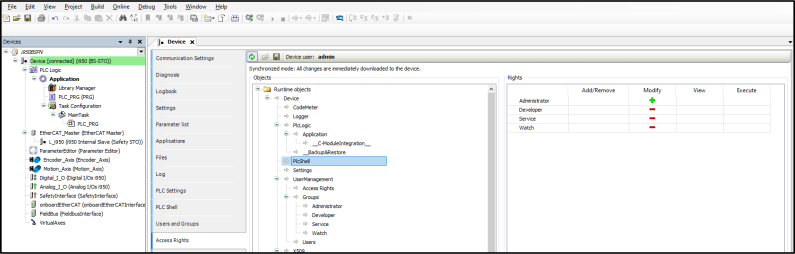
Setting the Access Rights
For each node, the setting of the authorization can be set here.
The Administrator group has a special feature. The settings can be changed in the interface, but the group basically receives all rights.
i9x0.UserManagement: Remove
To remove the user management (note: all users, groups and access rights will be removed) right-click on the i9x0 device in the device tree of the PLC project and execute the ‘Reset Origin Device’ for the User Management.
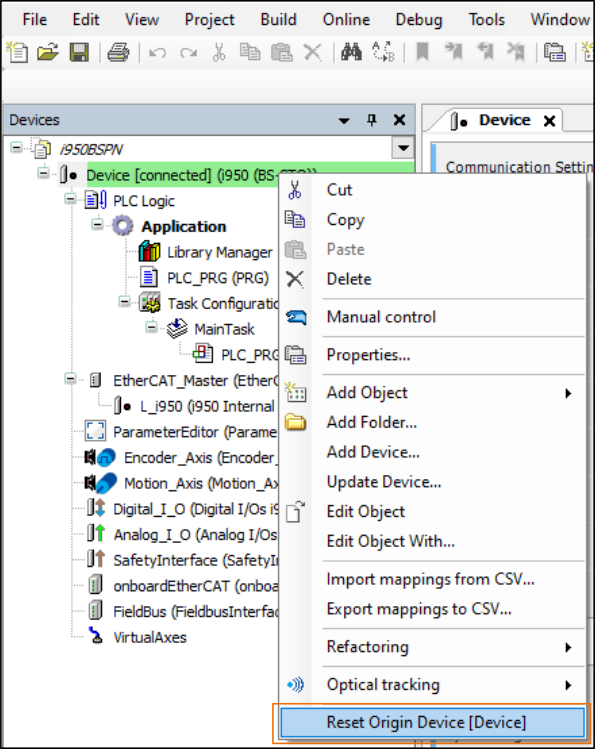
Reset Origin Device [Device]
Access Rights
In the »PLC Designer«, the object "Runtime objects / Device / RemoteConnections / EngineeringInterface" object can be set under the "Access Rights" tab. Only the "Modify" rights can be set here. With this setting, the above access can be consented to or not.
Anonymous login
In the settings under ‘Communication Settings / Device / Change Communiation Policy’ there is a selection in the ‘Device User Management’ category called, ‘Allow anonymous login’. This setting affects the OPC UA server. If anonymous login is prohibited, the user “Anonymous_OPCUAServer” and the group “Anonymous_OPCUAServer” will be deleted in the i9x0.UserManagement.
-
Please do not add a new user to the ‘Anonymous_OPCUAServer’ group.
The reason is as follows. If anonymous login is prohibited, the user “Anonymous_OPCUAServer” and the group “Anonymous_OPCUAServer” will be deleted. This means that the connection to the previously created user will be lost and he is left alone.
i9x0.UserManagement: Runtime Password Policy
The Runtime Password Policy has been available since i9x0 firmware version 2.0.0 in combination with PLC Designer 4.0.0. The User can activate the Runtime Password Policy, by clicking on the device in Device-Tree / Communication Settings / Device / Change Runtime Password Policy. Now, the settings for the policy of the device, in this case the controller, can be done.
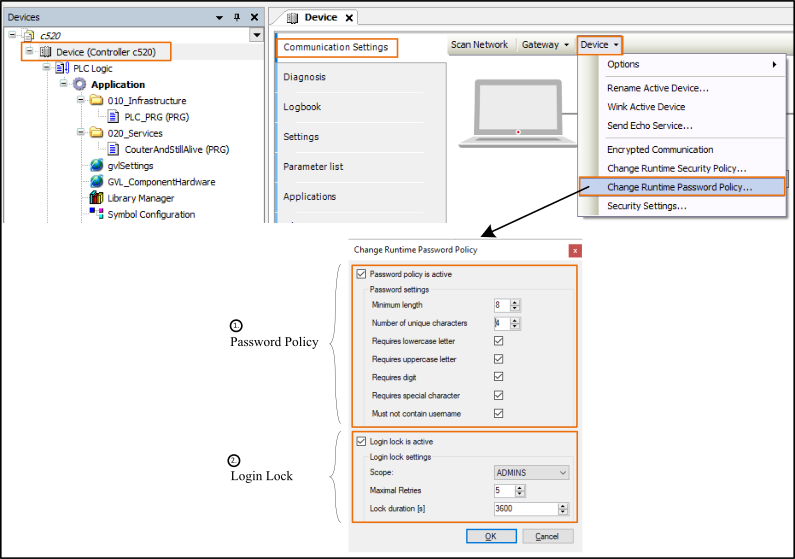
i9x0 Runtime Password Policy
In the section `Password settings` the user can specify the minimum requirements of the passwords.
-
Minimum length
Minimum length of password characters (all characters count, whether they are letters, numbers, special characters).
-
Number of unique characters
Minimum number of different unique characters.
-
Requires lowercase letter
{ a-z, ä, ö, ü, ß }
-
Requires uppercase letter
{ A-Z, Ä, Ö, Ü }
-
Requires digit
{ 0-9 }
-
Requires special character
{ ^, °, !, “, §, $, %, &, /, (, ), =, ?, `, {, [, ], }, \, ´, +, *, ~, #, ‘, -,_, ., :, ,, ;, <, >, |, @, €, µ }
-
Must not contain username
The username string is not allowed in the password.
-
Activating or changing the password policy settings will take effect immediately. However, the changes only apply to the assignment of new passwords. Existing passwords remain valid, even if they do not comply with the policy.
In the section `Login Lock settings` the user can specify the lock after unsuccessful logins.
-
Scope
ADMINS: The Login Lock settings are valid for all users in the Administrator Group.
NONADMINS: The Login Lock settings are valid for all users except Administrators.
ALL: The Login Lock settings are valid for all users.
-
Maximum Retries
-
Lock duration [s].
Lock duration for this locked users in seconds.
-
If a user attempts to log in unsuccessfully a maximum number of times, their account will be locked. The login options of other users will remain unaffected.
i9x0.UserManagement: Password Expiration
The Runtime Password Expiration is available since Controller Firmware Version V2.0.0 in Combination with PLC Designer 4.1.0. The User can activate the Runtime Password Expiration, with Click on Device in Device-Tree / Communication Settings / Device / Change Runtime Password Policy. Now the settings for the Policy of the Device, in this case the Controller, can be done. This function is deactivated by default.
-
Scope:
ADMINS: Password Expiration is valid and active for all admin-Users.
NON-ADMINS: Password Expiration is valid and active for all non-admin-Users.
ALL: Password Expiration is valid and active for all Users. -
Timeout [days]:
1 ... 1000 days for valid password until forced password renewal.
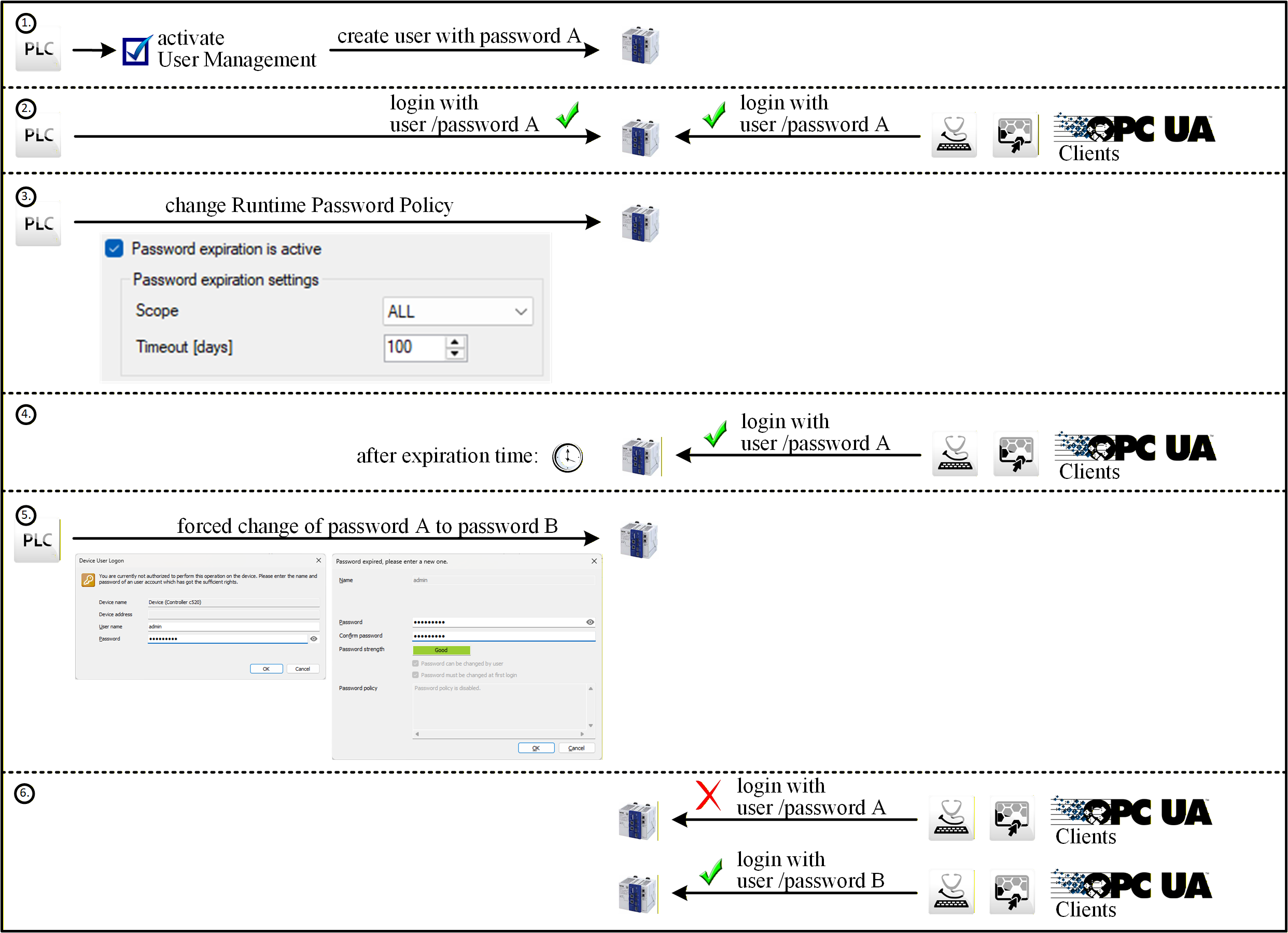
i9x0 Runtime Passwort Expiration
The following sequencer describes the mechanism:
-
( 1 ) Firstly, user management must be activated on the device (in this case the i9x0 Servo Inverter) by the PLC Designer. A first user with example password A must be assigned.
-
( 2 )The user can then log in with user and his password A using PLC Designer or other communication channels.
-
( 3 ) If desired, the Runtime Password Policy can be activated.
-
( 4 ) After the set time has elapsed, all other communication channels can continue to log in with the known user and password A. These other communication channels can be, for example, the EASY Starter, the EASY Firmware Loader or the EASY Application Loader.
-
( 5 ) The next time the user attempts to log in using the PLC Designer, they will be prompted to change the password.
-
( 6 ) Once the password has been changed, this password is also valid for the other communication channels.