My first project
Once you have successfully installed »EASY UI Designer«, you can now start developing your first application.
In this chapter you will learn:
-
how to create a new project in the project configurator,
-
how to start and finish a project,
-
which components the user interface of a new project already contains.
Create project
The main functions of your visualisation project are defined using the project configurator.
Start »EASY UI Designer« from the Windows start menu or the Lenze "EASY Navigator".
After starting, the project configurator opens.
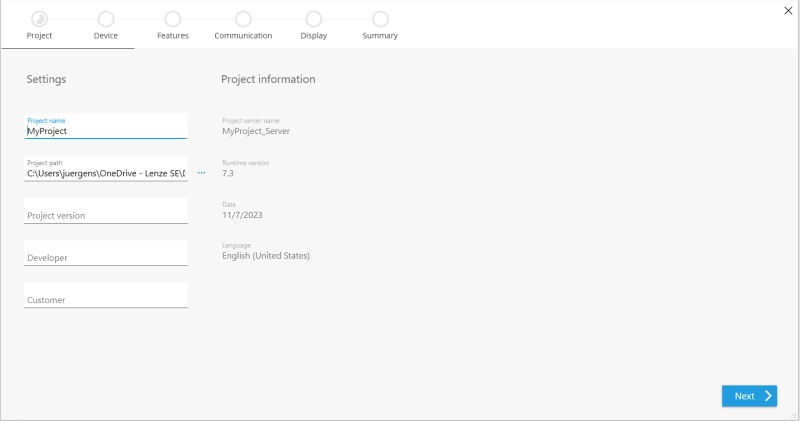
Click on New project and then on the + symbol. In the new window, enter at least the project name and optionally make further settings, such as the project path. In the next step, select the target control. Restrictions for the devices can be found to the right of the tiles.
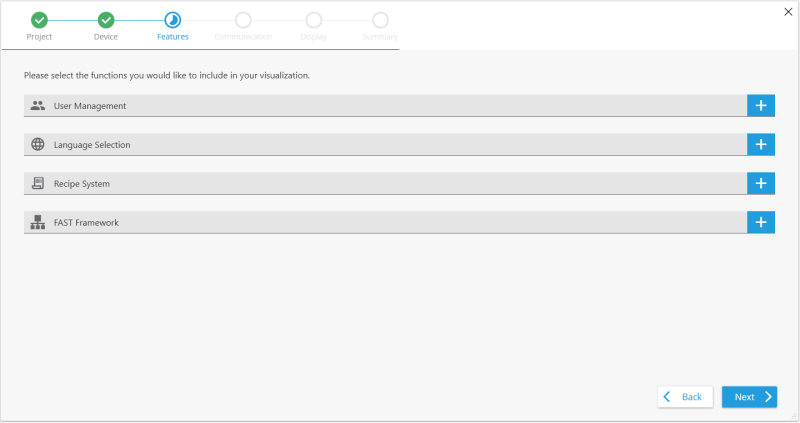
The next page gives you an overview of the functions that are part of your visualisation:
|
User management |
As the visualisation can only be displayed with a logged-in user, it is advisable to create a user at this point. For test purposes, a guest account can be created using the "Would you like to create a guest account?" option. By default, this defines a user group "Guests" with a new user guest who can log in to the visualisation with the password guest. Both the user name and the password can be adjusted at this point. If this user should be logged in automatically, this can be activated via Do you want an automatic login? |
|
Language switching |
The languages German and English are included in a new project by default. The language to be displayed first when starting the visualisation can be determined using the checkbox. Additional languages can be added via Select languages. |
|
Recipe system |
The recipe system is implemented via a function block (FB) in the "PLC Designer". If you want to use this option, activate it using the switch. The ready-made templates are then included in your visualisation project. It is also necessary to integrate the corresponding FB into your PLC project. A detailed description can be found here. |
|
FAST Framework |
If you want to use the Lenze FAST Services in your project, you can activate them using the switch. The Lenze FAST Framework provides the following information:
|
In the next step, select the communication settings:
|
SPS project |
If you have installed the "PLC Designer" on your computer, all PLC projects are listed here. |
|
EASY-Export |
In PLC Designer, the PLC project can be exported in a format optimised for »EASY UI Designer«(.easyuilpk). This package contains additional information, e.g. the topology in the context of the FAST services. |
|
Symbol configuration |
The variables are stored in the XML-based symbol configuration in the "PLC Designer". You can find out how to create these in the "PLC Designer" help. |
You have now made all server-relevant settings and can configure your client project.
Client settings
One or more client projects can be created for a server project using the + symbol.
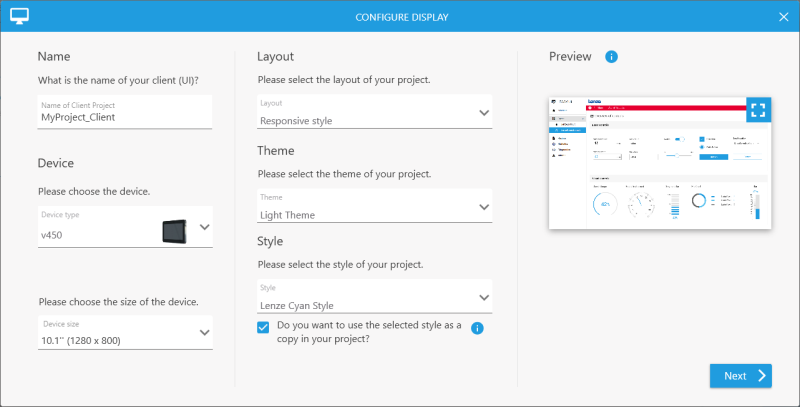
The following options can be selected in the dialogue:
|
Name |
You can accept the default project name to emphasise the affiliation to the project group or give the client project a descriptive name. |
|
Device |
Select the target device on which the visualisation is to be displayed. You can select the web panels from the Lenze portfolio, but you can also select your own model and enter the resolution. |
|
Layout |
A self-scaling layout (Responsive Layout) and two absolute layout templates are available here, whereby the latter differ in the position of the navigation menu. A classic menu with a button bar at the bottom of the application is contained in the FixClassical template. A menu with entries in a title bar can be created by selecting FixTop. In addition, you can select a template called Empty style. It includes the responsive menu but does not contain any default entries or the corresponding pages in the project, making it ideal if you want to build the menu structure of the visualization from scratch. |
|
Theme |
There is a light and a dark theme, which you can switch at any time during runtime. The start theme is selected at this point. |
|
Style |
The style determines the basic appearance of the control elements. Once this decision has been made, you must select whether you want to create your own style as a copy on the basis or whether you want to use the original Lenze styles. The checkbox should be activated if you want to implement and maintain a company-specific style and be independent of style changes. If you want to adopt the Lenze style in principle and only make minor changes, deactivate the checkbox. This will allow you to benefit from future updates and enhancements to the control elements. A preview of the selected settings can be found on the right-hand side if you move the mouse over the rectangular symbol at the top of the screen. |
The project is created under the project pathin the specified directory and opened in the development environment in the Start menu.
The newly created project already contains an executable user interface. This means that you can start the project after creating it and try out the application yourself. How to start the project:
Select Project in the ribbon. You have the following options here:
-
If you want to transfer the project to a controller, select the Target device manager entry in the menu and enter the IP address in the mask. Further settings for secure communication, the port or timeout can also be made here. Once the configuration is complete, you can connect to the control unit using Connect in the menu. Once the connection has been established, an overview of the projects in the project folder appears. These are transferred to the controller using the Transfer option in the ribbon. The transfer status can be seen in the bottom left-hand corner. Once this is complete, corresponding messages appear in the output window. The application is now available on the target device and can be started via the green Play button in the ribbon or via F5.
-
If you do not yet have a controller to hand, you can also start the project locally. To do this, select the Local entry in the menu under Execution target and start the project via the green Play button next to it in the ribbon or via F5.
The project is started and the splash screen with status information is displayed. Depending on the configuration, a login screen or the main page of the application appears if automatic login has been activated in the project configurator.
After logging in, you will see the basic structure of the application, the application framework (AppShell). There are already some menu entries that lead to the corresponding pages in the project. Functions for user administration, language and design are integrated in the top right-hand corner. The person symbol opens a dialogue in which options for creating, editing, deleting and logging out users are available. Clicking on the cogwheel presents setting options for the current language and style of the application.
To understand the structure of the application framework, exit the project and return to the development environment.
This description deals with the user interface of your newly created project.
On the left-hand side of the main window, you will see the Project Explorer window. The project explorer provides access to all areas of the project in the form of a folder structure. In the project explorer, you can expand and collapse folders or nodesas in the file explorer to display and hide their contents.
The Design node is responsible for the user interface. This node contains all files that describe the user interface.
Carry out the following steps to understand the structure of the application frame:
-
In the project explorer, expand the Design node under the client project. Here you will find a Views folder containing AppShell.html. Double-click to open it in the workspace(Designer).
-
At the bottom left of the development environment, you will see the Document outline window. This window shows the structure of the file opened in the Designer. You can recognise the various components of the application framework from the structure. You can find more information on the exact structure of the project templates in the following articles: Responsive Layout, Fix Classical and Fix Top.
-
Alternately select the various elements in the Document outline window. These then also appear as selected in the Designer. The regions divide the application frame into areas in which the views (individual screen views) are displayed at runtime. The AppPageNavigator is the frame element that loads the main pages of the application at runtime. Which page is displayed here at startup is defined in the absolute layouts (FixClassical and FixTop) in the Start page name property of the TabBar control element. In the Responsive layout, you can configure this using the Checked property, which can be found under the Control States category.
Related topics: