Deploy project to target system
You can deploy (transfer) projects from the IDE to one or more target devices using the Target Device Manager.
To open the Target Device Manager, open the desired project in the IDE and select Project > Target Device Manager on the ribbon.
The Target Device Manager is displayed on a tab in the center of the IDE. The ribbon provides access to the general Target Device Manager functions.
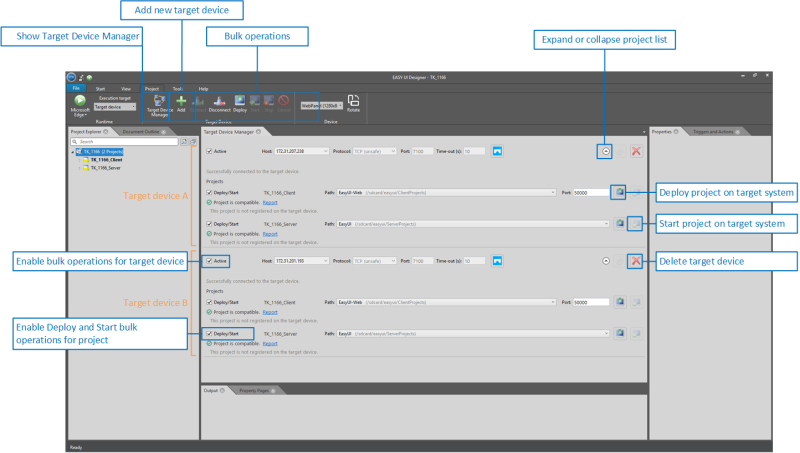
Target Device Manager
The Target Device Manager helps you with the following tasks:
-
Add new target device
-
Configure connection
-
Connect to target device
-
Check project
-
Deploy project
-
Start and stop project on target system
-
Update project
Software prerequisites on the target system
To deploy a project to the target system and to run the project, the following software must be installed on the target system:
|
Software |
Remarks |
|---|---|
|
FAST UI runtime |
|
|
Server Manager |
|
|
VisiWin(.NET) Driver/OPC (UA) Server |
|
Add new target device
If you open the Target Device Manager for the first time for a project, you will see that a target device has already been added. You have to provide some information on this target device (see Configure connection) before you can establish a connection.
To add another target device, click on the Add  button on the ribbon.
To delete an existing target device, click on  in the Target Device Manager.
Configure connection
Set the following options for the target device:
Active
Specifies whether the target device participates in the Connect, Disconnect, Deploy, Start, Stop and Cancel bulk operations.
Indicate the IP address of the target device in this field.
Protocol
Sets the protocol for the connection to the target device.
TCP (unsafe)
Unencrypted communication via TCP (default setting). If a connection via TCP (unsafe) and the indicated port cannot be established, an attempt to connect via TCP/SSL and the respective port is automatically started.
TCP/SSL
Encrypted communication via TCP. If a connection via TCP/SSL and the indicated port cannot be established, an attempt to connect via TCP (unsafe) and the respective port is automatically started.
Sets the port that the Server Manager listens to.
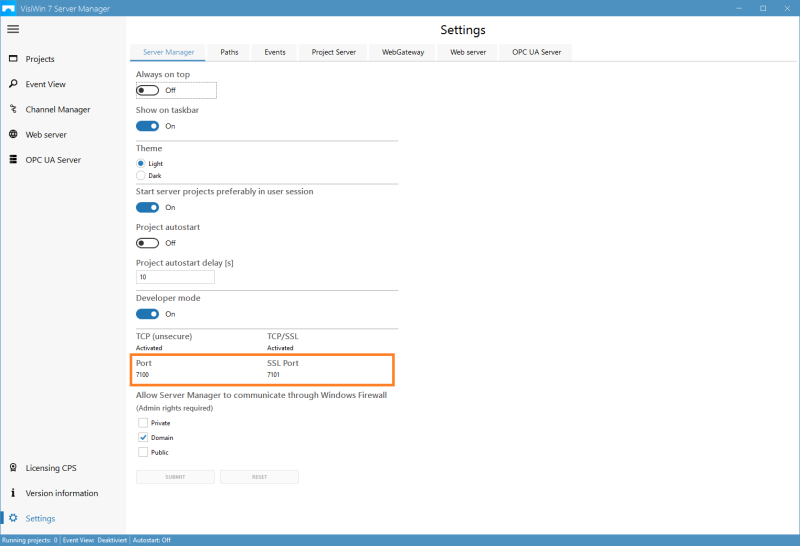
Protocol and port settings of the Servers Manager
Indicates after how many seconds the connection attempt will be abandoned if the target system cannot be reached.
 Show Server Manager of the target device
This button allows to show the Server Manager of the connected target device in order to check ports and paths, for example. In the title bar of the remote Server Manager, the network address (IP address and the port number) of the target device appears in parentheses to avoid confusion with the local Server Manager.
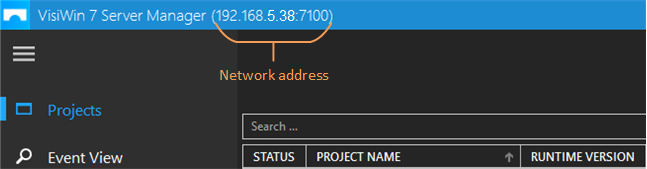
Servers manager of the connected target device with the network address indicated in the title barte
Authentication
During the connection between »EASY UI Designer« and the controller, authentication takes place by entering a user name and password. This security prompt is active if the user management has been activated in the EASY UI project and at least one user with administrator rights has been created in the associated PLC project.
User management can be activated either directly during project creation or subsequently via the project configurator. To activate user management retrospectively, open the project configurator and select the Edit project option. User management can be activated and configured there.
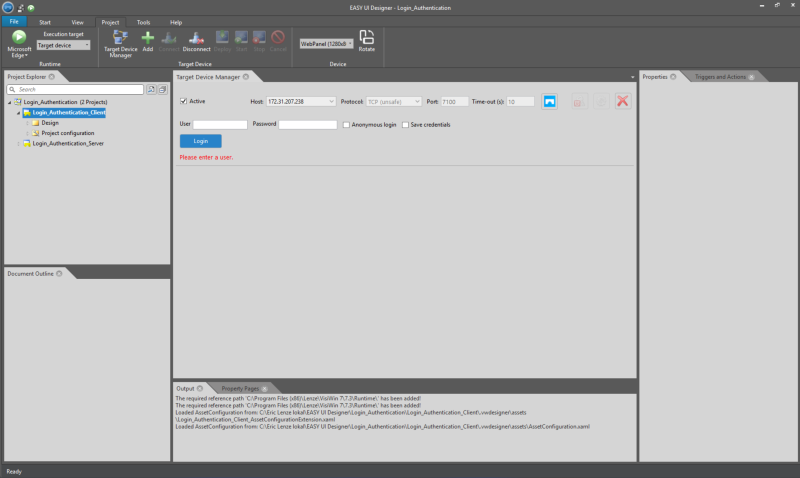
Authentication in the Target Device Manager
Connect to target device
To connect to a target device, you have the following options:
-
To connect to a single target device, indicate the IP address under Host and press Enter.
-
To connect to all selected (
 Active) target devices, click on Connect in the ribbon.
If the connection was successfully established, the message Successfully connected to the target device appears and the projects that are currently open in the IDE appear below the message.
Check project
If the target device was successfully connected, the project(s) of the currently open solution appear under Projects.
Set the following options for the project:
Deploy/Start
Specifies whether the project participates in the Deploy and Start bulk operations.
Project name
Name of the project to be deployed. The name cannot be changed.
Path
Specifies the directory into which the files will be copied.
Port
HTTP port used for communication between web server and web client.
Compatibility
Each project is automatically checked for compatibility with the target system. The result appears below the project name (Project is compatible/Project is incompatible).
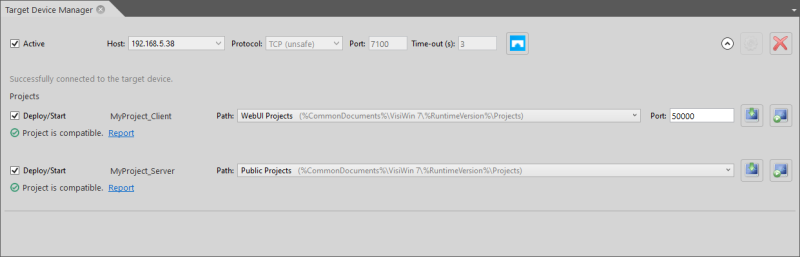
The projects are compatible with the target system and ready for deployment.
To view details on the compatibility check, click on Report. This is particularly helpful if the project was marked as incompatible.
By default, incompatible projects cannot be deployed. If a project is incompatible, the Deploy project button is disabled and the Deploy bulk operation skips that project.
However, you can deploy a project despite its incompatibility with the target device, e.g. if you want to update the runtime at a later time. To do that, open the Options dialog, select Project transfer > Compatibility Check and enable the Show the "Approve transfer" button option. If you open the report for the project in the Target Device Manager and click on Approve transfer, the Deploy project button for that project will be enabled and you can also deploy the project using the Deploy bulk operation.
The compatibility check takes the following check elements into account:
UI type
Checks if the UI type of the client project is supported by the target system. Only checked for Client projects.
Project type
Checks if the project type type is supported by the target system. Only checked for Client projects.
Runtime version
Checks if the required runtime version is available on the target system. If the runtime version of the project differs from the runtime installed on the target system, the project is marked as incompatible. Only checked for Servers projects.
Project file version
Checks if the project file version is supported by the target system.Only checked for Server projects.
Device type
Checks if the device type indicated in the project corresponds with the target device.
Deploy project
Before the Target Device Manager starts to deploy, the solution is build first, i.e. the project(s) are compiled (default setting).
Prior to deployment, a meta data file (*.metadata) is generated containing a list of all files to be transferred (e.g. DLLs) and the time stamp of the last change of each file. The meta data file is created in the output directory and transferred together with the other files. It ensures that already transferred files that have not changed are excluded from transfer to minimize the amount of data to be transferred.
The following files are transferred:
-
Project files: *.exe, *.vw7 etc.
-
Files within the output directory (bin/debug, as a rule)
-
If applicable, the Content folder and its contents, except *.pdb files. The Content folder is created automatically, e.g. if the Save texts per language in a separate file parameter was enabled in projects for runtime version 7.3.
To start the deployment, you have the following options:
-
To deploy one project, click on Deploy project next to the indicated path.
-
To deploy all selected (
Deploy/Start) projects, click on Deploy on the ribbon.
After successful deployment, the message Project successfully deployed appears.
If an error message appears, see here to find a solution.
Start and stop project on target system
You can start the deployed project(s) on the target system.
To start and stops the project(s), you have the following options:
-
To start/stop an individual project, click on Start or stop project next to the indicated path.
-
To start/stop several projects, click on Start/Stop on the ribbon. This will start/stop all projects that were enabled for this bulk operation (
Deploy/Start).
Update project
If you have changed your project and want to deploy the updated project to the target device, then proceed as described in section Deploy project after having configured the target device.
For updated projects, only those files will be transferred that are new or have changed since the last transfer (see meta data file).
The project file (*.vw7) is always transferred and overwrites the already existing project file on the target system.