Create a sub-navigation using the TabBar control
The main navigation for the web app is already implemented in the project templates for the web client. To create a sub-navigation on a page, you can use a TabBar, a Region and Views.
When you complete the steps in this guide, your web app will have a tab bar on the first page and each tab will display a different view in the region below the tab bar.
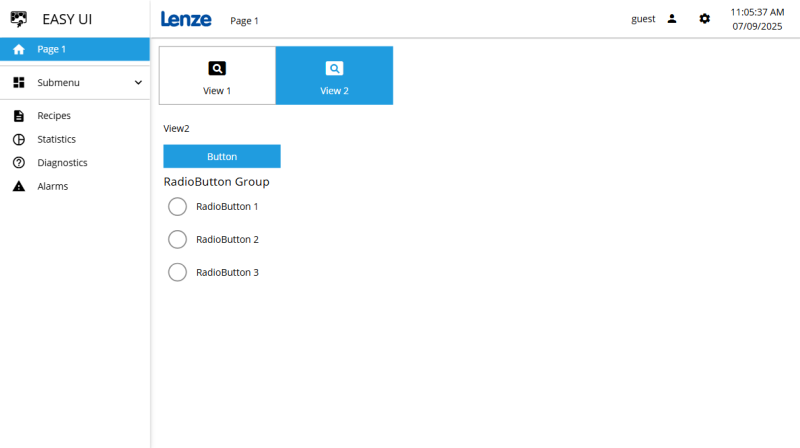
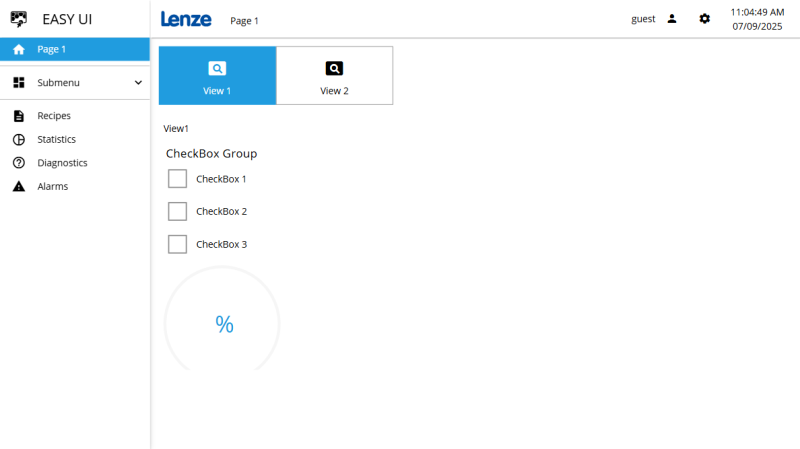
The VIEW 1 and VIEW 2 tabs show different views in the region below the tab bar.
-
To achieve this result, do the following:
-
Create a new project with the Responsive app layout.
-
Remove the two Labels on the MachinePage.
-
Add a new View (FlexLayout) (View1) to the views node in the Project Explorer.
-
Design the view.
-
Reset the DesignWidth and DesignHeight properties so that the designer reflects the actual size of the view at runtime.
-
Add a couple of controls of your choice to the view in the designer, e.g. a Label, a CheckBox Group and a DonutGauge.
-
-
Add a second View (FlexLayout) (View2) and design the view as described in the previous step. Add a Label, a Button and a RadioButtonGroup to the view, for example.
-
Add a TabBar to the MachinePage in the designer.
-
Add a Region to the same page in the designer.
A region is assigned a name by default. The first region on a page is Region1, the second Region2, etc. The numbering starts with 1 on each page. The name is indicated in the Document Outline behind the control in bold and in the Properties window in the Name field. -
Associate the TabBar with the Region.
-
Select the TabBar in the designer or in the Document Outline.
-
In the Properties window, select the name of the Region (Region1) in the RegionId property.
-
-
Associate the first TabButton with View1 using the ViewName property. Type View 1 into the Text property.
-
Associate the second TabButton with View2 using the ViewName property. In the Text property, indicate View2.
-
In the StartViewName property of the TabBar, select View1.
-
Delete the third TabButton.
Start the web app to run a test.
A TabBar is displayed on the first page. The first TabButton (VIEW 1) is activated and View1 is displayed in the Region below the TabBar. If you click the second TabButton (VIEW 2), View2 is displayed in the same Region.
Related topics: