Management of texts
How and where is a text defined, and what information belongs to a text definition?
Text groups
Hundreds, if not thousands, of texts are required for a project. To organize these clearly, EASY UI Designer offers text groups in which texts can then be defined. Text groups can be nested hierarchically. The principle is comparable to a file system: directory ≝ text group, file ≝ text definition.
This allows you to sort and organize text definitions according to a structure of your choice. Within a text group, the names of a text definition must be unique.
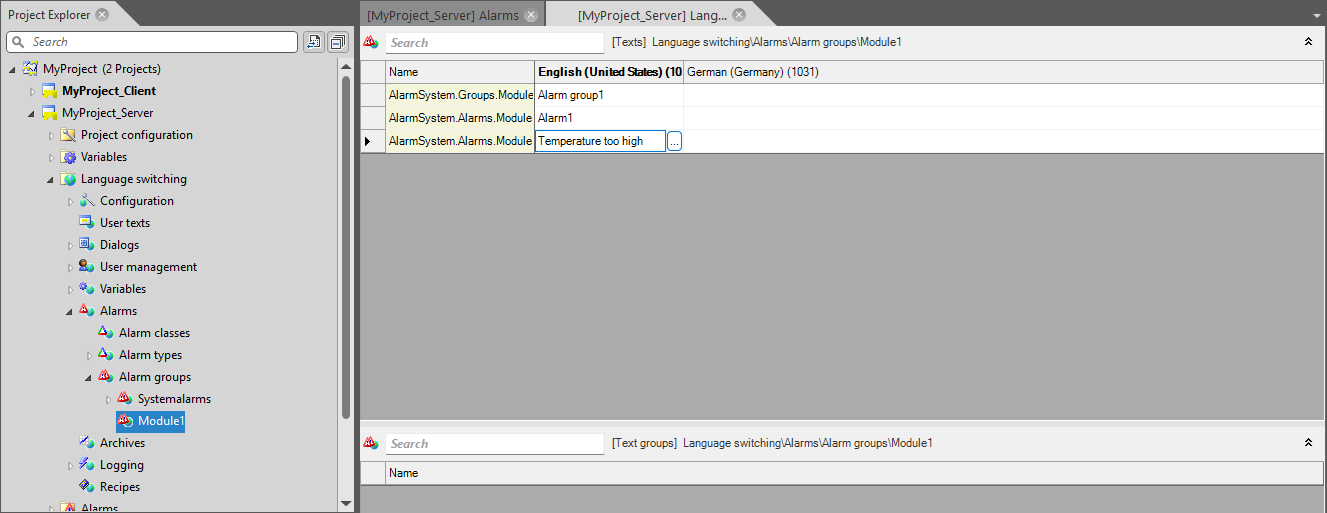
For system texts, the hierarchy is generated automatically and is identical to the hierarchy of the object definitions in which a text was entered. For example, the alarm group hierarchy is replicated one-to-one in the language switching.
Text definition
A text definition is uniquely identified by the Name parameter. When using a text definition (e.g., in a control), it is referenced via this name. The control then displays the text from the language column of the current language.
The Description parameter has no functionality at runtime. It is equivalent to the Comment parameter in other object definitions, where the developer can store their own notes regarding the object definition. However, the description can be used if the developer exports the text definitions for a translation process using the Translation Manager tool. In this case, the description can optionally be exported with the texts, allowing the developer to provide assistance to the translator for the correct interpretation of the text.
Language switching areas
To achieve a clear structure for all texts, they are divided into different areas. These are visible in the Project Explorer under the Language switching node.
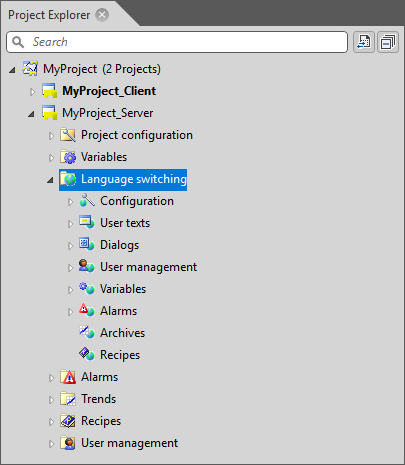
Language switching areas in a server project
-
User texts
-
Within the User texts node, you create the text definitions (localizable texts) that you require in the application and that are not functionally linked to other definitions from the system modules.
Typical examples include:
-
Labels for buttons that trigger a command (e.g., OK, Acknowledge alarm, Save recipe).
-
Texts that are used individually as labels in controls.
-
Text lists used in a control to switch the displayed text depending on a variable value.
-
Texts to be accessed via program code, e.g., for messages, information, and queries (keyword: MessageBox).
In the User texts node, you can freely organize texts into text groups. All subsequent nodes contain system texts, for which the organization of text groups is handled by the IDE and where no custom text definitions can be created.
-
-
-
System texts
-
System texts are texts that are either predefined in the system (components, dialogs) or automatically created by the system during development (variables, alarms, etc.). In these areas, you cannot create, rename, or delete texts.
-
Components
-
Contains texts that are permanently linked either in system messages or in special controls.
-
-
Dialogs
-
Contains texts that are permanently linked in graphical templates.
-
-
Variables, Alarms, Archives, User management, Logging, Recipes
-
Many definitions of the other system modules implicitly contain localizable texts. These texts are often entered there via the Text parameter. The developer enters these texts in the developer language when defining an object, and the IDE creates a text definition in the associated hierarchy within the language switching.
A new alarm named Alarm1 is defined in the alarm group
Module1. You enter the text Temperature too high in theTextparameter: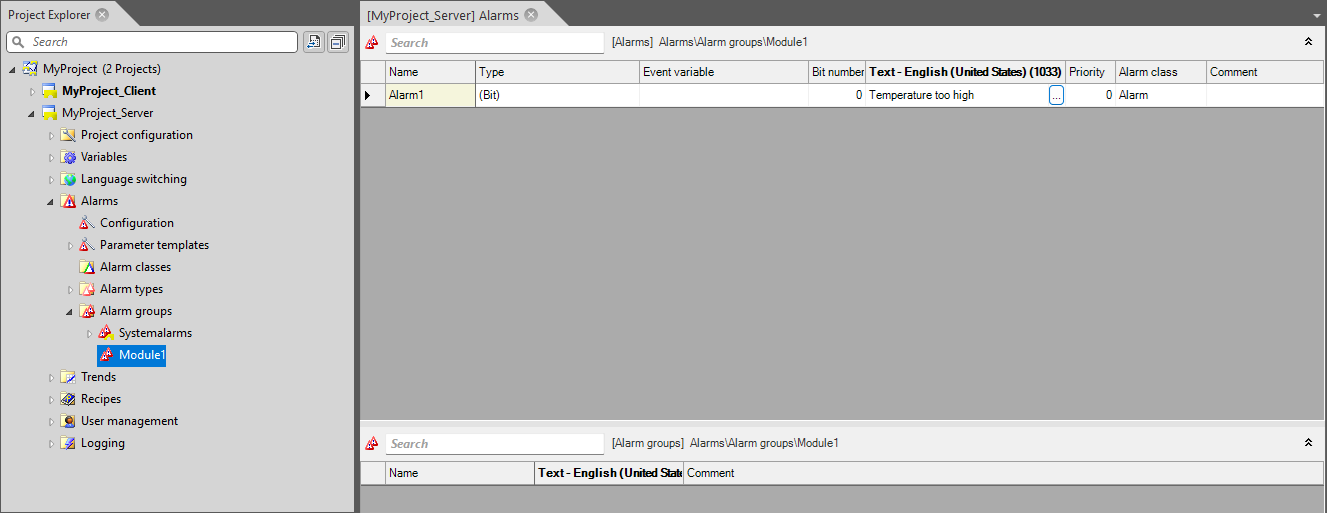
The IDE automatically saves this text with the same hierarchy in the language switching. Here, you can enter the alarm text for additional languages.
-
-
-
Related topics: