Components
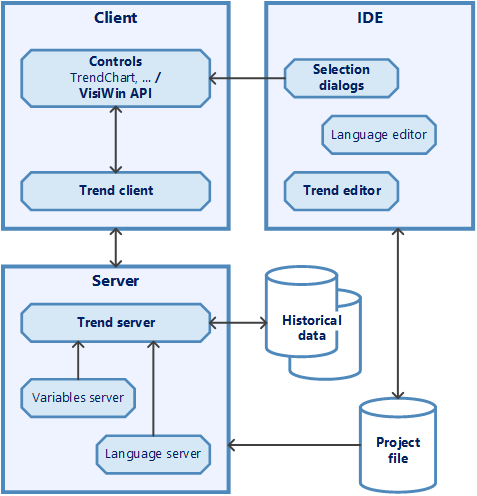
Schematic overview of the individual components of the Trends system module and their interaction.
The diagram below shows the components of the Trends system module. The components, their purpose and interactions are described below.
-
Variables server
-
The variables server provides the trend server with process data for recording (see also The Variables system module).
-
-
Trend server
-
During the initialization, the trend server reads the definitions from the project file. Process data that must be recorded are registered for supervision with the variable server, i.e. the trend server is notified if one of these process values changes. The trend server then saves the data as trend data in the archive files.
The recording of a value is passed on to the connected client applications, if required. This allows to display trend data online. Client requests for historical trend data are answered by reading the appropriate archive files.
Localizable texts that the trend server requires to display additional information are provided by the language server.
-
-
Language server
-
The language server provides optional textual information along with all features of dynamic localizable texts. For example, process variable values can include state-dependent localizable texts as well as special formats such as date, time, etc. (see also Language Switching (system module)).
-
-
Historical data
-
Historical data are trend data in this case. These data are created, maintained and managed by the trend server.
-
-
Client
-
The HMI application client forwards the requests for trend data from the controls to the trend server.
-
-
Controls
-
EASY UI Designer allows to display trend data using the TrendChart control.
-
-
Project file
-
The project file contains the definitions of the Trends system module. A trend definition determines which process variable will be recorded and how it will be represented.
Archive definitions combine trends into a storage unit. An archive definition determines for all contained trend definitions how and where these trend data will be saved.
-
-
Trend editor
-
The trend editor (table editor) allows to create and edit definitions of the Trends system module. The definitions, which are contained in the project file, determine the runtime behavior of the trend server.
-
-
Selection dialogs
-
EASY UI Designer includes dialogs for an easy selection of definitions contained in the project file at design time. The Collection Editor dialog allows to select the trends for the TrendChart and to configure the trend curve appearance. To open the Collection Editor, select the TrendChart in the designer or in the Document Outline and click the pen icon
 of the Series (Collection Editor) property in the Properties window.
-
Related topics: