Designer
The individual views (views or pages) of the visualisation project are edited in the Designer.
Open designer
The Designer is opened automatically when you open an HTML file from the Design node in the project explorer in a project. The Design node is only available in project templatesthat have a user interface (UI), e.g. in client/server projects.
To open a view/page, you have the following options:
-
Double-click on the view/page in the project explorer.
-
Right-click on the desired view/page and select Open from the context menu.
-
Select the desired view/page and press Enter.
The Designer is opened and the view/page is displayed in the Designer. You can open several files one after the other in the Designer.
Control elements of the Designer
The Designer has the following controls:
Designer Web UI
|
Files opened in the Designer are displayed as tabs. For example, you can switch back and forth between the tabs, organise tabs into groups and drag a single tab out of the program window of the development environment to display it in a separate window. |
|
|
List of active files |
If you click on the button with the small triangle, a list of all files open in the Designer opens. If you click on a name in the list, the corresponding tab is activated for editing, i.e. it appears in the foreground. To switch between the tabs, you can also click on the desired tab. |
|
In the design view, you can design the view or page opened in the Designer graphically by adding, reducing or enlarging, arranging and, if necessary, moving or removing elements. |
|
|
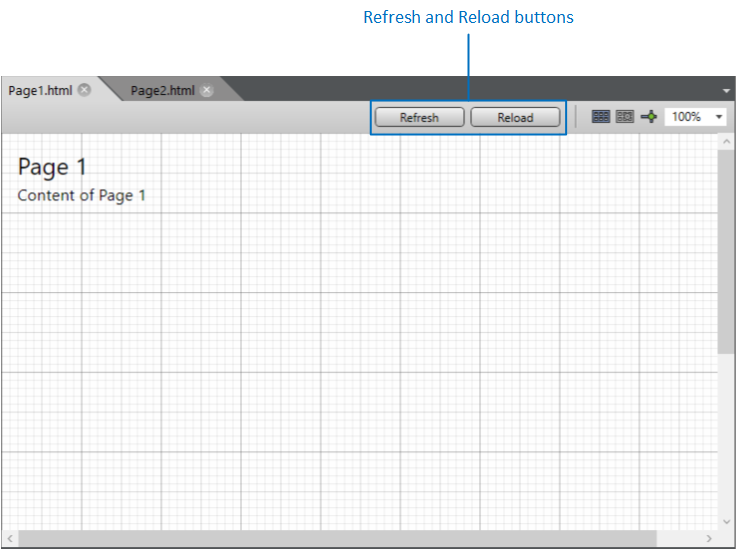
Refresh and reload |
When you open an HTML document (page or view) in the Designer, it is loaded into the Designer. If you have edited the document outside the IDE or encounter problems (the page "hangs"), you can reload the file into the Designer using the Reload button. You can achieve the same effect by closing the tab in the Designer and reopening the page from the project explorer. If you place a control element on a page in the Designer, the page is "updated". You can use the Refresh button to refresh the page yourself if required, e.g. if the adorners (such as the blue border around a control element) are not displayed correctly. Refreshing is faster than reloading. |
|
The toolbar functions help you to position and align the elements on the view or page. |
|
|
Scroll bar |
You can use the vertical scroll bar to move the view/page up or down. Alternatively, you can use the mouse scroll wheel. You can use the horizontal bar to move the view/page to the left or right or use Shift+scroll wheel. |
The Options dialogue under the Designer node provides options for customising the Designer.
You have the following options when working with tabs in the development environment:
If several files are open in the Designer, you can switch between them.
-
You can open the "Active files" list
 and click on the file name. To do this, left-click on the tab with the name of the file.
Change the order of the tabs
To change the order of the tabs, click on the tab with the left mouse button and drag the tab to the desired position.
Save files
An asterisk next to the file name on the tab indicates that it has unsaved changes. You have the following options for saving files:
-
Press Ctrl+S to save the active document in the Designer.
-
Press Ctrl+Shift+S to save all documents opened in Designer.
Files can be saved automatically. To do this, activate the Automatically save documents option in the Options dialogue and change the time period if required.
Close files
You have the following options for closing a file:
-
Right-click on the tab and select Close from the context menu.
-
Click on the
 icon of the tab.
Close all files in the Designer:
-
Right-click on a tab and select Close all documents from the context menu.
If a file contains unsaved changes, a dialogue appears in which the saving of changes can be confirmed or rejected or closing can be cancelled.
In the design view, you have the following options for working with control elements:
When you open a view/page in the Designer, you can add a control element to the view/page in the following way:
-
In the "Start" menu, click on a control element from the "Controls" group or on a shape from the "Draw" group. Then click on the view/page in the design view.
-
Click on a control element or a shape in the "Start" menu and drag the element to the view/page in the design view while holding down the mouse button. Release the mouse button.
This means that a control element is not added directly to a view or page, but to a layout container, which in turn is an element of the view or page. Examples of layout containers in the Modern UI are the Grid or the StackPanel, in the Web UI the AbsoluteLayout or the FlexLayout. A newly created view or page usually already has a layout container.
Select element
To be able to edit an element, you must first select (highlight) it. You have the following options for selecting an element:
-
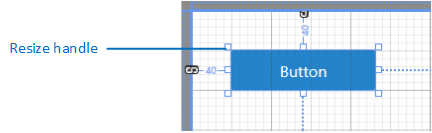
Click on the desired control on the view/page. The selected control shows the resize handles.
-
Click on the desired control element in the document outline. The control selected in the document structure also appears as selected in the design view.
-
The properties window displays the properties and events for the selected control element.
You have the following options for selecting several controls at the same time:
-
Use the left mouse button to drag a diagonal across the controls that you want to select at the same time. A rectangle with a dashed line is displayed. When you release the mouse button, controls located in this area are selected.
-
Select a control by clicking on it, press and hold the Ctrl key and select another control. In this way, you can select multiple controls that are not in close proximity to each other. Multiple selection using the Ctrl key is also possible in the document structure.
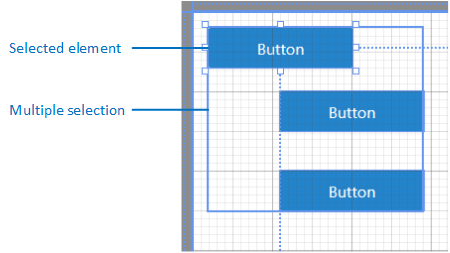
Multiple selection also allows the following:
-
You can move the selection with the mouse.
-
You can apply the editing functions to the selection.
-
You can add the selection to another container.
To cancel the selection, click on a position where there is no control element for this selection.
Cut, copy, paste and delete element(s)
The common editing functions cut, copy, paste and delete are available for control elements and can be triggered either via the context menu, the ribbon or the keyboard shortcuts in the Designer or in the document outline.
To do this, select the control element or several control elements and drag the selection while holding down the mouse button. Release the mouse button at the desired position. On the Grid and Canvas containers in the Modern UI and AbsoluteLayout in the Web UI, this defines the position of the control element or control elements; on the StackPanel (Modern UI) and FlexLayout (Web UI) containers, it defines the order.
Enlarge and reduce element
To change the size of an element in the design view:
-
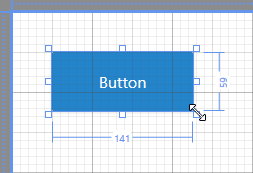
Click on the control element. The resizing handles for the control element are now displayed.
-
Move the mouse pointer over one of the handles. The cursor turns into a double arrow.
-
Press and hold the left mouse button and drag the handle in the desired direction.
-
Once you have reached the desired size, release the mouse button.
Add element(s) to another container
Select the element(s), drag the selection with the mouse to the desired container and press the Alt key.
Change the order of the elements
If there are several control elements on a container, the order of these elements can be changed. Depending on the container, however, the changed order will have a different visual effect.
In "AbsoluteLayout", each control element is on a transparent layer. If there are several control elements in the container, these layers are stacked on top of each other. The control element in the foreground is on the top layer and may cover other control elements in this container. If it is moved to the background, it can be covered by the other controls. If none of the control elements cover another, the changed order will not make any visual difference.
In FlexLayout, on the other hand, the control elements are next to each other on one level. They cannot overlap unless an overlap is "forced" with negative margins.
To change the order of the controls within a container, right-click on a control and select one of the functions in the "Order" group in the context menu.
To align all controls of a multiple selection with one of these controls:
-
Select the control elements that you want to align.
-
Right-click on the control element within this selection to which you want to align the other control elements.
-
Select the desired function from the Align group in the context menu.
Layout
You can reset the layout properties "Margin", "Width", "Height" and "Size" to their respective default values using the functions of the "Layout" group of the context menu of the selected control element or a multiple selection.
This allows you to adjust the size of all controls in a multiple selection to the size of one of these controls:
-
Select all the controls whose size you want to adjust.
-
Right-click on the control in the selection to which you want to adjust the size of the other controls in the selection.
-
Select the desired function from the Adjust size group in the context menu.
Edit style
You can use the functions from the "Edit style" group in the context menu of the control to create a new style for the type of control selected or change an existing one.
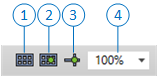
The Designer toolbar contains the following functions:
|
|
Shows or hides the grid as an aid for aligning elements in the Designer. To ensure that the elements can only be placed along the grid lines, the Dock to grid lines(2) function must be activated. You can change the grid line spacing in the Options dialogue via the Grid line spacingsetting. |
|
|
Determines whether elements of an AbsoluteLayout should dock to the grid lines. This makes it easier to align elements. You can change the grid line spacing in the Options dialogue via the Grid line spacingsetting. |
|
|
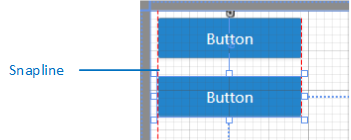
Defines whether alignment lines, standard spacing and standard internal spacing should be displayed for elements of an AbsoluteLayout. Alignment lines are red dashed lines that help to align a control element with a neighbouring control element. An alignment line appears when you drag a control element with the mouse into the vicinity of another element in the same container.
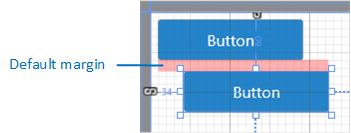
The default distance marks the desired minimum distance to another control. It is represented by a red, translucent line and appears when you drag a control with the mouse close to another control in the same container.
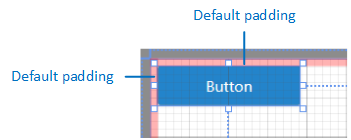
The standard inside distance marks the desired minimum distance between the control element and its container. It is represented by a red, translucent line and appears when you drag a control element to the edge of the container with the mouse.
You can change the default spacing and the default inner spacing in the Options dialogue via the Default spacing and Default inner spacingsettings. |
|
|
Zoom Reduces or enlarges the display of the view/page in the Designer. Alternatively, you can use Ctrl+scroll wheel. |