Start menu
The menu provides editing functions such as copying and pasting as well as the toolbox with control elements and functions.
The "Start" menu opens when you open a project in the development environment. The functions are grouped by task.
Some functions can be triggered using keyboard shortcuts. All ribbon functions can be added to the quick access toolbar.
Clipboard
The following functions are contained in the "Clipboard" group:
-
Cut out
Removes the selected element and copies it to the clipboard. Keyboard shortcut: Ctrl+X
-
Copy
Copies the selected element to the clipboard. Keyboard shortcut: Ctrl+C
-
Insert
Inserts the element in the clipboard at the selected position. Keyboard shortcut: Ctrl+V
Edit
The following functions are included in the "Edit" group:
-
Undo
Cancels the last action.
-
Repeat
Repeats the last action that was undone.
-
Delete
Deletes the selected element.
Search
The "Search" group contains functions for searching for words in texts. These functions are only activated and can only be executed if the table editor or the "Xaml" or "Code" view of the Designer is activated.
The following functions are included in the "Search" group:
-
Search
Calls up a dialogue to search for words in the text.
-
Continue searching
Selects the next instance of the search word.
-
Replace
Calls up a dialogue to replace one word with another.
When you call up the "Search" or "Replace" function, one of the following dialogues is displayed in which you can make settings for the search and replace:
Arrange
You can use the functions in this group to change the order of the controls in the container and align the selected controls with one of these controls within a container.
Style
If you select a function from the "Style" group, you can use the style editor to create new, customised styles or edit existing ones.
Pointer
If you have selected a control from the "Controls" group and move the mouse pointer over a layout container in the Designer, the mouse pointer turns into a cross. You can then click on the container to place the control element on the container.
However, if you do not want to place the selected control element, but instead want to mark an existing control element on the view, for example, you can reset the mouse pointer by clicking on "Pointer". It will then return to its original arrow shape.
Control elements
The "Controls" group contains controls that you can add to a layout container in the Designer.
The controls are organised in the groups "Buttons", "Input/output", "System", "Layout", "Navigation" and "Media". The most important controls can be found in the first two columns in the "Controls" group.
Functions
The "Functions" group contains functions (actions) that you can assign to control elements and that are triggered when a certain event occurs.
User Controls
The "User controls" group contains the user controls you have created yourself, which you can create in the client folder by right-clicking on "Design", selecting the Add new element entry and then selecting the User controls entry and a specific layout.
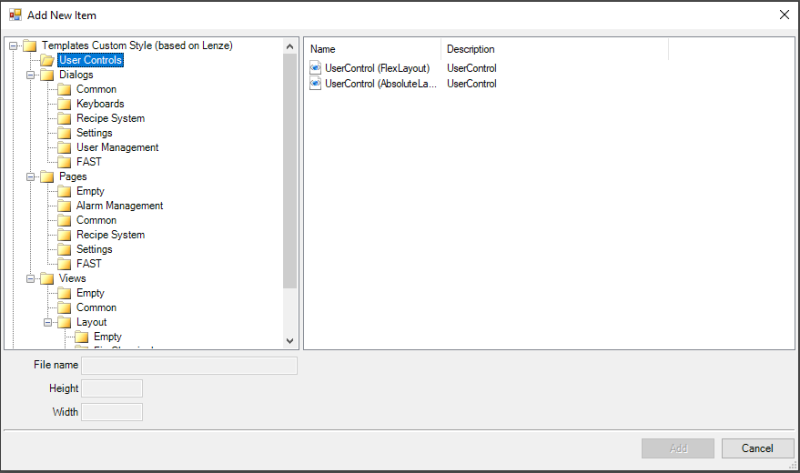
Adding a "user control"