The cross-reference checks the project for the use of variables, texts, rights and unit classes and indicates potential errors. In addition to these definition types, bindings can be checked for Modern UI projects and font classes for Classic UI projects.
Open editor
The cross-reference can be found in the project explorer as the last entry in the project configuration node of a project. Each project has its own cross reference.
To open the cross-reference editor, you have the following options:
- Right-click on the Cross reference node or one of its sub-nodes and select Show editor from the context menu.
- Select the Cross reference node or one of its sub-nodes and press Enter.
- Double-click on the Cross reference node or on one of its sub-nodes.
The editor is opened in a tab in the centre of the development environment.
Control elements
The cross-reference editor has the following operating elements:
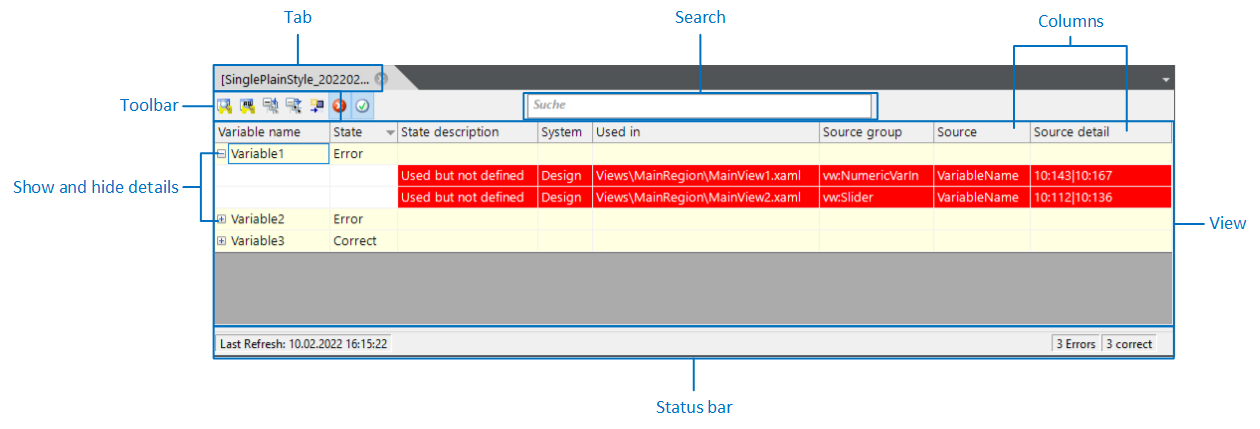
- Tab
- A separate editor is opened for each project on a tab in the centre of the program window of the development environment. Tip: You can, for example, drag a single tab out of the development environment to display it in a separate window or organise tabs into groups. For more information, see Tabs.
- Toolbar
- Contains the general functions and functions for filtering the results.
- View
- The scan results are displayed here. There is one view each for bindings, variables, texts, rights, font classes and unit classes. To display the results for variables in the editor, for example, click on the Variables sub-node of the cross-reference in the project explorer.
- Search
- You can reduce the results list to the results that contain a specific character string within the first column. To do this, type this character string into the search field. The number of hits is displayed in an output field next to the search field.
- Show and hide details
- The bindings, variables, texts etc. (nodes) found are highlighted in light yellow. You can expand each node by clicking on the plus symbol
 to display further information, e.g. a more detailed description of the error and where it occurs. You can hide the information by clicking on the minus symbol
  .
. - Columns
- You can make each column in the table wider or narrower, just like in the table editor, or double-click to make it fit exactly. You can sort the results by clicking on the column header. Detailed information on the results is displayed in the columns.
- Status bar
- Indicates the time of the last analysis and the number of errors, warnings and correct usages in the table.
Scan project
If the cross-reference editor is open, select the desired view, e.g. variables below the Cross-reference node in the project explorer and click on the  (scan project) or
  (rescan project) button in the editor toolbar.
The results are displayed in a table.
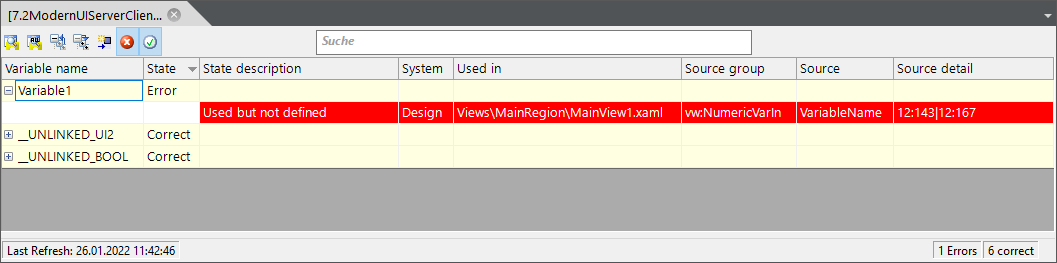
Filter results
The toolbar contains filter functions that filter the results in the table by status.
When you open the cross-reference editor, all filters (except for the Show system texts filter in the Texts view) are initially activated. This means that the list of results is usually quite long. You can filter the results for a systematic check. To do this, click on the desired filter in the toolbar to activate or deactivate it.
 activated and deactivate the others.
Sort results
You can sort the displayed data records in ascending or descending order by clicking on the desired column header. A small triangle pointing upwards or downwards in the column header indicates the corresponding sorting (upwards: ascending sorting, downwards: descending sorting).
- Ascending:
- Correct
- Defined, but no use found
- Used, but not defined
- Usage error (bit number)
- Descending:
- Usage error (bit number)
- Used, but not defined
- Defined, but no usage found
- Correct
Show details
To examine a data record in more detail, first expand the desired data record by clicking on the plus symbol to display the relevant information. You can also expand all displayed data records at once by clicking on  (Open all nodes) in the toolbar. Errors are highlighted in red, warnings in yellow.
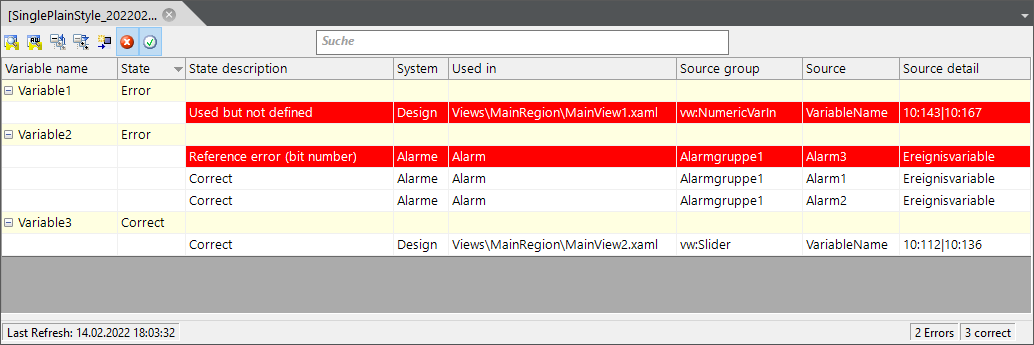
In the expanded view, the exact information on a data record is visible in the columns Status Description, System, Used in etc.
Navigate to the source
If you have expanded a data record, you can navigate directly to the source of a usage:
- Double-click on the desired row in the cross-reference editor; the column is irrelevant.
- Click once on the line and click on
 (Show definition) in the editor toolbar.
 - Right-click on the line and select Show definition from the context menu.
If the usage can be found on a form, a view or a page, the corresponding document is opened in the Designer and the usage is selected. If the usage can be found in a definition (e.g. in an alarm), this definition is opened in the table editor and selected.
The view must already be open in the Designer for the relevant control element to be selected automatically. The Show definition command must therefore usually be executed twice: The first time the view is opened in the Designer, the second time the control element is selected.
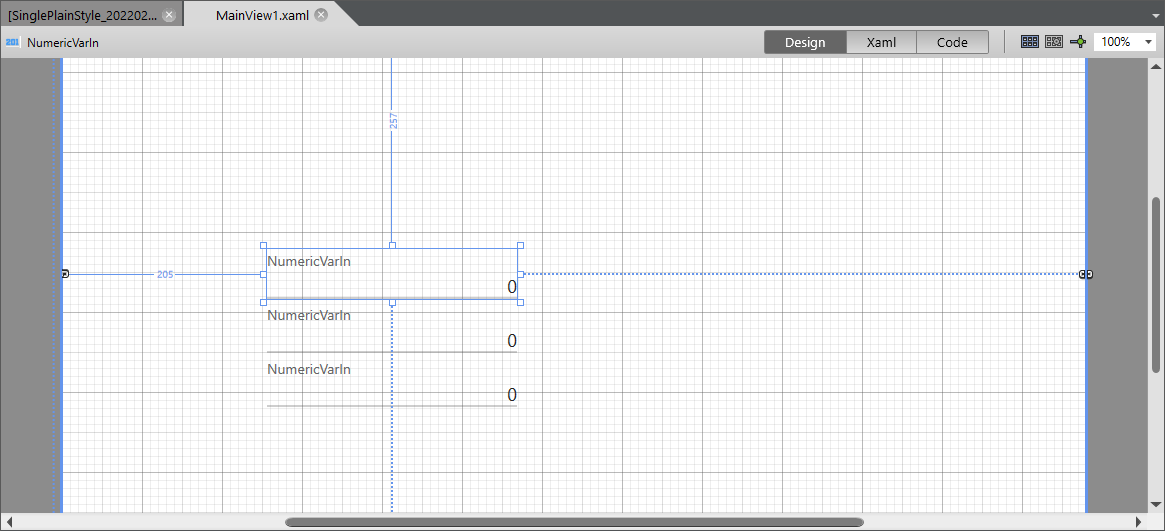
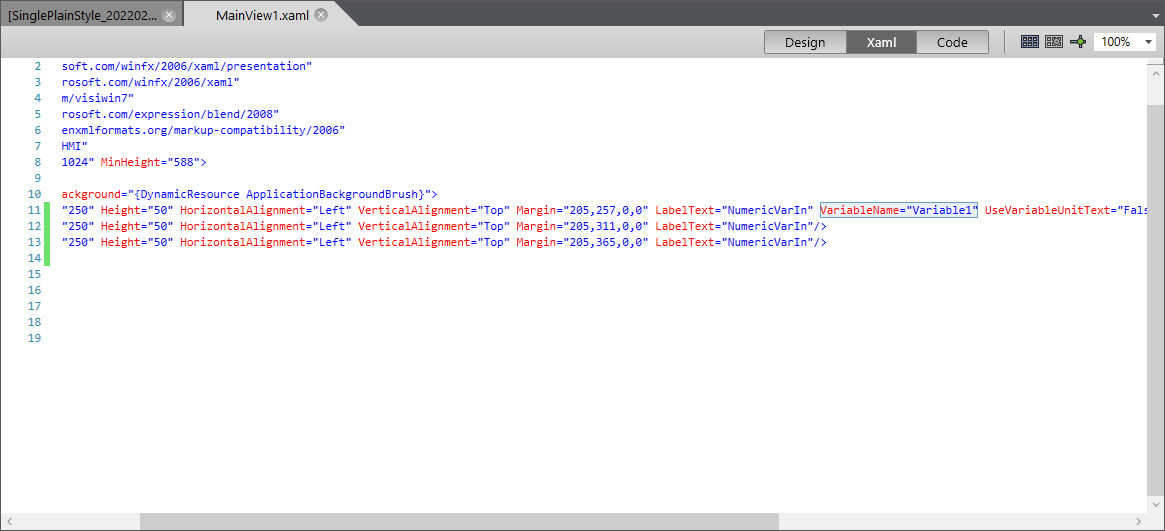
In the Modern UI, you can also highlight the relevant position in the XAML text. To do this, activate the Xaml view for the view and execute the Show definition command in the cross reference again.
Correct errors and update cross-reference
Once you have corrected the error, e.g. specified the correct variable in the VariableName property of the control, save the document in the Designer and scan the project again to update the cross-reference data.