Preload pages
If, when testing your application, you notice that certain pages take a very long time to display thus diminishing the user experience, you can put the loading of these pages forward to the start phase of the application. These pages are then displayed immediately when navigating in the app.
Before the pages are displayed in the HMI for the first time, the JavaScript controls they contain must be initialized in the browser. Depending on the type and number of controls, this may take a few seconds. Once the objects are loaded and exist in the cache, the page is displayed immediately. To enable this behavior when pages are displayed for the first time, certain pages can be explicitly preloaded. The following image illustrates the process without and with the preload function.
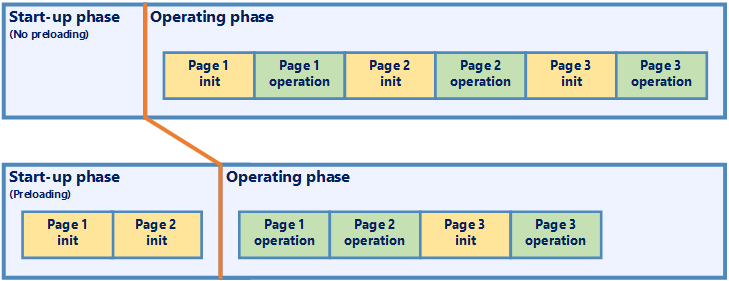
The first line in the image shows the default process. A page is initialized (init) when it is first called, which can lead to a short waiting time depending on the complexity of the page. In this scenario, the machine operators would not see the controls on Page 1, Page 2 and Page 3 immediately when navigating to them and could not operate them directly (operation). Depending on the waiting time, this can be irritating. If the waiting time is considered unacceptable, it is advisable to preload these pages.
The second line shows the process with the preload function activated. Here, the initialization of Page 1 and Page 2 has been moved to the start phase of the application. Thus, the objects are initialized while the user sees the splash screen. With this configuration, both pages appear without delay on the first call. Page 3 is not initialized unless called by the user for the first time. As shown in the figure, preloading can result in the start process being slightly longer. This potential impact should be taken into account when using the preload option.
The preload option is available for version 1.7.0 and higher. This means that the option cannot be found on the Property Pages for projects that were created with an earlier version. The setting becomes available if the project is updated to at least version 1.7.0.
-
Follow the instructions below to activate the preload option for selected pages:
-
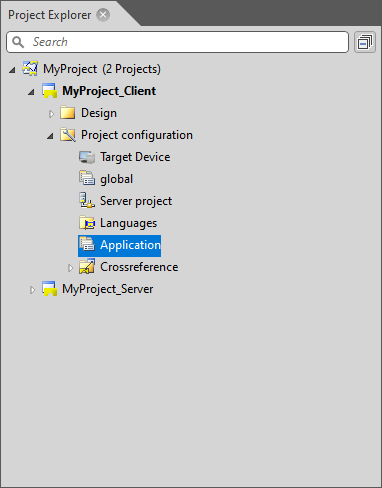
In the Project Explorer, expand the nodes [ProjectName]_Client > Project configuration and click on Application.
-
On the Property Pages, Tab Preload, enable the Activate preloading option.
The Select Pages... button is now enabled.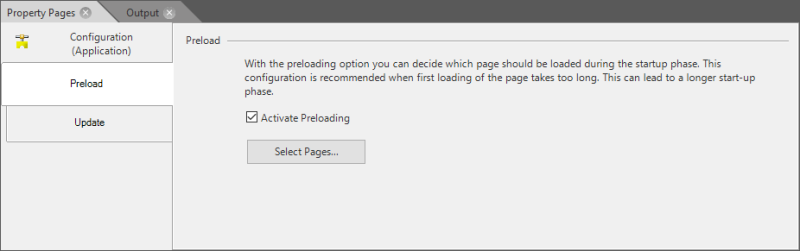
-
Click on Select Pages... The Select Pages for Preloading dialog appears.
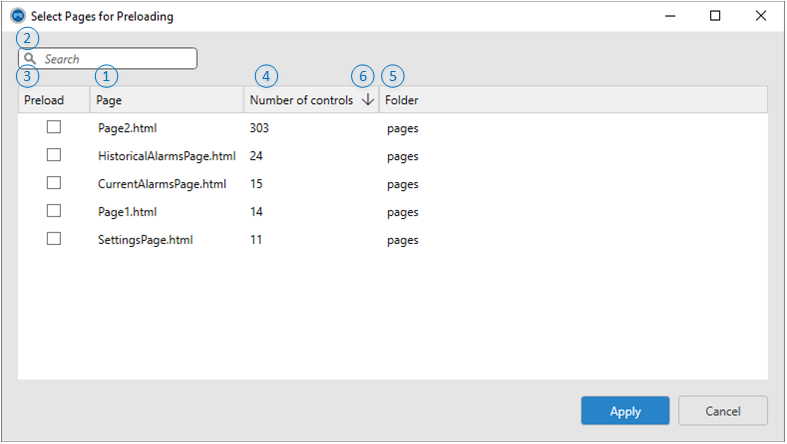

The dialog shows all pages that exist in the client project and can be preloaded. -
System-relevant pages (currently only the LoadingPage.html) do not appear in the dialog.
-
The dialog only allows to select pages. All controls on the selected pages will be preloaded automatically. This also applies to elements bound to a page, such as views. For example, if a page contains a region to which views are bound, these views will also be initialized. However, a prerequisite for this is that each region was given a unique ID via the name property. From version 1.7.0 onwards, names are assigned automatically to regions once they are added to the page in the designer. If you want to use the preload option in updated projects, ensure to assign names to all regions located on the pages you want to preload.
-
If the Lenze.UI.PanoramaView is used in the project, it must have a unique name to ensure that any associated contents are initialized correctly. The automatic naming feature is available for EASY UI Designer version 1.7.0 and higher. For projects created with version <1.7, a name must be given to any PanoramaView located on a page that you want to preload.

The Search box allows to filter pages by name. 
The checkbox in the Preload column allows to select or deselect the desired page for preloading. 
The Number of controls column shows the number of controls to be initialized. Due to dependencies in the controls, the number can be higher than the number of visible objects on a page. This information is useful when selecting the pages to preload since it gives an indication of the volume of a page. 
The Folder column indicates the folder where the page is located. 
The table can be sorted by a click on a column header in ascending or descending order. -
-
In the dialog, select the pages you want to preload.
-
Click Apply.