AlarmIndicator
Indicates the presence of alarms.
|
Symbol |
|
|
Menu ribbon |
Start > Controls > System > Alarms > AlarmIndicator |

The "AlarmIndicator" visualises the alarm class and the alarm status of the current alarm as well as the number of alarms in the displayed alarm class. The control element can be used in the header bar or another permanently visible area of the application, for example, to alert users to the occurrence of alarms at any time.

The AlarmIndicator shows three active alarms in the "Alarm" alarm class.
Functionalities
The control element supports the following functionality:
-
Display of an alarm counter
-
Display of background and graphic colours that change depending on the alarm class and alarm status
-
Display of a changing or static graphic depending on the alarm class and alarm status
-
Display of filtered alarms
-
Connection to the user administration for blocking operability
-
Display of the background, the frame, the shadow, etc.
You can configure these functionalities via the properties in the "Properties" window when you select the control element in the Designer or in the document outline.
Style
There are no system styles available for the control. You can create your own styles for the control. These styles are available for selection in the "Style" property after creation.
Structure
The control element contains an internal container on which the two elements "Indicator" (display of the graphic) and "Badge" (alarm counter) are positioned.
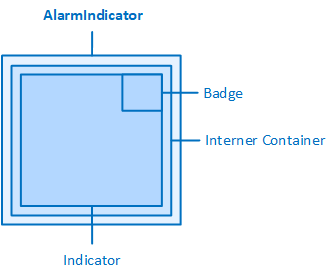
AlarmIndicator and its elements
Background of the AlarmIndicator
By default, the AlarmIndicator is displayed with a circular background, which can change colour depending on the alarm class and alarm status.
The background can be configured using the following properties in the "AlarmIndicator" category.
CircularBackground
If the property is activated, the background is displayed in a circle, otherwise it is rectangular. The "ShowBackground" property determines whether the background is displayed in colour.
ShowBackground
If the property is activated, the background is displayed in different colours depending on the alarm class and alarm status. If the property is deactivated, the background is displayed in a transparent colour.
The alarm counter (badge) shows the number of alarms of the alarm class currently displayed.
The following properties for configuring the alarm counter can be found in the "AlarmIndicator" category.
AutoScaleBadge
Scales the width and height of the alarm counter to 0.3 times the width ("Width" property) or height ("Height" property) of the control element. If the height and width of the control element are different, the shorter distance is used to calculate the width and height of the alarm counter.
-
If this property is activated, the specification in the "BadgeSize" property is ignored.
Example:
|
Width |
Height |
AutoScaleBadge |
Calculation |
Size of the badge |
|---|---|---|---|---|
|
70 px |
70 px |
þ |
70 px × 0.3 = 21 px |
21 px × 21 px |
|
80 px |
70 px |
þ |
70 px × 0.3 = 21 px |
21 px × 21 px |
|
60 px |
70 px |
þ |
60 px × 0.3 = 18 px |
18 px × 18 px |
If the width and height of the AlarmIndicator are both set to 70 px and the ""AutoScaleBadge property is activated, the width/height of the Badge element is 70 px × 0.3 = 21 px. If the width or height alone is increased to 80 px, for example, the width/height of the badge element is still 21 px, as the shorter distance is used for the calculation. If the width or height alone is reduced to 60 px, for example, the width/height of the alarm counter is then 60 px × 0.3 = 18 px.
AutoScaleBadgeTextSize
Calculates the relative font size (expressed in the unit "em") according to a formula, which is used for scaling the font size in the badge. The result is a font size that is in a visually appropriate proportion to the size of the badge. If the size of the badge changes, the font size in the badge is also changed.
The relative font size is calculated using the formula "badge size / factor = relative font size". The factor is 20 for a single-digit number of alarms, 25 for a two-digit number, 35 for a three-digit number and 40 for a four-digit number. The default setting for the font size is used for scaling (16 px).
-
If this property is activated, the specification in the "BadgeTextSize" property is ignored.
Example:
|
Size of the badge |
Number to be displayed |
Relative font size of the badge |
Scaled (absolute) font size of the badge |
|---|---|---|---|
|
21 px*21 px |
single-digit (1 ... 9) |
21 px / 20 = 1.05 em |
16 px × 1.05 em=16.8 px |
|
21 px*21 px |
two-digit (10 ... 99) |
21 px / 25 = 0.84 em |
16 px × 0.84 em=13.44 px |
|
21 px*21 px |
three-digit (100 ... 999) |
21 px / 35 = 0.6 em |
16 px × 0.06 em=9.6 px |
|
21 px*21 px |
four-digit (1000 ... 9999) |
21 px / 40 = 0.525 em |
16 px × 0.525 em=8.4 px |
BadgeSize
Defines the width and height of the alarm counter. The alarm counter is displayed in a circle, but is actually a square box, i.e. the height and width of the alarm counter are always the same.
-
The specification in "BadgeSize" is ignored if the "AutoScaleBadge" property is activated.
BadgeTextSize
Defines the font size of the alarm counter.
-
The specification in "BadgeTextSize" is ignored if the "AutoScaleBadgeTextSize" property is activated.
ShowBadge
Determines whether the alarm counter is displayed.
In addition, the "BadgeBackgroundColor" and "BadgeForegroundColor" properties (category "Colors") can be used to define colours for the background and font of the alarm counter.
An "AlarmIndicatorItem" specifies the alarm class that is to be displayed in the AlarmIndicator control element. Three AlarmIndicatorItems are already created in the AlarmIndicator for the three alarm classes "Alarm", "Message" and "Hint", which are available by default in every project of type Server or Single.
To add new AlarmIndicatorItems if you have created additional alarm classes in the project that you want to display in the AlarmIndicator, or to configure the AlarmIndicatorItems, open theCollection Editorvia the "AlarmIndicatorItems (Collection)" property of the AlarmIndicator.
An AlarmIndicatorItem supports the following functionality:
-
Connection to the alarm class via the "AlarmClassName" property
-
Prioritisation of the alarm class
-
Color representation of the background and the graphic for this alarm class
-
Display of a special graphicfor this alarm class
Prioritisation of the alarm class
You can prioritise an alarm class linked via an AlarmIndicatorItem for display in the control element. The following properties are available in the AlarmIndicatorItem in the "Other" category for this purpose:
UseCustomPriority
Specifies that the alarm class specified in the "AlarmClassName" property in the control should be prioritised over other alarm classes linked via the AlarmIndicatorItems. The priority is defined in the "Priority" property.
Priority
Specifies the value for the importance of the alarm class specified in the "AlarmClassName" property compared to the alarm classes specified in the other AlarmIndicatorItems. The higher the value, the more important the alarm class is. The value can be in the range 0 to231-1(=2,147,483,647).
To understand the effect of the "Priority" property on the behaviour of the AlarmIndicator, carry out the following example with a Web UI Single or Web Client Server project:
-
Create three new alarm classes in the "Alarms" system module ("Alarm class1", "Alarm class2", "Alarm class3").
-
Specify a background colour for each alarm class in order to visually distinguish the alarm classes from one another, e.g. red for "Alarm class 1", orange for "Alarm class 2" and green for "Alarm class 3".
This allows you to define the colours for the various alarm statuses in an alarm class definition:
-
Select an alarm class definition in the table editor.
-
Click on the "Advanced" tab on the property pages.
In the Background colourand Foreground colour (colour of the graphic) parameters, you can set the colours for the various alarm statuses of this alarm class. If you leave the Acknowledgement type parameter in the "Reset" setting ("General" tab), you only need to change the colours for the "Arrived" status, as the other alarm statuses do not occur with this acknowledgement type.
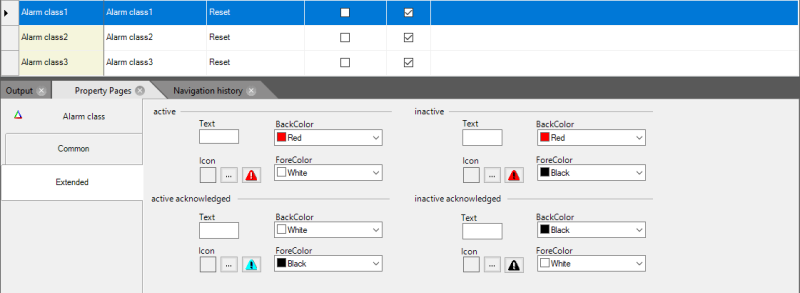
-
-
In the "Variables" system module, create three variables, e.g. in the "Internal" channel ("Variable1", "Variable2", "Variable3"), which you will use as alarm-triggering variables in the next step.
-
Create a new alarm group in the "Alarms" system module in which you create three alarms. Enter "Variable1", "Variable2" and "Variable3" for each alarm in the " Event variable" parameter.
-
Open "Page1.html" of the project in the Designer and place an AlarmIndicator on the page. Open the Collection Editor via the "AlarmIndicatorItems (Collection)" property and change the properties of the three existing AlarmIndicatorItems as follows:
Feature
AlarmIndicatorItem0
AlarmIndicatorItem1
AlarmIndicatorItem2
AlarmClassName
Alarm class1
Alarm class2
Alarm class3
Priority
0
0
0
UseCustomPriority
o
o
o
-
Place three control elements of the Switch type on "Page1". Connect "Variable1", "Variable2" and "Variable3" via the "VariableName" property. You can use these switches to trigger the alarms at runtime in order to observe the effect on the AlarmIndicator.
-
Press F5 to start the project in the browser.
Activate the switches one after the other at random. You can see that the last activated alarm is displayed in the "AlarmIndicator", as the respective priorities of the alarm classes to which these alarms belong are the same, namely 0.
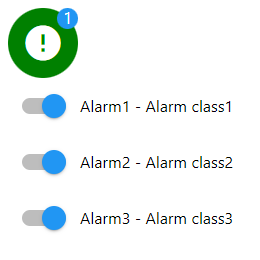
"Alarm3" was activated last, the "AlarmIndicator" shows the colour of its alarm class (green).
End the execution of the project by closing the browser or the browser tab.
-
Increase the priority for alarm class 1 in the IDE:
Feature
AlarmIndicatorItem0
AlarmIndicatorItem1
AlarmIndicatorItem2
AlarmClassName
Alarm class1
Alarm class2
Alarm class3
Priority
1
0
0
UseCustomPriority
þ
o
o
-
Press F5 to start the project in the browser.
Activate the first switch. "Alarm1" is now active and is indicated by the red colour in the "AlarmIndicator". Activate the other switches. The "AlarmIndicator" still shows the alarm class of "Alarm1", as you have prioritised this alarm class higher.
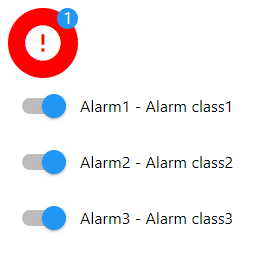
The class of "Alarm1" is displayed in the "AlarmIndicator" (red) until the alarm becomes inactive, as the priority of its class in the "AlarmIndicator" has been set higher than that of the other alarm classes.
Colors for background and graphics
You can use the AlarmIndicatorItemsto define different colours for the background and graphics depending on the alarm class and alarm status.
By default, the colour settings of the corresponding alarm class definition from the Alarms system module apply to the AlarmIndicatorItems (see Tip). These colour settings apply system-wide.
If you want to use colours other than those defined in the Alarms system module to display the alarm classes in the AlarmIndicator, the following properties are available in each AlarmIndicatorItem in the Colors category:
BackgroundColorActive
Determines the background colour for the alarm status Arrived.
BackgroundColorInactive
Defines the background colour for the alarm status Gone.
ForegroundColorActive
Determines the colour of the graphic for the alarm status Arrived.
ForegroundColorInactive
Defines the colour of the graphic for the alarm status Gone.
Tip: Specify all four colours straight away to avoid unexpected colour combinations.

Where has the symbol gone? An unsuccessful combination of a red symbol on a red background. The symbol colour was defined in the AlarmIndicatorItem (ForegroundColorActive), the background colour comes from the alarm class definition (tab "Advanced", parameter background colour for the "Arrived" state).
The colours for the background and the graphic in the "Inactive" (Cleared) alarm status are defined via the "DefaultBackgroundColor" and "DefaultForegroundColor" properties ("Colors" category) of the AlarmIndicator.
You can use the AlarmIndicatorItemsto define changing graphics for the control element depending on the alarm class and alarm status.
To configure the changing graphics, the following properties are available in the AlarmIndicatorItems in the "Symbol" category:
IconFont
Defines the graphic collection for the "Icon" graphic type.
-
material-icons
Specifies that Google's material icons are offered for selection in the graphic selection dialogue (button
 behind the property "Symbol", "LeadingSymbol", "TrailingSymbol" etc.).
 -
winjs-icons
Specifies that the WinJS icons from Microsoft are offered for selection in the graphic selection dialogue (button
behind the property "Symbol", "LeadingSymbol", "TrailingSymbol" etc.).
SymbolActive
Defines the graphic for the "Arrived" alarm status.
SymbolInactive
Defines the graphic for the "Gone" alarm status.
Defines the graphic type and the source of the graphic.
-
Icon
The graphic should be an icon and obtained from the imagesWiconfonts folder in the project directory.
-
Svg
The graphic should be a vector graphic in SVG format from the imagesWsvgs folder.
-
Bitmap
The graphic should be a pixel graphic (BMP, PNG, GIF, JPG) from the imagesWbitmapsfolder.
If no graphics are specified in an AlarmIndicatorItem, the graphic specified in the "DefaultSymbol"property of the AlarmIndicator is used. This static graphic is also used for all other alarm statuses ("Inactive", "Arrived acknowledged", "Acknowledged left").
The "AutoScale" property can be used to configure automatic size adjustment for all graphics to be displayed:
AutoScale
Scales the width and height of the graphic to 0.6 times the width ("Width" property) or height ("Height" property) of the control element. If the height and width of the control element are different, the shorter distance is used to calculate the width and height of the graphic.
-
If this property is activated, the specification in the "SymbolSize" property is ignored.
Example:
|
Width |
Height |
AutoScaleBadge |
Calculation |
Size of the graphic |
|---|---|---|---|---|
|
70 px |
70 px |
70 px × 0.6 = 42 px |
42 px × 42 px |
|
|
80 px |
70 px |
70 px × 0.6 = 42 px |
42 px × 42 px |
|
|
60 px |
70 px |
60 px × 0.6 = 36 px |
36 px × 36 px |

If the width and height of the AlarmIndicator are both set to 70 px and the "AutoScale" property is activated, the width/height of the graphic is 70 px × 0.6 = 42 px. If the width or height alone is increased to 80 px, for example, the width/height of the graphic is still 42 px, as the shorter distance is used for the calculation. If the width or height alone is reduced to 60 px, for example, the width/height of the graphic is then 60 px × 0.6 = 36 px.
Related topics: