TrendChart
Control that displays trend data over time in a curve chart.
|
Symbol |
|
|
Menüband |
Start > Controls > System > Trends > TrendChart |

The TrendChart control displays data from trend definitions of the Trends system module in a curve chart. The x-axis always represents the timeline while the y-axis shows the values of a trend. The TrendChart can display multiple trends as curves. For each trend, an individual y-axis with the corresponding limit values can be displayed. Using the marker, users can determine the exact points where the marker line and the curves intersect. The TrendChart can be operated by mouse as well as by touch in order to pan or to zoom in and out in the TrendChart.
The TrendChart can be used together with a TrendChartController and a TrendChartLegend.
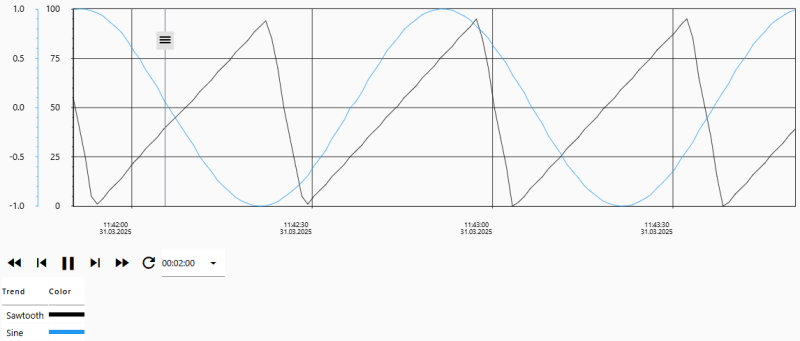
TrendChart showing two trend curves and the marker, with a TrendChartController and a TrendChartLegend below
Functionalities
The control supports the following functionality:
-
Display of trend curves and the corresponding y-axes
-
Display of trends in online mode (TrendOnline)
-
Interactivity through the TrendChartController
-
The default TrendChart ID is Required. If you want to change the ID, indicate the new ID in the TrendChartID property of the TrendChart or type the ID into the Name field at the top of the Properties window.
-
Display of the x-axis, the corresponding gridlines, scale ticks and labels
-
Various date and time formats
-
Display of the grid
-
Display of an animated loading symbol
-
Display of the marker
-
Display of a background, a border, a shadow, etc. (appearance)
-
Usage of custom CSS classes by means of the ClassNames property
-
Usage of a style by means of the Style property
-
Binding to the user management to disable the operability of the control
-
Display of the background, the border, the text, etc. in different colors
Display of trend curves (Series)
If you add a TrendChart to a page in the designer, it will already include a Series element. This element displays the data of the bound trend definition. To bind a trend definition to the Series element, select the element in the Document Outline and specify the desired trend in the TrendName property.
To add another Series element to the TrendChart, select the TrendChart in the designer or in the Document Outline and click on the button next to the Series property to open the Collection Editor.
The Series supports the following functionality:
-
Binding to a trend definition as data source (TrendName, ArchiveName)
To show a sample curve in the designer, select the desired curve in the DesignTimeData property. -
Display of the curve line, the area under the curve line and the y-axis in the specified colors (LineColor, LineFillColor, YAxisColor)
-
Display of the curve (LineFill, LineWidth, ShowLine)
-
Display of the y-axis (DecimalPlaces, Position, RawLimitMax, RawLimitMin, ShowYAxis, YAxisLabelWidth, YAxisTickLength)
The ShowXAxis property specifies whether the x-axis including labels, ticks, major and minor grid lines is displayed.
In addition to that, you can configure the following for the x-axis:
-
Whether the minor grid lines and the minor ticks of the x-axis are displayed (ShowXAxisMinorGridlinesTicks)
-
Thickness of the major and minor grid lines for the x-axis (XAxisGridlineWidth)
-
Height of the scale labels for the x-axis (XAxisLabelHeight)
-
Whether the x-axis including scale labels is displayed at the top or at the bottom of the control (XAxisPosition)
-
Length of the major scale ticks (XAxisTickLength) The minor scale ticks are always approximately half as long.
-
Font size and font weight of the scale labels (XAxisFontSize, XAxisFontWeight)
-
Time span between the minimum and the maximum on the x-axis (TimeSpan)
The ShowGrid property specifies whether the grid is drawn in addition to the curves. In addition to that, you can configure the following for the grid:
-
Spacing between the axes and the scale labels (AxisLabelMargin)
-
Whether the grid lines are displayed in front of or behind the curves (GridAboveData)
-
Grid border width (GridBorderWidth)
-
Spacing between the control’s edge and the grid including the axes and the scale labels (GridMargin)
-
Spacing between two y-axes if they appear side by side (YAxisMargin)
In certain cases, data in the TrendChart must be updated. This is the case, for example, if the user first stops the online display of trend data in order to go back in time and view the trend curve from a more distant past and then wants to switch back to the online mode. The user can do so by clicking on the refresh button in the TrendChartController.
If updating the data takes longer than desired, you can show an animated loading symbol by enabling the ShowLoadingSpinnerOnRequest property. The loading symbol is set by the LoadingSpinner property. The colors of the loading symbol itself and of the translucent background of the loading symbol can be set in the properties LoadingSpinnerForegroundColor and LoadingSpinnerBackgroundColor.
The marker can only be used if it was enabled using the Enabled property in the Marker category. In addition to that, you can configure the following for the marker:
-
Thickness of the marker line (MarkerLineWidth)
-
Image for the thumb
-
Width and height of the thumb
-
Border of the thumb
-
Cursor that is displayed when the mouse cursor hovers over the thumb (Cursor)