Controller.EncryptedCommunication.PLCDesigner
This functionality has been available since controller firmware version 01.11.00.
For communication between »PLC Designer« via the gateway to the device, the connection should be encrypted. This is shown in the following image.
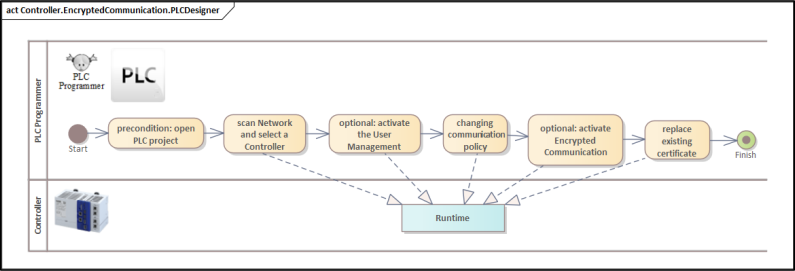
Activity Diagram
Scan Network and select a Controller
To establish a connection please run through the following steps:
-
Open the »PLC Designer« project or generate a new project in the »PLC Designer«.
-
In the Device Tree, double-click the Device, e.g. c550.
-
Open the Communication Settings tab.
-
Scan network and select the controller.
Optional: Activate the user management
Activate the user management (Controller.UserManagement).
Changing Communication Policy
The screen to change the communication policy is located in the "Communication Settings" tab within the menu "Device" and "Change Runtime Security Policy …".
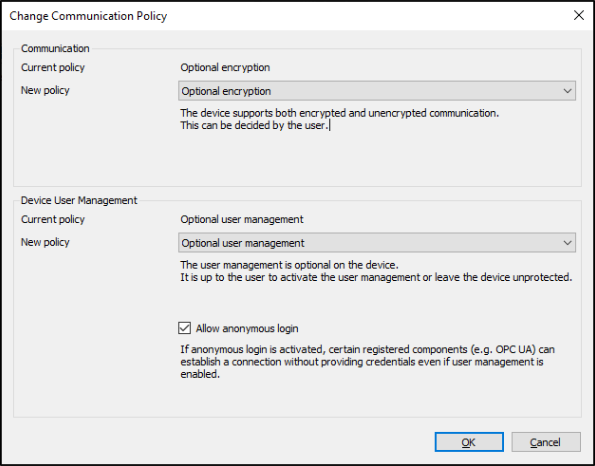
Change Runtime Security Policy
Communication
The device (in this case the controller) supports both encrypted and unencrypted communication. The user can decide if the communication policy is:
-
"No encryption"
Then, the controller only accepts unencrypted communications. In this case, the »PLC Designer« must communicate in cleartext.
-
"Optional encryption"
Then, the controller accepts both, encrypted and unencrypted communications. In this case the user of the »PLC Designer« can decide if the tool will communicate in clear text or encrypted.
-
"Enforced encryption"
Then, the Controller only accepts encrypted communications. In this case, the »PLC Designer« must also, communicate encrypted.
Device user management
The user management is optional on the device. It is up to the user to activate the user management or leave the device unprotected:
-
"Optional user management"
If a new project is generated the user management is deactivated. The user management can be activated by the user (Controller.UserManagement).
-
Enforced user management
If a new project is generated, the user management is active. When using it for the first time, an administrator-user must be set up.
With the setting "Allow anonymous login" the anonymous login can be prevented. For more details, see Controller.UserManagement.
Activate Encrypted Communication
There are two ways to activate the encrypted communication:
-
The menu item to activate the encrypted communication is located in the "Communication Settings" tab in the menu "Device" and "Encrypted Communication". If the "Encrypted Communication" is active, the communication line between the »PLC Designer« and the Controller is marked with a yellow line.
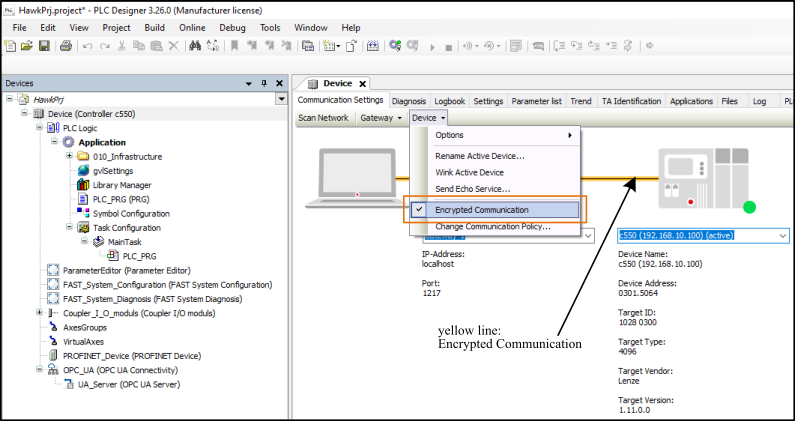
Activate Encrypted Communication
-
The second way is to use the Security Screen. The Security Screen is located in the »PLC Designer« menu under "View / Security Screen". Within the "User" tab the "Enforce encrypted communication" check box can be found.
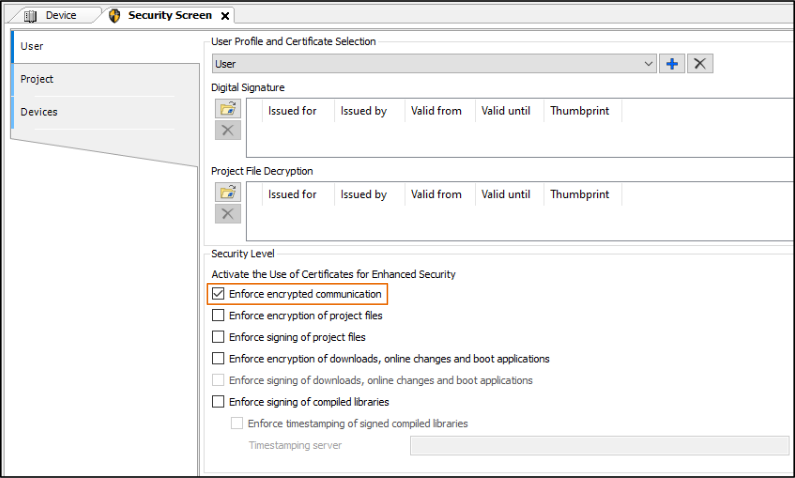
Enforce Encrypted Communication
-
The Device / Encrypted Communication setting defines communication on the part of the PLC Designer.
The Communication Policy setting defines communication on the part of the controller.
This can, for example, lead to the situation where the controller is set to forced encryption and the PLC Designer requests clear text communication. The error message "No encryption is not supported by the device" appears.
Using Encrypted Communication
After activating the "encrypted communication", there will be a certificate for it in the Controller Certificate Store. The security screen is located in the »PLC Designer« Menu "View / Security Screen". Within the tab "Devices / <Name of Device> / Own Certificates", this certificate can be found with the information "Encrypted Communication".
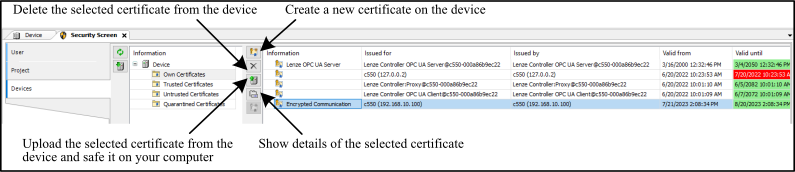
Certificate for Encrypted Communication
Details of this automatically generated certificate can be found in this documentation: Controller.EncryptedCommunication.PLCDesigner:Certificate
-
The automatically generated certificate is valid for 30 days. It is strongly recommended to recreate this certificate with the desired term and key lengths.
For the encrypted communication between »PLC Designer« and the controller, the »PLC Designer« must trust the certificate of the controller. There are two ways to do this:
The first way is to log in to the »PLC Designer« to the controller with activated "Encrypted Communication". The following message box will appear and the user can decide if the certificate will be used only this time or for all sessions:
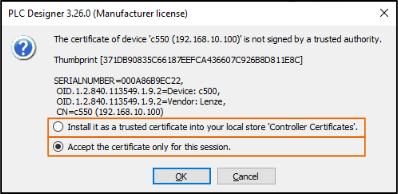
Login
Accept the certificate only for this session
The certificate from the controller is used for this cession and the connection is established. After the connection is completed and the user logs in again, the message box appears again.
-
What is not a session in this case?
-
Stop and start the application.
-
Reset warm-1.25
-
Reset Cold
-
Reset Origin
-
Logout and Login
-
"Security/Logoff Current User" and Login
-
"Security/Logoff Current User", close project, open project, Login
What is a session in this case?
-
Closing the »PLC Designer« and starting the »PLC Designer« again.
-
Install it as a trusted certificate into your local store "Controller Certificates":
The certificate from the controller is stored in the Windows Certificate Store. This can be found under "Controller Certificates". It is used for this and all subsequent connections as long as the fingerprint of the certificate matches.
More information about the Windows Certificate Store:
The second way is using the security screen with a logged-in »PLC Designer« to the controller. To do this, follow the steps below:
-
Open the security screen in the »PLC Designer« menu by selecting " View / Security Screen". Within the "Devices / Device / Own Certificates" tab the certificate for the encrypted communication is shown.
-
Click on the "Encrypted Communication" certificate, then click "Upload the selected certificate from the device and safe it on your PC". Choose a directory and save the certificate. The name of the certificate will be the type of the controller in combination with the IP Address, e.g. "c550 (192.168.10.100)". The file format will be "*.cer".
-
The format of this certificate is *.cer. It includes the public key for the encrypted communication, but not the private key.
For more information see Formats and Structures of certificates.
-
-
Open the Windows Certificate Store with the certmgr.msc"command. Choose the directory "Controller Certificates/Certificates" and import the certificate from the uploaded file.
-
After importing the certificate, it will be shown in this directory and the »PLC Designer« will use it for every connection to this controller without asking for trust.
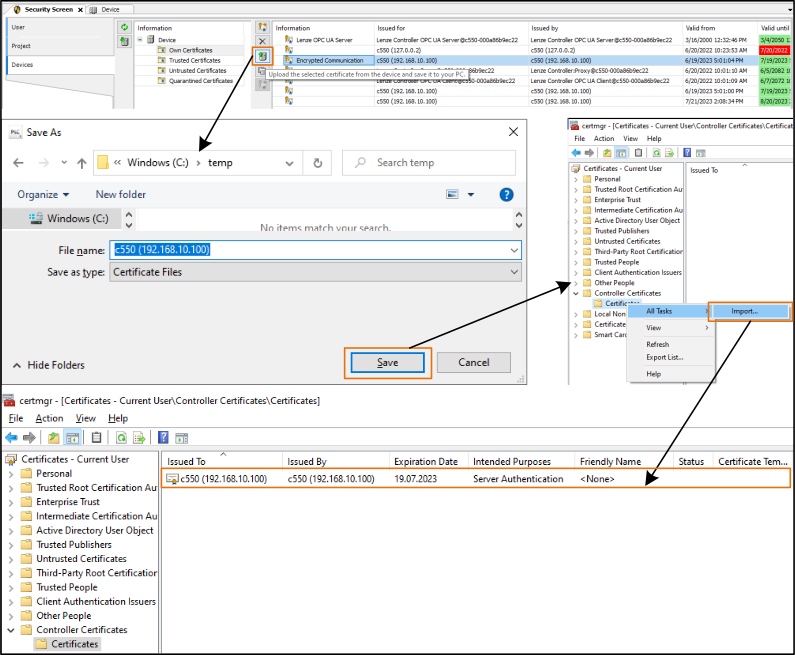
Upload and Import Certificate
Replace existing Certificate
To replace the existing certificate, for example to extend the valid dates, it can replaced via the Security Screen. The Security Screen is located in the »PLC Designer« menu "View / Security Screen". Within the tab "Devices / <Name of Device> / Own Certificates" this certificate can be found with the information "Encrypted Communication".
Certificate for Encrypted Communication
Delete the selected certificate from the device:
Deleting the "Encrypted Communication" certificate will automatically generate a new one with default values. (Controller.EncryptedCommunication.PLCDesigner)
Create a new certificate on the device
By clicking the "Create a new certificate on the device" button, the user can generate a new certificate and enter the desired key length and validity period.
Expired certificate
If the certificate of the "Encrypted Communication" no longer valid, and the »PLC Designer« is logged into the controller, a warning will appear:
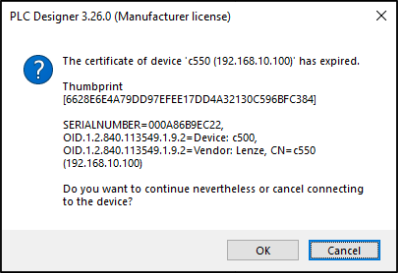
Valid Warning
The user can decide whether to cancel or use the expired certificate.
Controller.EncryptedCommunication: Security Functionality Verification
Have a look at the chapter "Install it as a trusted certificate into your local store". Make sure that the communication using the certificate is running correctly.
To verify that the encrypted communication is running correctly with regard to security functionality, first of all switch to offline mode.
Switch to “Communication Settings” of the device and choose the option “Change Runtime Security Policy…”.
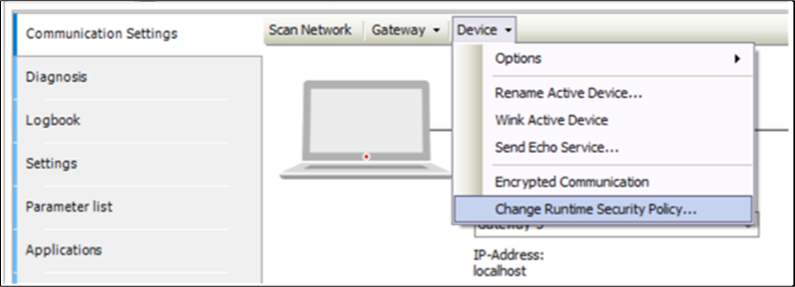
Security Policies
Change the settings “Communication” to “Enforced encryption” and press ok.
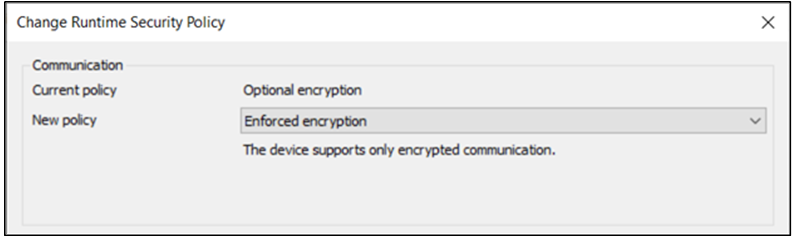
Enforce Encryption
To test whether encryption is now necessary for communication, try going online. The following window will appear because encrypted communication hasn’t been enabled for PLC Designer communication with the PLC.
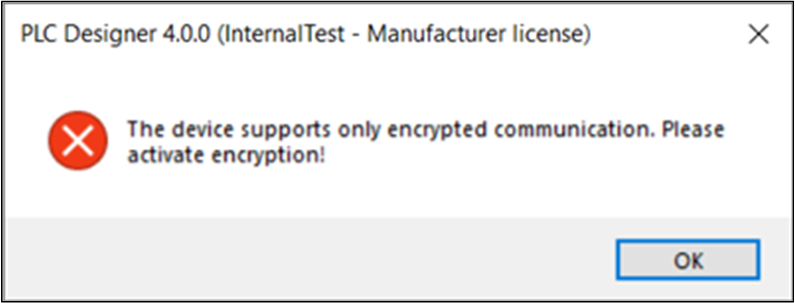
Communication error
To establish an encrypted communication with the PLC, the communication settings must to be changed to an encrypted communication.
This is done by switching to the “Security Screen” and marking the parameter “Enforced encryption communication” to ‘TRUE’.
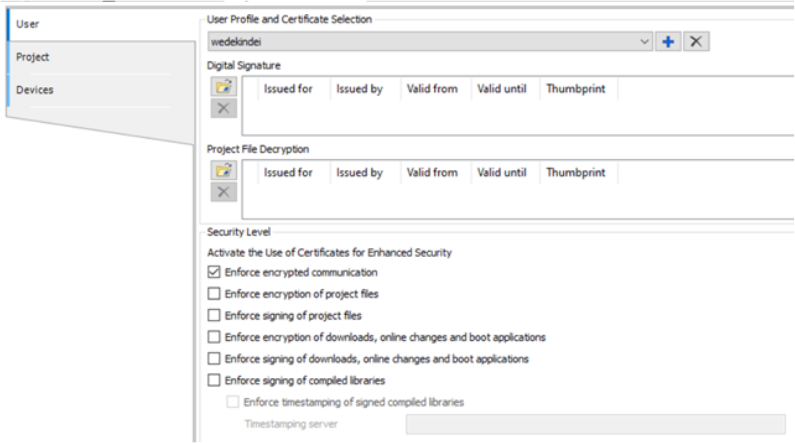
Enforce Encrypted Communication
Compile the project and go online. communication is now possible.