Controller.OPCUAClient.Certificate
This functionality has been available since controller firmware version 01.11.00.
In contrast to the server, the OPC UA communication settings for clients must be programmed in the »PLC Designer«. The »PLC Designer« therefor provides several function blocks:
-
UA_Connect
-
UA_Disconnect
-
UA_NamespaceGetIndexList
-
UA_ConnectionGetStatus
-
UA_NodeGetHandleList
-
UA_NodeReleaseHandleList
The certificate handling of the OPC-UA client is done by the function block "UA_Connect" function block. The certificate handling is done by the variable "SecurityMsgMode"variable.
SecurityMsgMode
The variable "SecurityMsgMode" which is part of the structure "SessionConnectInfo".
-
BestAvailable
Best available message security mode to the UA server. The client receives the available message security from the server and selects the best. This could also result in level “none security”.
-
None
No security is applied.
-
Sign
All messages are signed but not encrypted.
-
SignEncrypt
All messages are signed and encrypted.
If the selection "Sign" or "Sign & Encrypt" is selected here, certificate handling is required. This can be set on the client side as follows.
When the controller is started for the first time, a separate certificate is created for the OPC-UA Client. This can be seen in the Security Screen under Devices in the "Own Certificates" section.

Own Certificate
The certificate automatically created here is a self-signed certificate with a term of 50 years. If the runtime is to be reduced for security reasons, the certificate can be replaced using the function "Create a new certificate on the device" (Controller.CertificateStore.viaPLCDesigner).
When an OPC-UA Client connects to, the respective own certificates are exchanged. With the OPC-UA Client, the received server certificate will then be found under "Quarantied Certificates".
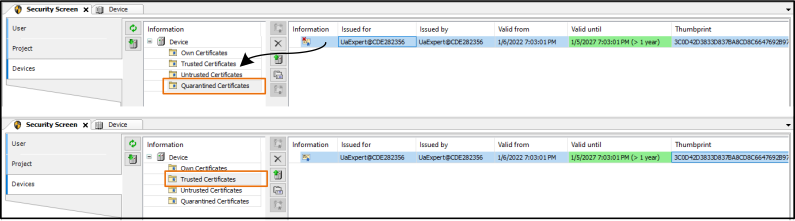
Handling Client Certificates
This must then be moved from "Quarantined Certificates" to the "Trusted Certificates" section. For this purpose, the »PLC Designer« can be used as shown (Controller.CertificateStore.viaPLCDesigner) or the diagnostic visualization (Controller.CertificateStore.viaAdvancedVisu). Once it has been moved to the trusted area, the connection between Client and Server can be established.