Controller.WebVisu.UserManagement
It is strongly recommended to activate the User Management for the WebVisu of the extended controller.
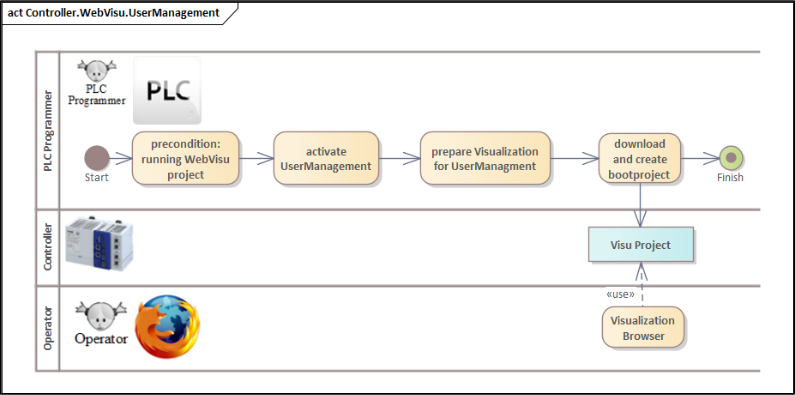
Activity Diagram
To activate the User Management for the WebVisu, please follow these steps:
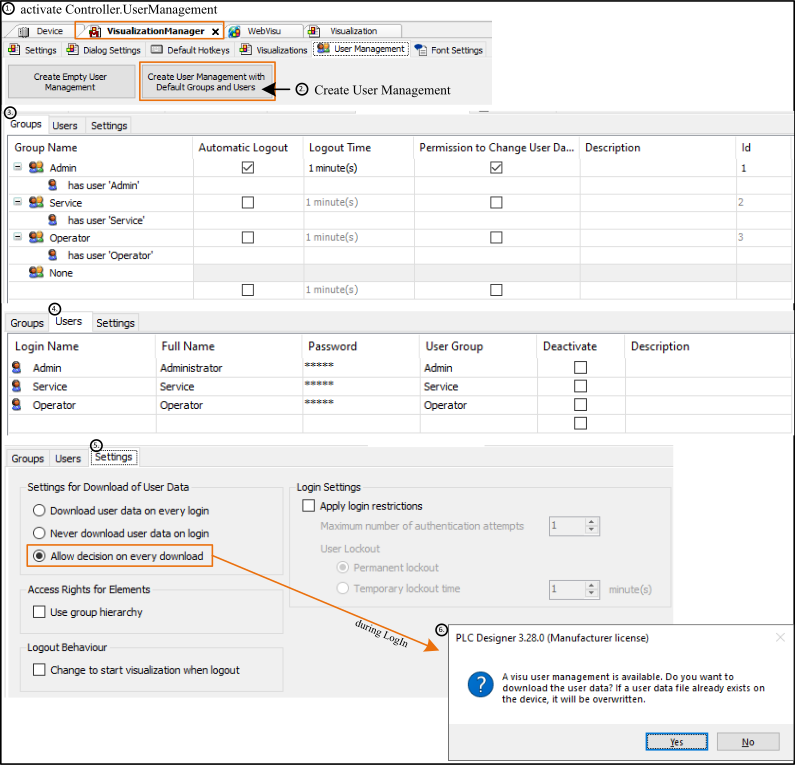
Activate User Management
-
Double-click the "VisualizationManager" component. Select "User Management" tab.
-
Click the "Create User Management with Default Groups and Users" button. User management will now activate.
-
After activation, you can view more information about the groups in the Groups tab.
-
After activation, you can view more information about users in the "Users" tab. It is strongly recommended that you change all Usernames and Passwords from the default settings to personalized ones.
-
After activation, you can view more information about the security settings in the "Settings" tab.
-
Pay special attention to the "Settings for Download of User Data" option. The "Allow decision on every download" setting is recommended. With this setting, a pop-up menu will appear when logging in, which allows the user to make a decision based on the situation.
-
The default settings for the default user are:
User Admin / Password Admin
User Service / Password Service
User Operator / Password Operator
After setting up the User Managment, please check the settings of the dialogs and design the wanted layout for the visualization components:
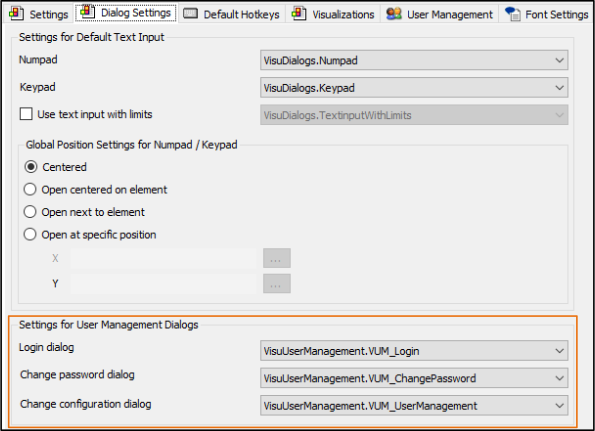
Prepare Visualization for User Management