User interface
This manual describes the user interface of the development environment.
The »EASY UI Designer« development environment is the starting point for the development of a project. This is where new projects are created, developed and transferred to the target system.
You can get a first impression of working with the »EASY UI Designer«development environment by carrying out the steps in the Quick start section.
Once you have started »EASY UI Designer« and created a new projector opened an existing one, the development environment looks like this:
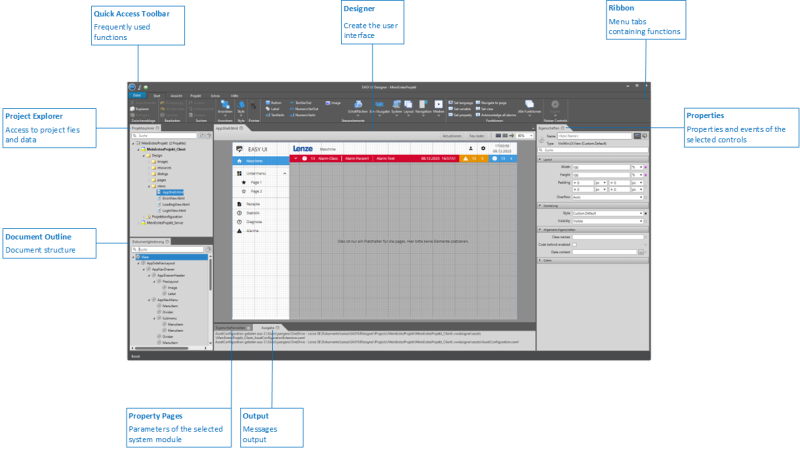
The user interface contains the following components:
|
The quick access toolbar offers selected functions as icons for quick access. |
|
|
The ribbon groups the functions of the IDE into menus and groups. |
|
|
The project explorer provides access to the files and data of the project. |
|
|
The individual views (views or pages) of the visualisation project are edited in the Designer. The Designer is opened when a view or page is opened from the project explorer. |
|
|
The document structure shows the object structure of the view or page active in the Designer. |
|
|
The properties and events of the control selected in the Designer or in the document structure can be edited in the properties window. |
|
| Definitions of the system modules are created and edited in the table editor. The table editor is opened when a definition of a VisiWin system module is opened from the project explorer. | |
|
On the property pages, you can display and change the parameters of the definition of a VisiWin system module selected in the table editor or in the project explorer. |
|
|
Output |
The output window displays the current messages of the development system. For Web UI projects, the Designer output can be adjusted in the Options dialogue under Web (HTML5). |
Customise layout
You can customise the layout of the »EASY UI Designer« development environment. For example, you can place functions that you use frequently on the toolbar for quick access, minimise the ribbon for more space in the Designer or arrange windows differently.
You have the following options for customising the window layout of the development environment:
The layout of the development environment is permanent. Closing and restarting the IDE retains the layout, with one exception: the project explorer is always opened when a project is opened in the development environment. To restore the standard layout as shown in the graphic above, use the Reset window layout function.
Related topics