Controller.CertificateStore.viaAdvancedVisu
The functionality to change the status of certificates (Controller.CertificateStore.viaPLCDesigner) allows the machine programmer to manage the certificates on the controller. Once the machine is delivered to and operated by the end customer, this end customer also needs the ability to manage new certificates on the controller. In most cases, however, the »PLC Designer« is not available for this purpose, as the PLC project usually remains with the machine programmer. For this reason, a function has been established in the diagnostic visualization of the controller, which is presented below. This function has been included in the controller since firmware version 01.11.0.
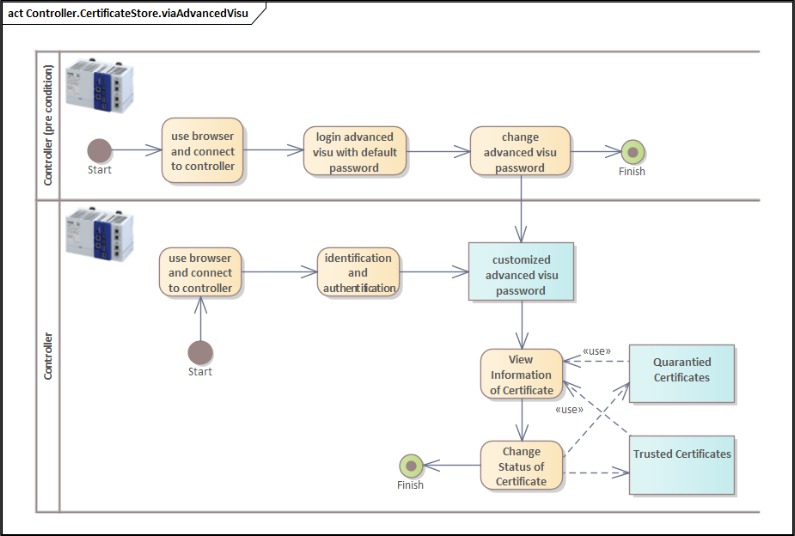
Activity Diagram
To use this feature, the end customer must follow these steps. First, the user must to connect a browser to the diagnostic visualization of the Controller using the IP address. Next the user must identify and authenticate as a human user during diagnostics visualization with the "Advanced"user (Controller.WebDiagnosis).
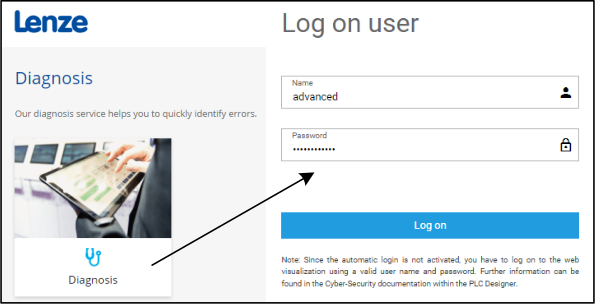
Authenticate as an advanced user.
After authentication is complete, the advanced diagnosis visualization becomes visible, and the "Certificate Handler" menu item can be selected.
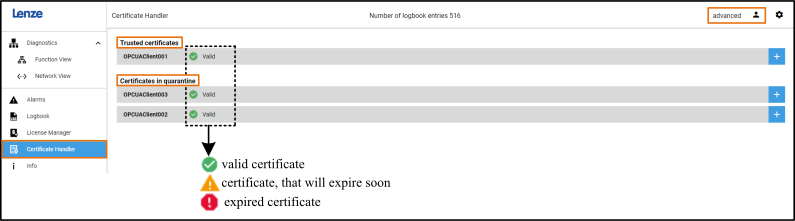
Overview
Selecting the "Certificate Handler" option makes the trusted and quarantined certificates visible. A symbol indicates the validity status.
|
Symbol |
Legend |
|---|---|
|
green hook |
valid certificate The certificate is valid. |
|
yellow exclamation mark |
certificate, that will expire soon The certificate is valid, but it will expire <= 27 months. |
|
red exclamation mark |
expired certificate The certificate is not valid (either it has not yet valid or it is expired). |
When unfolding the detail view of a certificate in the quarantine, some detailed information will be shown. Selecting the Trust button will open a dialog where the user can trust the selected certificate.
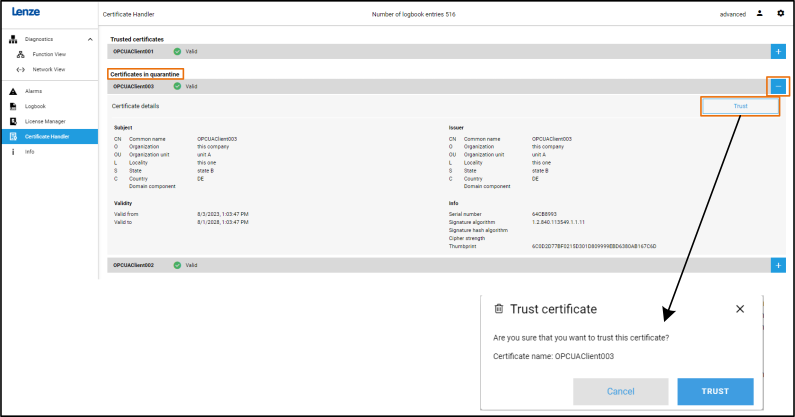
Trust Certificate
On the other hand, when unfolding the detail view of one certificate in trusted certificates, some detailed information will be shown. Selecting the Delete button will open a dialog where the user can delete the selected certificate.
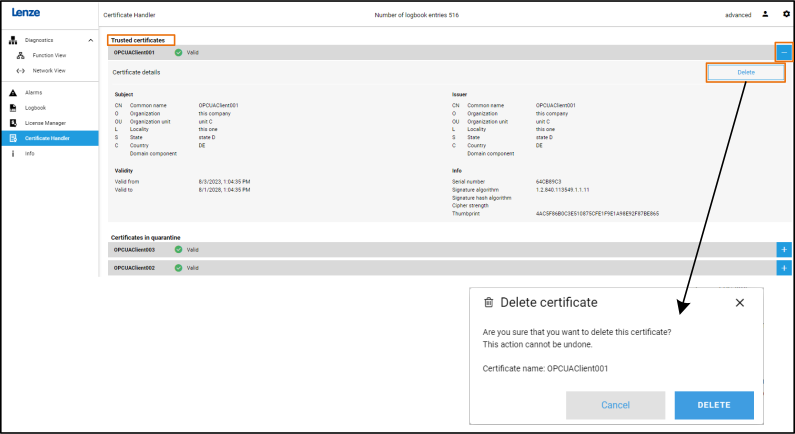
Delete Certificate
-
When a certificate is trusted or deleted by a user, the visualization automatically updates. However, if a certificate is created by another participant or its status changes, the changes are not visible automatically. Instead, a refresh must be carried out via the browser.