Controller.WebDiagnosis
The controller has provided diagnostics via web access since firmware version 01.09.00.
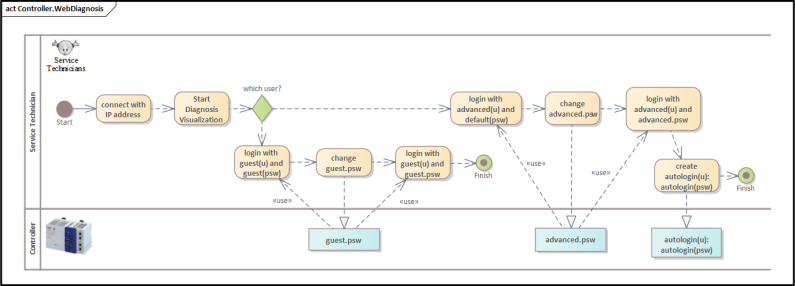
Activity Diagram
For this purpose, the web server can be addressed by entering the IP address in a browser.
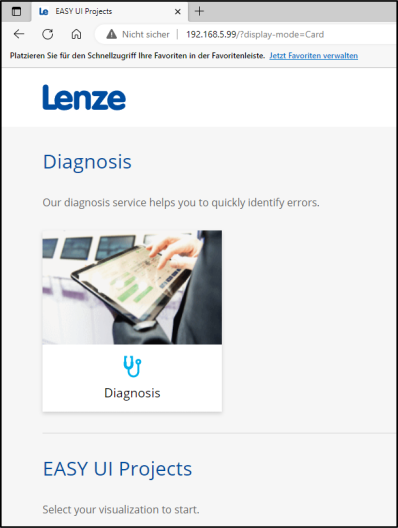
Web server diagnosis
After calling the web diagnostics, the login screen appears.
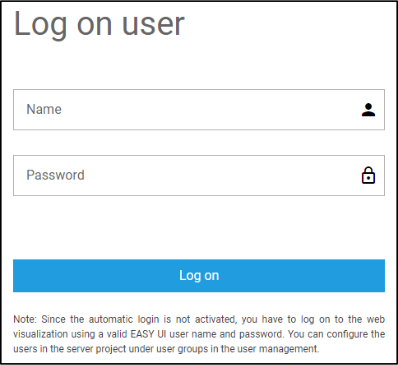
Log on Screen
By default, two users / groups / passwords are created:
-
User: guest
member of group: Guests
Password: guest
-
User: advanced
member of group: Advanced
Password: default
The Guests group has only read rights on the controller and cannot change any data. The only exception is the "global reset" function, which is also possible as a guest user. The Advanced group also has the right to change the controller's data (e.g. delete the logbook).
Initial login with a request for a password change
When the two users in the Users and Advanced groups are called up for the first time, the respective password must be changed.
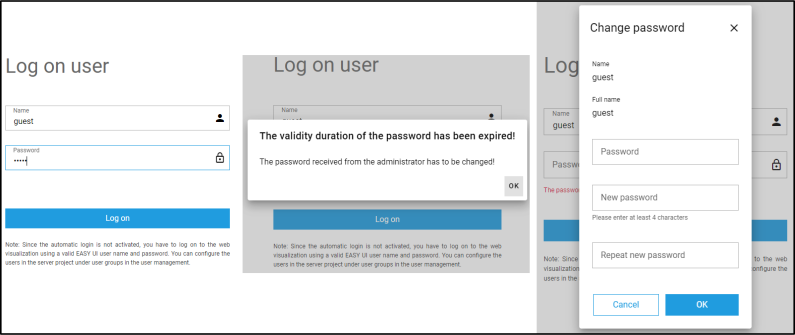
Change password procedure
Hardening of Guest and Advanced users
The "Guest" and "Advanced" users are created by default and their password must be changed at first use. With the exception mentioned above, the "Guest" user has only read rights on the controller. This user is available by default and cannot be deleted. Use the "User settings" to change the password.
Activate Autologin
The "Guest" and "Advanced" users are created by default their password must be changed at first use. If a simple call of the WebDiagnosis is desired and the customer waives the security function, he can perform the following steps:
-
a logged-in advanced user is the basic requirement, i.e. the guest user may not perform the following steps.
-
A new user must be added with "add user".
Name: autologin
UserGroup: Guests
Password: autologin
State: Active
-
Due to the presence of this user, the authorization is skipped and an auto-logon is performed. This mechanism completely disables authorization.
Deactivate Autologin
After activating auto login, the user can deactivate it via the following steps:
-
Log in automatically with the user "autologin".
-
Choose "Logon user".
-
Log on with "Advanced" user and the advanced password.
-
Choose "Remove user".
-
Remove user "autologon".