Controller.ComponentDirectory
This functionality has been available since controller firmware version 01.11.00.
An overview of the Component Directory can be found in the following figure:
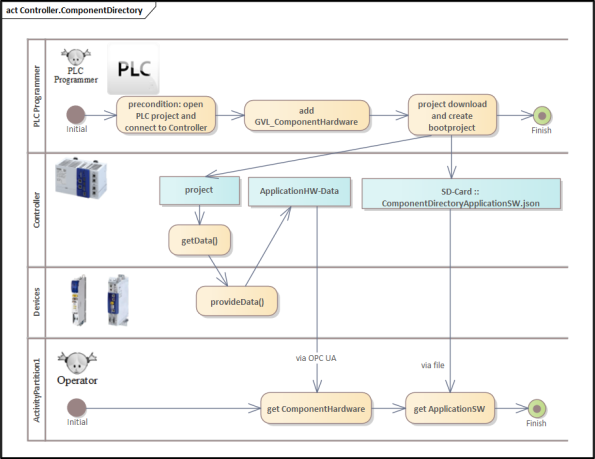
Activity Diagram
The following steps are relevant here:
-
Add GVL_ComponentHardware
-
Get ComponentHardware
-
Get ApplicationSW
Add GVL_ComponentHardware
The hardware components are not mapped in OPC UA by default. The reason for this is to minimize the data to be transferred. If the programmer wants to make the data available, two steps must be carried out. First, the "Symbol Configuration" object must be created below the application. Second, the global variables of "GVL_ComponentHardware" must be activated within the "Symbol Configuration".
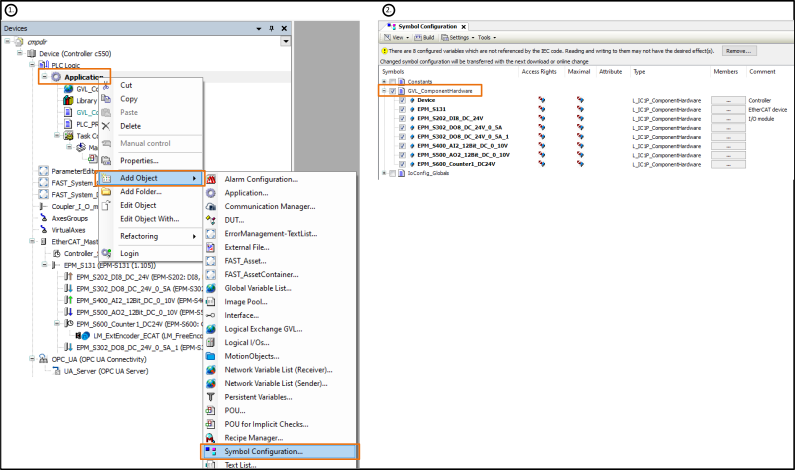
Add GVL_ComponentHardware
These are then available with a project download and subsequent creation of a boot project. It is possible to limit data availability. Please refer to the documentation in the Component Directory.
Get ComponentHardware
During runtime, the Controller can be accessed with an OPC UA Client and the data from the Component Directory can be viewed in the node set. This is done via the node ID:
-
NS4|String||var|<Device>.<Application>.GVL_ComponentHardware
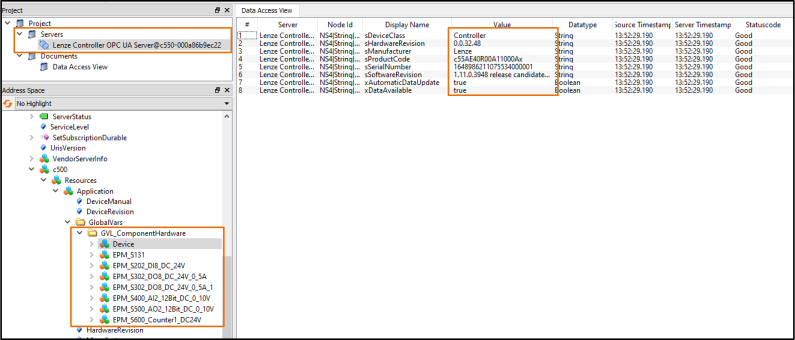
Get ComponentHardware
Get ApplicationSW
Information about the ApplicationSW is available on the SD Card of the Controller.
-
\sdcard\plc\prg\pta1\ComponentDirectory\ComponentDirectoryApplicationSW.json
This file is a .json file and contains all library information in CycloneDX format. For more information, please refer to the documentation in the Component Directory.
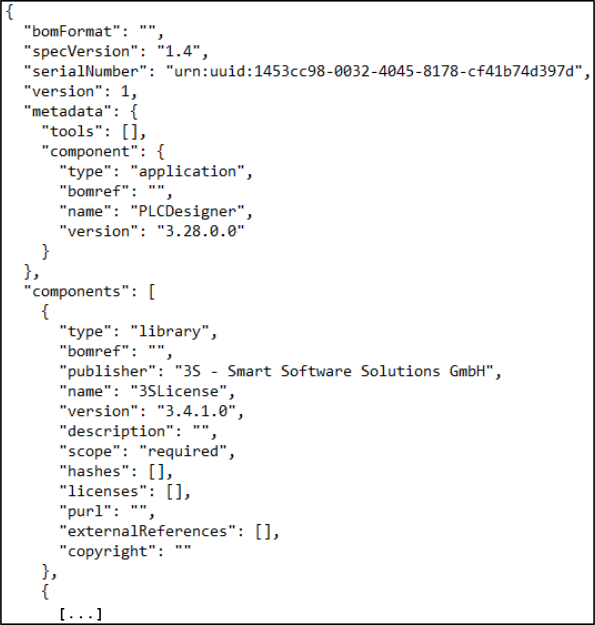
Get ApplicationSW