Controller.WebVisu.Certificate
For using the HTTP security protocol, WebVisu also has the option to communicate via HTTPS.
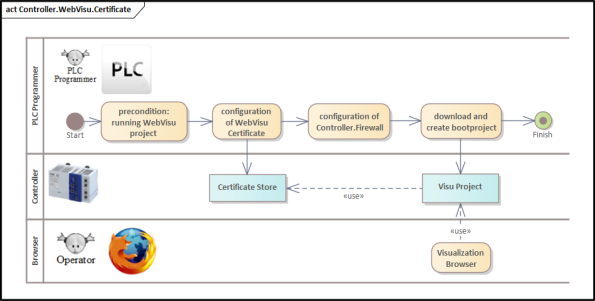
Activity Diagram
To use this communication, please follow these steps:

Handling the Certificate for the WebServer
-
Open the Security Screen via the security icon on the bottom right corner, or via the PLC Designer Menu / View / Security Screen.
-
Select the Devices tab and click Devices
-
Refresh the Certificate Store.
-
The used certificate is located in the placeholder with the name "Web Server”.
-
After selecting this “Web Server” certificate, the user can delete this certificate and generate a new one, The user can upload the public certificate or can show the details of it.
-
When changing the certificate, please stop and start the controller to activate the changes.
-
It is strongly recommended to activate the Controller.Firewall (refer to chapter /Security Functions/Controller.Firewall). The activation of the Firewall will block the port 8080, so that the browser cannot connect to the port 8080 via http anymore.
Now, the visualization can be shown in a browser of a panel when connecting to the IP address, the port 443 and the name of the htm file (shown in the WebVisu-Tab), e.g.:
https://192.168.10.102:443/webvisu.htm
-
On some browsers, a warning message appears that the https connection is based on a self-signed certificate and therefore cannot be checked in a PKI structure. This warning message must be acknowledged so that the visualization can be displayed.