Controller.SSHServer
Access to the file system via SSH has been available since FW version 01.04.00. This functionality allows you to access the file system via Ethernet. A SSH key is needed to access the device. Lenze Support generates this key only in special support cases and it should not be used during normal operation.
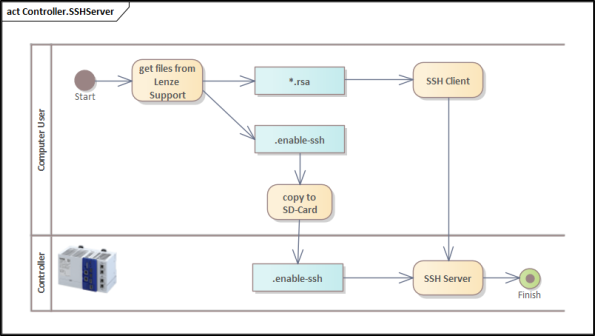
Activity Diagram
You will receive two files from Lenze Support.
-
.enable-ssh
-
*.rsa
Both files are personalized for the requester and must be protected accordingly. Do not share or publish these files.
Physical and logical access
-
Connector X16 (Engineering Access)
-
Used port for SSH is 22/tcp
Controller.SSHServer: Enable SSH access
In order to obtain SSH access to the controller, the following steps must be completed.
-
SSH access is not possible in the delivery state. Lenze Support generates this key only in special support cases, and it should not be used during normal operation.
-
The .enable-ssh file must be copied to the controller's SD card. Ensure that the leading dot (hidden file in Linux) is included in the file name. The file should be placed directly in the root directory of the SD card.
The following describes how access the controller with a Linux Ubuntu system. Other clients may have a different procedure.
-
Copy the *.rsa file to the /home/<user>/.ssh/ directory.
-
If the directory does not yet exist, it must be created and provided with the appropriate rights:
-
mkdir -p ~/.ssh
-
chmod 0700 ~/.ssh
-
-
The access rights to the file must be adjusted accordingly:
-
chmod 0600 <*.rsa>
-
-
The key must be added to the ssh:
-
ssh-add “~/.ssh/<*.rsa>”
-
-
After that, the SSH access to the controller can be created with the following command:
-
ssh root@<ip>
-
Controller.SSHServer: Disable SSH access
Remove the .enable-ssh file from controllers SD card.
Controller.SSHServer: Combination of SSH and SFTP via Ports and Networks
The following table shows the possibility of using SSH and SFTP over the existing ports and over the possible networks. This representation refers to a disabled controller firewall.
Combination of SSH and SFTP via different Ports and Networks:
|
Device with Interface |
Port |
With .enable-ssh file |
Without .enable-ssh file |
||||
|---|---|---|---|---|---|---|---|
|
c550 |
c520 |
c430 |
c550 |
c520 |
c430 |
||
|
Engineering c550: X16 onboard c520: X16 onboard c430: X16 onboard |
22 |
þ SSH þ SFTP |
þ SSH þ SFTP |
þ SSH þ SFTP |
oSSH oSFTP |
oSSH oSFTP |
oSSH oSFTP |
|
31855 |
þ SSH þ SFTP |
þ SSH þ SFTP |
þ SSH þ SFTP |
oSSH oSFTP |
oSSH oSFTP |
oSSH oSFTP |
|
|
47877 |
þ SSH þ SFTP |
þ SSH þ SFTP |
þ SSH þ SFTP |
oSSH þ SFTP |
oSSH þ SFTP |
oSSH þ SFTP |
|
|
PROFINET Device c550: X257/X258 in E1 c520: X257/X258 in E1 c430: X396/X397 onboard |
22 |
o SSH oSFTP |
o SSH oSFTP |
o SSH oSFTP |
oSSH oSFTP |
oSSH oSFTP |
oSSH oSFTP |
|
31855 |
oSSH oSFTP |
oSSH oFTP |
oSSH oSFTP |
oSSH oSFTP |
oSSH oSFTP |
oSSH oSFTP |
|
|
47877 |
þ SSH þ SFTP |
þ SSH þ SFTP |
þ SSH þ SFTP |
oSSH þ SFTP |
oSSH þ SFTP |
oSSH þ SFTP |
|
|
Switch c550: na c520: na c430: X396/X397 onboard |
22 |
n.a.
|
n.a.
|
þ SSH þ SFTP |
n.a.
|
n.a.
|
oSSH oSFTP |
|
31855 |
n.a.
|
n.a.
|
þ SSH þ SFTP |
n.a.
|
n.a.
|
oSSH oSFTP |
|
|
47877 |
n.a.
|
n.a.
|
þ SSH þ SFTP |
n.a.
|
n.a.
|
oSSH þ SFTP |
|
|
.enable-ssh |
Mechanism as described in chapterController.SSHServer: Enable SSH-Access |
|
þ |
Possible |
|
o |
Not possible |
Controller.SSHServer: Security functionality verification
To verify that SSH access is functioning correctly, first establish an SSH connection to the PLC as described in the chapter titled "Controller.SSHServer: Enable SSH Access." After establishing the correct connection, disconnect and switch to offline mode. Then, delete the .enable file on the controller's SD card and try to connect. The connection will not establish.