Controller.SFTPServer
With this functionality, some parts of the file system (e.g. the SD card) can be accessed via Ethernet.
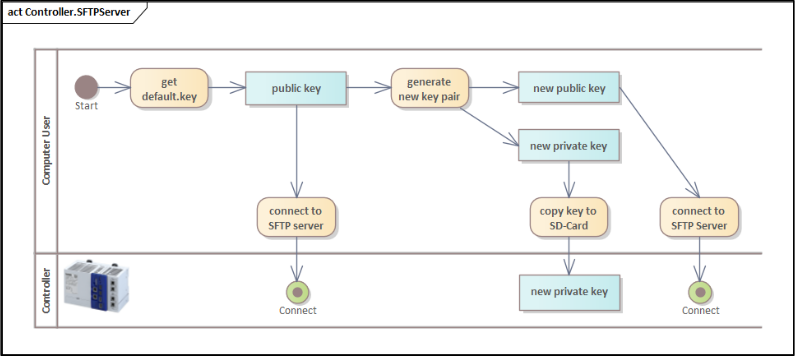
Activity Diagram
Physical and logical access
-
Connector X16 (Engineering Access)
-
Connector X256/X257 (fieldbus device)
Only if a fieldbus (e.g. PROFINET device) is included in the device tree of the controller in the »PLC Designer« and the IP-configuration 0x2381 is set in the parameter set. -
Used port for SFTP is 47877/tcp
Controller.SFTPServer: Access to the SD card
Access to the file system via SFTP is available since FW Version 01.03.00.
A suitable SFTP client has been required for this access. In the following, for example, WinSCP (https://winscp.net) is used.
Start WinSCP and insert the necessary data, as shown in the following picture.
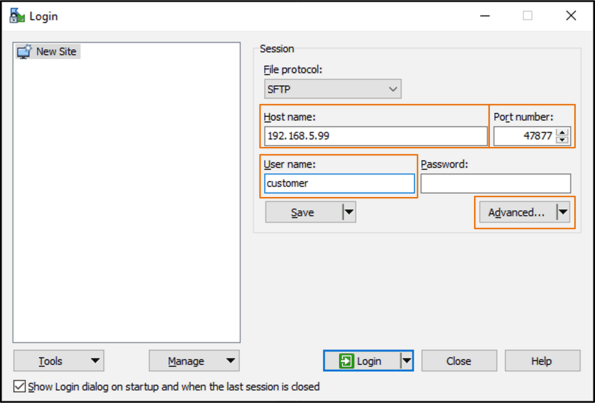
WinSCP Login
Insert the following data
-
File protocol: SFTP (communication protocol)
-
Host name: IP adress of the controller
-
Port number: SFTP-Port number of the controller (c4x0 and c5x0 uses port 47877)
-
User name: customer
-
Password: keep this password empty
Next, the Advanced dialog must be used. A *.ppk file is needed to insert the private key file into the menu/authentication window. You can find the file in the Lenze internal AKB (document ID 201800294). Please contact Lenze Support.
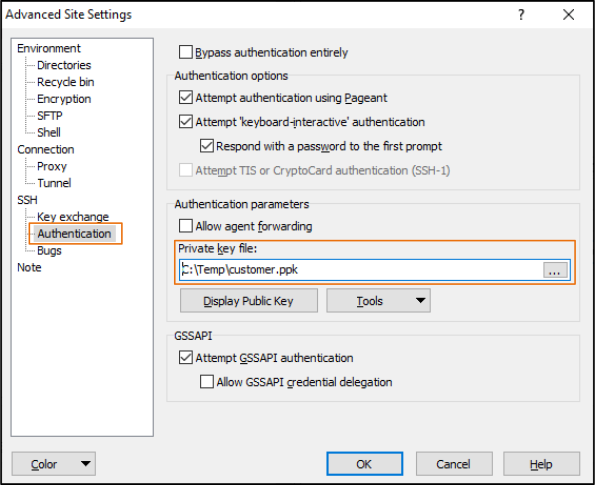
Insert customer.pkk key-file
After accepting the following warning, the /userData path can be accessed in the controller.
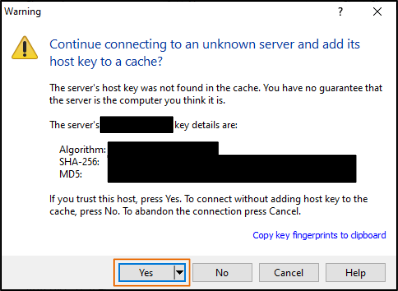
Agree Warning
Controller.SFTPServer: Changing the customer.ppk
Changing the customer.ppk has been available since FW version 01.04.00.
This description is necessary when individualizing the access key (customer.ppk) for SFTP access to the controllers. To do so, a separate key must be generated. Note that resetting a key in the controller can only be carried out by the Lenze service once it has been changed. Therefore, great care must be taken when storing and archiving a new key. A private key that has been changed can be found in a controller backup and will become active automatically during a restore on a new device.
Constraints on the key
-
RSA
-
minimal length of 2048 Bits
Generate a new key
-
After starting the WinSCP program, press the "Tools" button "Login" dialog that opens automatically. In the menu that appears, the entry "Run PuTTYgen" is selected to start the PuTTYgen program. PuTTYgen is responsible for the key generation. Note: The "Run PuTTYgen" option is not visible when using WinSCP Portable. Please use Setup WinSCP.
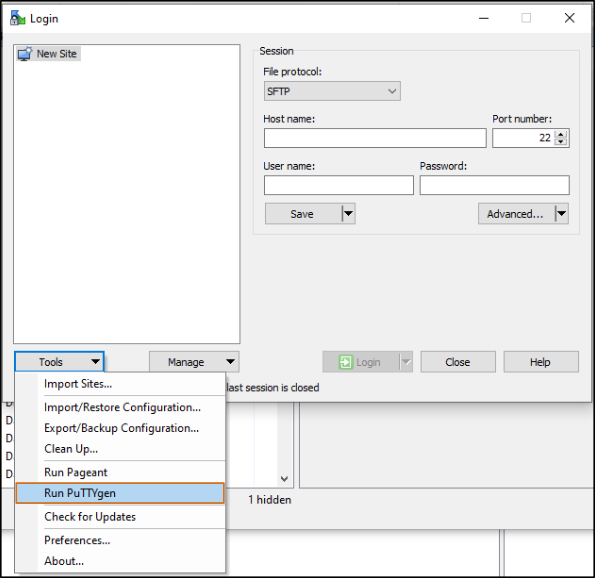
WinSCP using Tools / Run PuTTYgen
-
In PuTTYgen, the key type (RSA) and the key length in bits (minimum 2048) are set. Pressing the "Generate" button generates the new key pair.
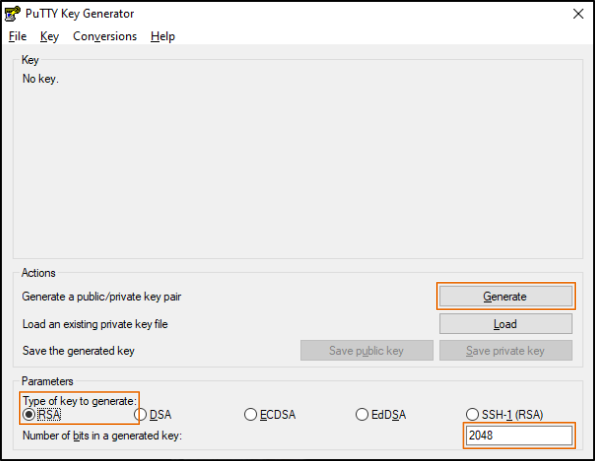
PuTTY Key Generator
-
After creating the key, you can enter a comment before saving it. A password, or "passphrase," can also be set, depending on the application. It should be noted that the passphrase must be entered on the PC every time the private key is used. Now, the private key can be saved for later use by selecting "Save private key."
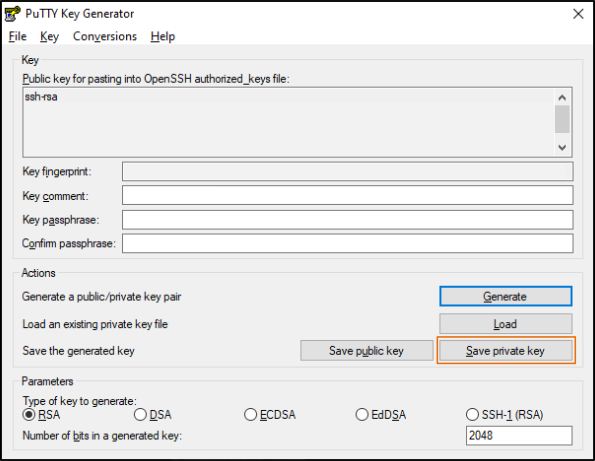
PuTTY Key Generator: Safe Private Key
-
To make this private key accessible to a device, copy the contents of the text box labeled "Public key for pasting into OpenSSH authorized_keys file" and save them in an ASCII text file named "customer.key." Ensure that the contents are not altered; they are a single long line. Note: The file created with "Save public key" cannot be used. To obtain the "public key," copy the text as described above.
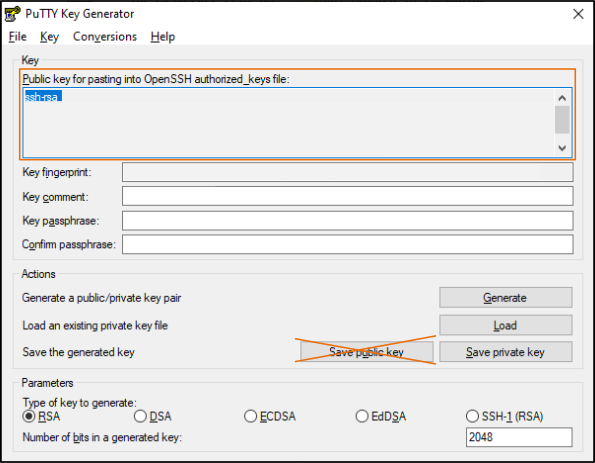
Safe Public Key
Generate a new private key in the controller
-
The "customer.key" file must be on the device's SD card in the existing "public-key" directory. For security reasons, this directory can only be accessed via SFTP, so the file must be copied to the SD card from a PC, for example.
-
The currently active private key establishes an SFTP connection to the device.
-
The "customer.key" file is now stored via SFTP in the device in the "/tmp/user_data" directory.
-
The storage process is registered by the device; as a result, the transferred file is stored and checked for correctness:
-
On the SD card, an identical file called file. key must be placed under "public-key/customer.key".
-
The file may contain only one line with an RSA key (empty lines are ignored).
-
The line with the RSA key must withstand rough validation.
-
The RSA key must be at least 2,048 bits long.
No matter what the result of the checks is: The file "/tmp/user_data/customer.key" is automatically deleted from the device.
If a check is not successful, the "/tmp/user_data"directory generates a file called "customer.key.ret" with a corresponding error message.
Possible error messages:-
unable to read "/sdcard/public-key/customer.key"
-
"/tmp/user_data/customer.key" does not match "/sdcard/public-key/customer.key"
-
RSA-key required
-
not a valid RSA-key
-
RSA-key of at least 2048 bits required
-
-
-
After successful transfer of the file "customer.key", the current SFTP connection must be disconnected and a new SFTP connection must be established using the new private keys. If this fails, it must be checked that the transferred file "customer.key" belongs to the new private key used.
-
the transferred file "customer.key" has been created and saved correctly.
-
the private key used has been saved correctly.
If all of these steps are successful, the new private key can be used for future SFTP connections to the device.
-
Information on handling
-
The new key will continue to work if the SD card is changed or deleted.
-
Via a "backup" (0x2022:40) and SD card exchange, the key can be transferred to another device.
Controller.SFTPServer: Security functionality verification
Change to the SD Card and delete the “customer.key file on the it. Then, plug the SD Card into the PLC and start it.
Start an SFTP client such as WinSCP. Try to login. If the security functionality works correctly, no connection will be , established.