Get logfiles from controller
To a limited extent, the controller records the SysLog data and can make it available via a defined path, as shown in the following image.

Get local Logfiles
-
All Logfiles are stored on the controller in a protected inaccessible area.
-
Users with access to the controller's parameter set can execute the device command to copy log files to the /tmp/lsyslog directory.
-
Users with a PLC Designer and access to the controller can retrieve these files via the Files tab.
-
If the user has an SFTP client and an SFTP key, they can access the files via SFTP.
The structure of the log files is shown in the figure before.
-
The first logfile is written without compression.
-
After reaching a file size, a new log file will be generated with .1-extension.
-
After reaching the file size again, a new log file will be generated and compressed with a .2.gz-extension.
-
After reaching the maximum number of log files, the oldest file will be dropped.
Log files with their focus and an example of content
|
Log file |
Example of content |
|---|---|
|
kern |
e.g. `mmc0: card 5048 removed` -> SD card was removed |
|
user |
e.g. `<user message>` -> User messages, generated by the FB |
|
daemon |
e.g. `check-and-mount@mmcblk0p1.service: Succeeded finished check and mount device mmcblk0p1`-> a new SD card was detected. |
|
auth |
e.g. `session opened for local user customer from [192.168.10.201] realpath”/sdcard” ` -> SFTP Session opened and path set to /sdcard |
|
authpriv |
e.g. `child connection from 192.168.10.201:63287` -> SFTP-Child connection from given IP address |
|
ntp |
Reserved for ntp-logging |
|
local0 |
e.g. `Sessioninfo: client: ‘PLC Designer 4.0.0’, host: ‘<hostname>’` -> PLC Designer logged into the Controller |
|
local1 |
Reserved for EtherCAT-Master-Debugging (only for Lenze developer) |
|
local2 |
e.g. `ViwiWin7.Server.Manager: WebGateway Server|WebGateway:WebGatewy Server started` |
Persistence of log files
This chapter describes some use cases related to the persistence of log files.
Persistence of SysLog log files
|
Use Case |
Persistence of log files |
|---|---|
|
Using the Firmware Loader for updating or downgrading the firmware of the Controller. |
The log files are retained and continue to be written. |
|
Using the Firmware Loader for copying the firmware file on the USB stick in the <USB-Stick>\firmware\active directory. Then plug the USB stick in the Controller (X61 or X62) and switch on the Controller. |
The log files are retained and continue to be written. |
|
Manually copy the firmware file on the SD card and rename the file in update.fw (only for Lenze). |
The log files are retained and continue to be written. |
|
Using the Backup & Restore Mechanisms via USB Stick for Device Exchange (using the same Controller again). |
The log files are retained and continue to be written. These log files are not included in the restore mechanisms. |
|
Using the Backup & Restore Mechanisms via USB Stick for Serial Commissioning (change the Controller). |
The log files are retained and continue to be written in both Controllers (the first Controller with the backup procedure and the second Controller with the restore procedure). These log files are not included in the restore mechanisms. |
|
Perform the software reset by pressing the reset button when switching on the Controller for 15 seconds. |
The log files are deleted and recreated when new entries are made. |
|
Using the `--factory-install` command via SSH (only for Lenze) |
The log files are deleted and recreated when new entries are made. |
Get logfiles from SysLog Server
There are a lot of different ways to setup a SysLog Server. In this example, a SysLog Server based on an Ubuntu Linux system with the functionality of the rsyslog service is described and shown in the following figure.
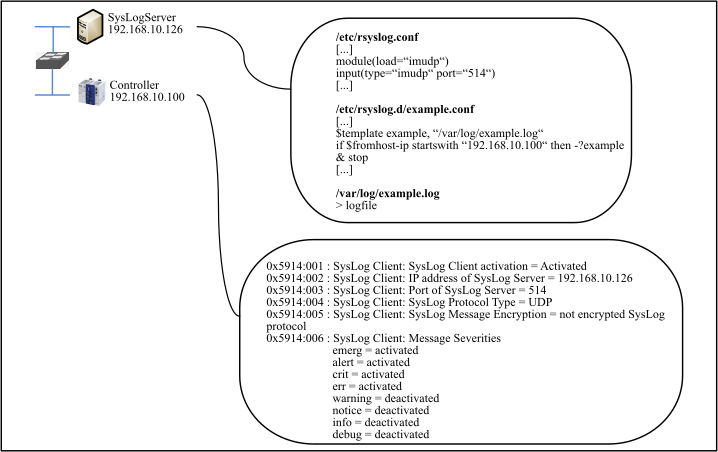
Get Lofile from SysLog Server
Set up the controller:
-
In this example, the controller has the IP address of 192.168.10.100.
-
Set the parameter 0x5914:001 to `activated` to activate the SysLog Client of the Controller.
-
Set the parameter 0x5914:002 to the IP address of the SysLog Server.
-
Set the parameter 0x5914:003 to the Port of the SysLog Server.
-
Set the parameter 0x5914:004 to the Protocol Type UDP.
-
Set the parameter 0x5914:005 to not encrypted.
-
Set the flags of parameter 0x5914:006 of the wanted severities.
Setup the SysLog Server:
-
Use the Ubuntu Linux Distribution and install the `rsyslog` service.
-
Configuration `/etc/rsyslog.conf` and activate the syslog reception via hdp/514 with the following lines:
module(load=”imudp”)
input(type=”imudp” port=”514”)
-
Generate a template file `/etc/rsyslog.d/example.conf`:
$template example, “/var/log/example.log”
if $fromhost-ip startswith “192.168.10.100” then -?example
& stop
-
Restart the Service:systemctl restart rsyslog
-
When using the Controller in this settings, the SysLog Messages will be found in the SysLog Server in the /var/log/example.log.
-
To ensure that the time stamps in the logbooks on the controller and the higher-level SysLog server match and that the logs in the SysLog server also match those of other devices in the system, it is recommended that the SysLog server, the controller and all other devices that use this service be connected to a central time source via NTP and synchronized.